Social sites like YouTube are highly entertaining. Like other sites, users need to sign in before they can browse or stream content. Recently, some users have complained about being unable to log in to YouTube. While this frustrating issue is common, it can be resolved with a few quick fixes to resolve account sign-in problems.
Fixes the issue of being unable to log in to YouTube on Windows 10/11.
Let's look at some common causes:
- Problems with the device's internet connection.
- The VPN on your device is interfering with YouTube.
- An older version of your browser.
- The email address or password you entered is incorrect.
- Your browser's cache and cookies are corrupted.
YouTube login issues may recur, but they can be easily resolved using several proven methods.
Method 1: Wait for the YouTube server to be uptime.
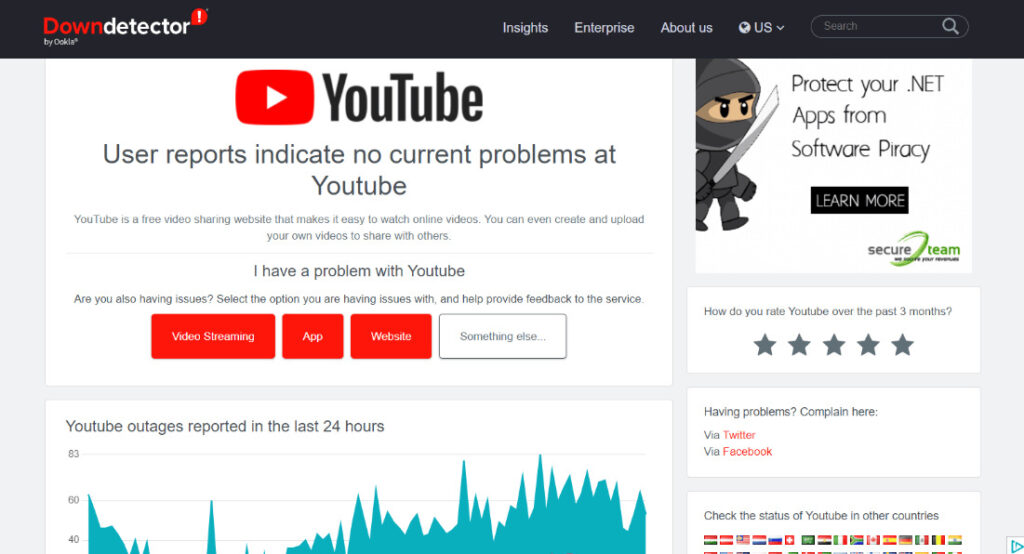
If you're experiencing problems with YouTube, the first thing you should do is check if the servers are working properly. If the problem recurs, checking the server status is the best course of action. It's possible that YouTube's servers are down, which could be causing login issues on the platform. You can use a third-party application like DownDetector to check the servers and get information about the website's current status and any issues over the past 24 hours.
Method 2: Use the correct username and password
If you make a typo when entering your email address or password, you may encounter an error preventing you from signing in to YouTube. In such cases, you need to carefully check the credentials you enter when logging into your YouTube account. It is also important to use the correct language and a complete email address.
Method 3: Restart your device
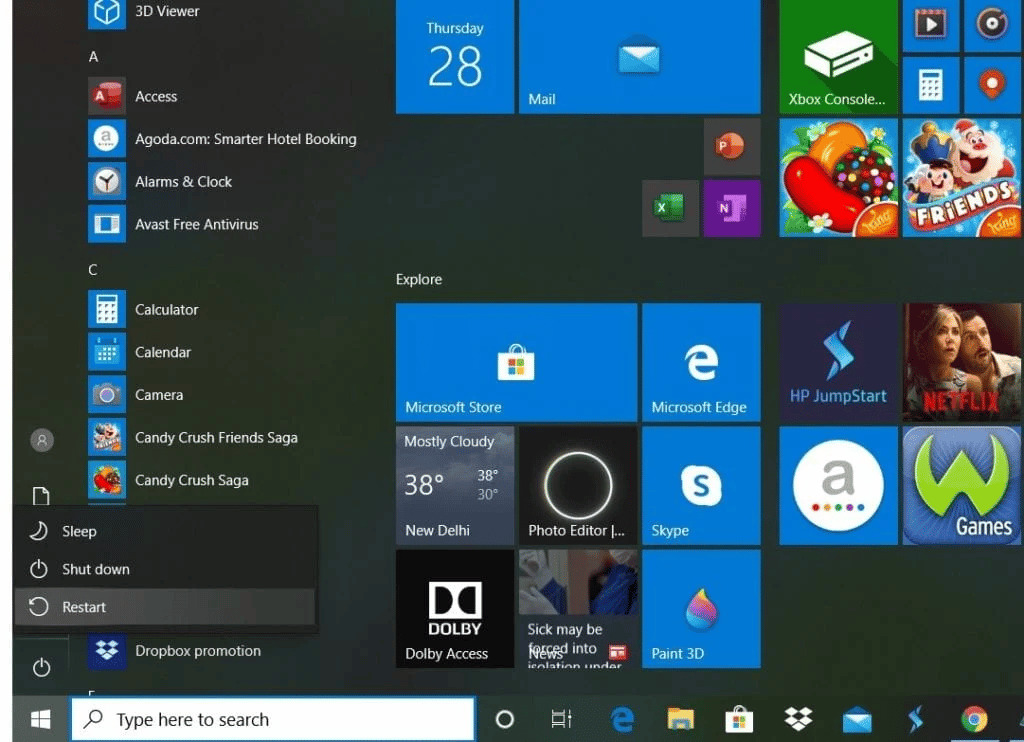
You may need to restart the device you are using YouTube on to eliminate any minor glitches or bugs in the operating system. If you are using YouTube on a Windows PC, there are several ways to restart your device.
Method 4: Reload the webpage
If restarting your device doesn't solve the problem, and you're still unable to log in to YouTube, you can try reloading the webpage you're using. Desktop users often stream YouTube in their preferred browser, which can sometimes cause sites to not load correctly. Therefore, a simple refresh can change the scenario you're in and help you access your YouTube account.
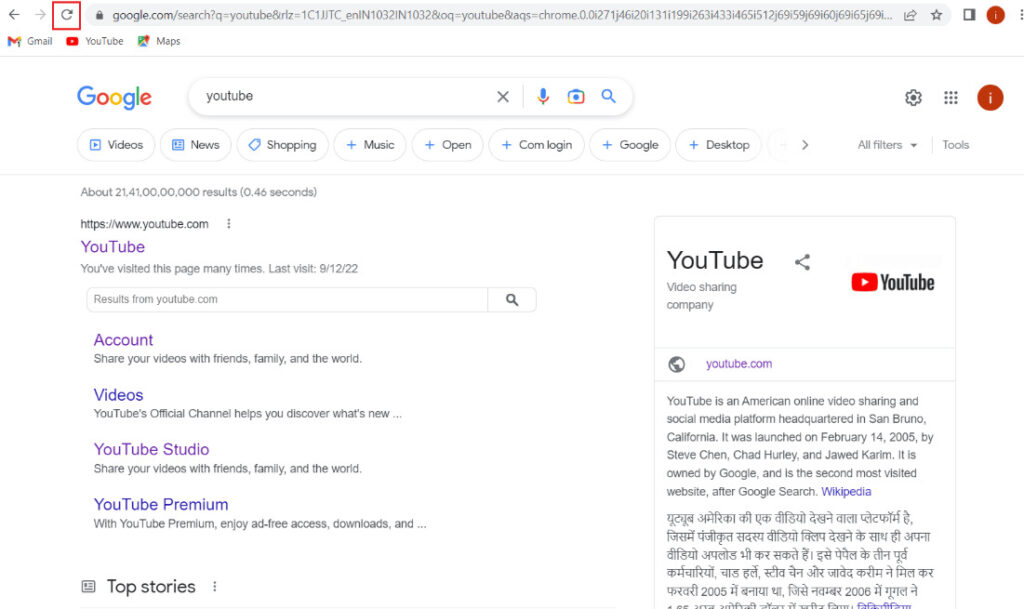
Step 1: To reload the webpage, press the F5 key on your keyboard.
Step 2: You can also click the refresh icon next to the RL box in your browser.
Method 5: Reset your password
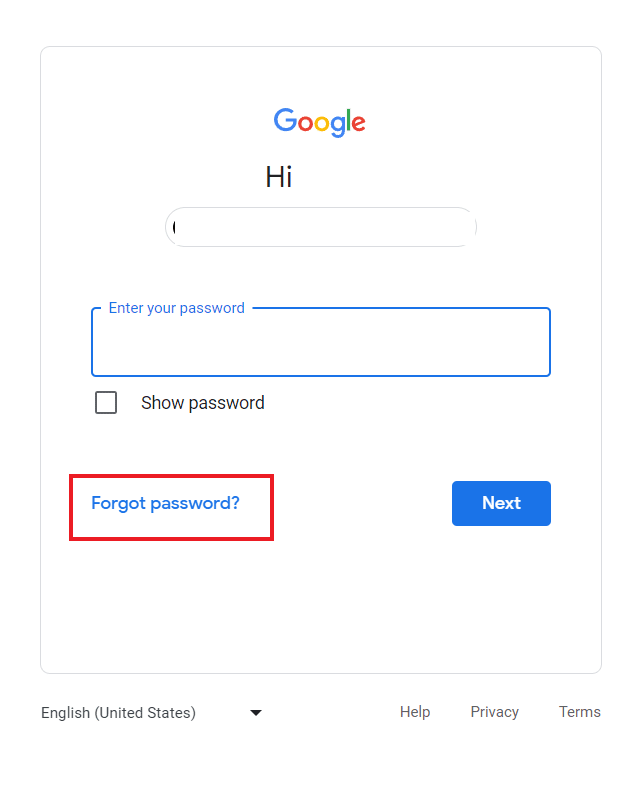
YouTube account Reset password This also helped many users resolve YouTube login errors. Creating a new password is easy and doesn't require much time or effort. You can create a strong password that includes special characters, symbols, and numbers. To further enhance security, Google Authenticator You can also activate it. Google Authenticator keeps your account secure by sending an authentication code each time you sign in.
Method 6: Disable the VPN
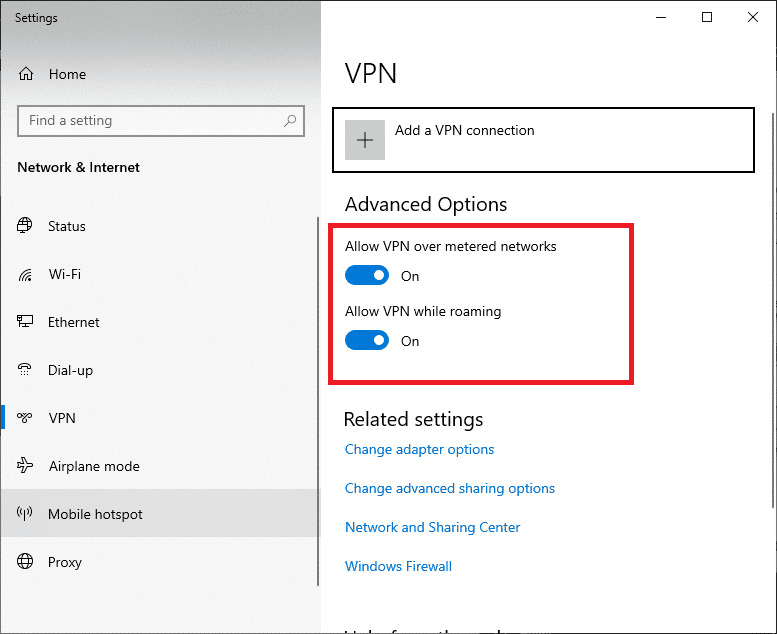
A VPN is an excellent tool for protecting your internet connection. It protects your connection from malicious activity. However, the same VPN can also be the reason why you can't access YouTube. A VPN on your system may interfere with connections to certain websites and prevent you from logging into your YouTube account. Therefore, try disabling your VPN to see if that resolves the issue.
Method 7: Refresh your browser
Updating the browser you're using to access YouTube may resolve issues with signing in. An outdated browser can cause compatibility problems and login issues. Therefore, it's important to keep your browser up to date. Below is an example of how to update your browser (using the Google Chrome browser):
Note: The following steps were performed using the Google Chrome browser.
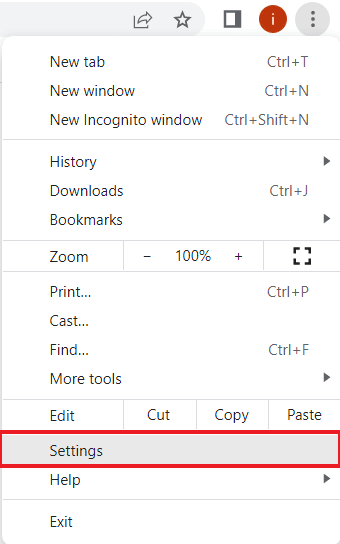
Step 1: Launch Google Chrome on your PC and click the three-dot icon in the upper right corner.
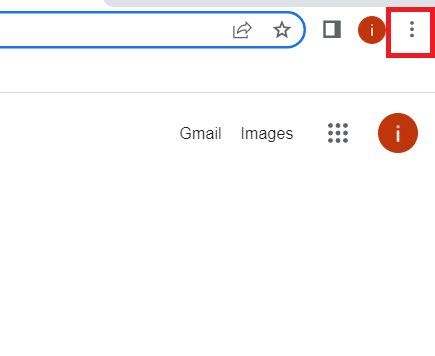
Step 2: Select "Settings" from the menu list.
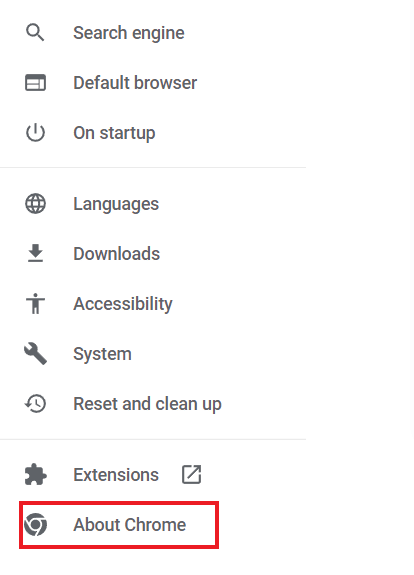
Step 3: Next, go to "Settings" and then "About Google Chrome" and click on it from the side panel.
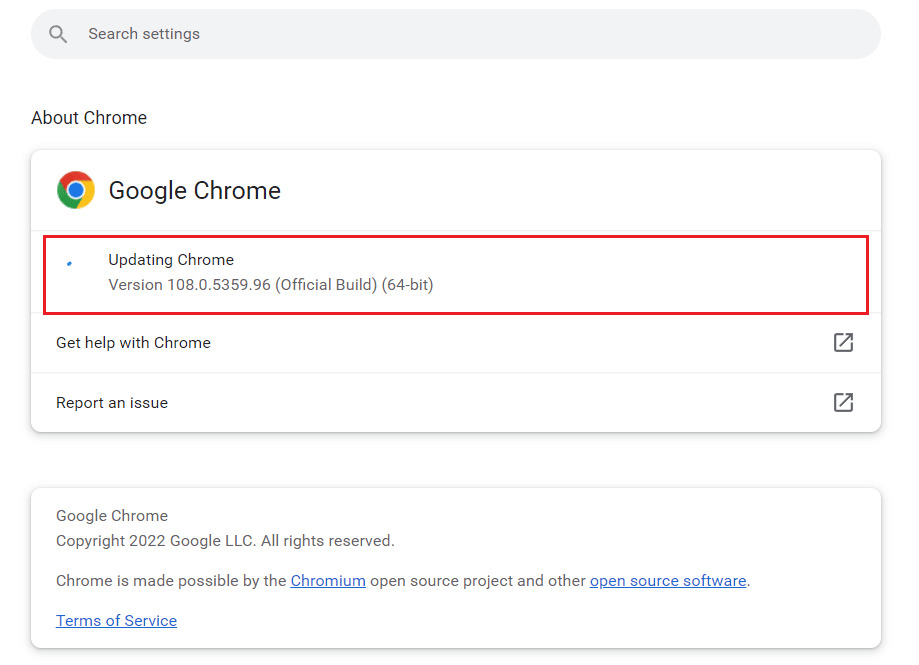
Step 4: Click "Check for Updates" to download any pending updates.
Method 8: Try a different browser
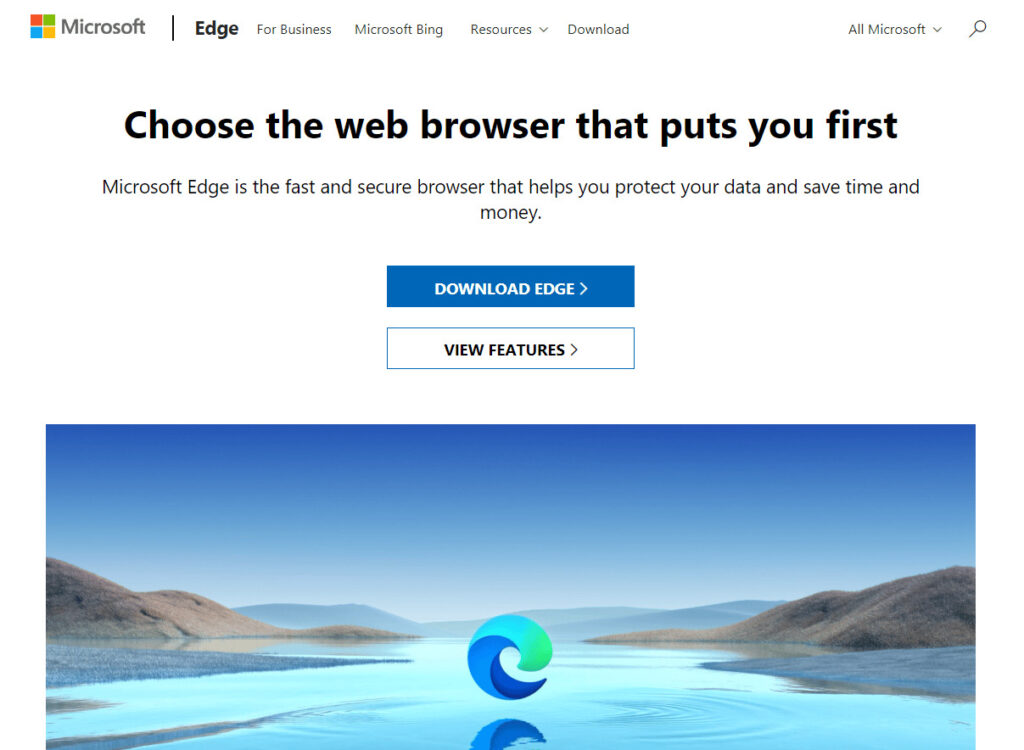
If refreshing your browser still doesn't allow you to access YouTube with your account, try accessing YouTube using a different browser. If you're currently using Google Chrome, try switching to other options such as Opera or Microsoft Edge. This method can also help determine if the browser you're using is causing the login problem.
Method 9: Clear your browser's cache.
Each browser stores temporary data as a cache to optimize the browsing experience for the user. However, if the same cache accumulates and becomes corrupted, it can lead to errors that prevent you from logging into YouTube. Therefore, it is necessary to delete this accumulated data from your browser.
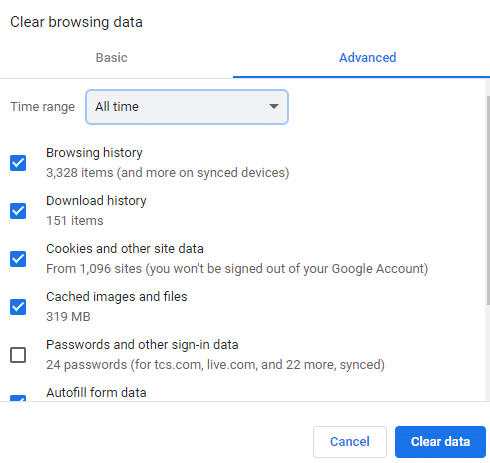
Method 10: Enable YouTube cookies
Many websites ask for permission to use cookies when you try to access them. Enabling YouTube cookies can help resolve sign-in issues on the platform. If you are using Google Chrome as your browser, please follow these steps to enable YouTube cookies.
Step 1: Open the settings from the three-dot icon in Google Chrome.
Step 2: Select "Privacy and Security" from the left panel.
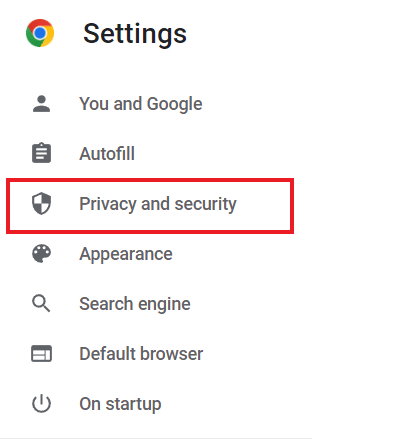
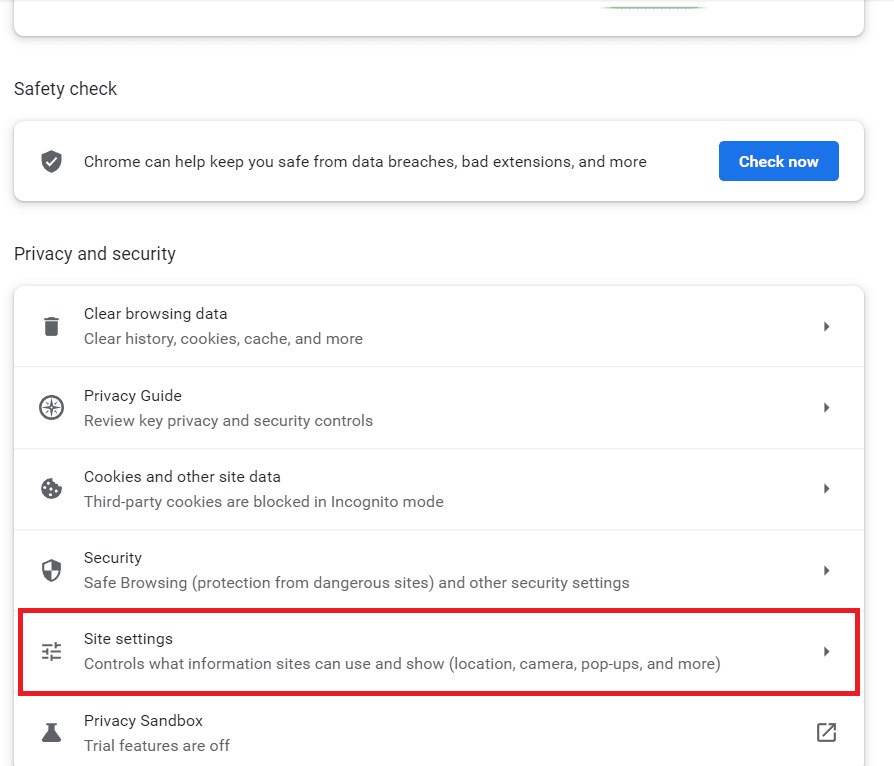
Step 3: Click "Site Settings".
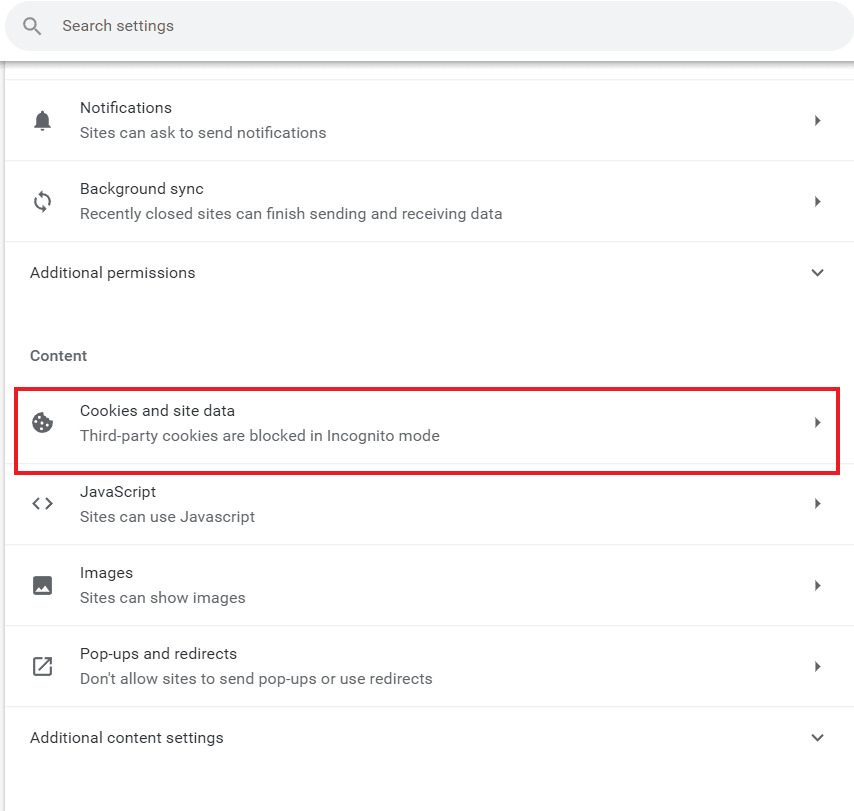
Step 4: Next, scroll down to the content section and click on "Cookies and site data".
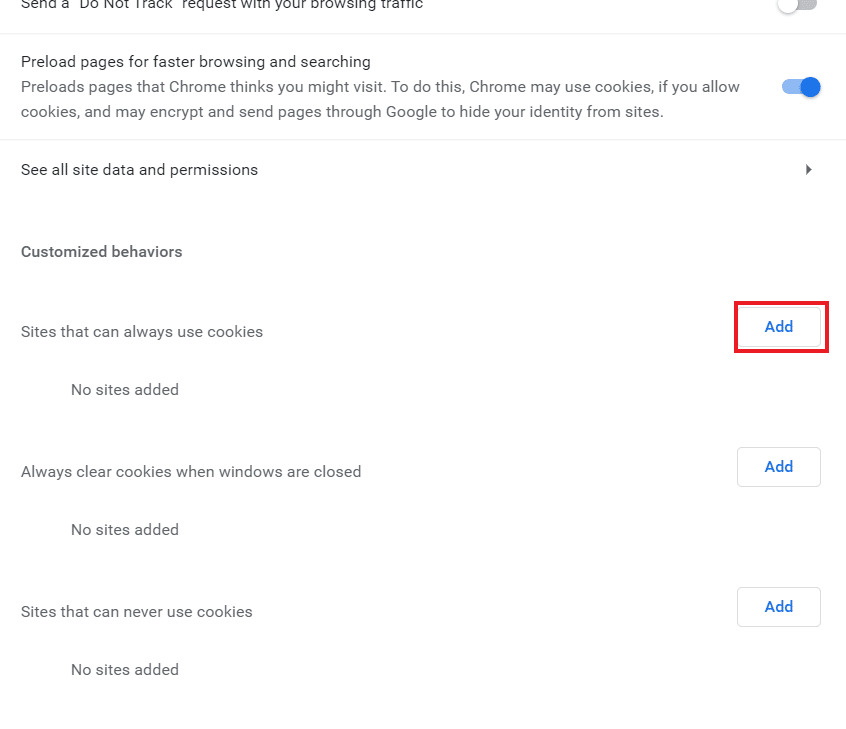
Step 5: Go to "Sites that always allow cookies" and click [Add].
Step 6: Enter https://[*.]www.youtube.com there and click [Add].
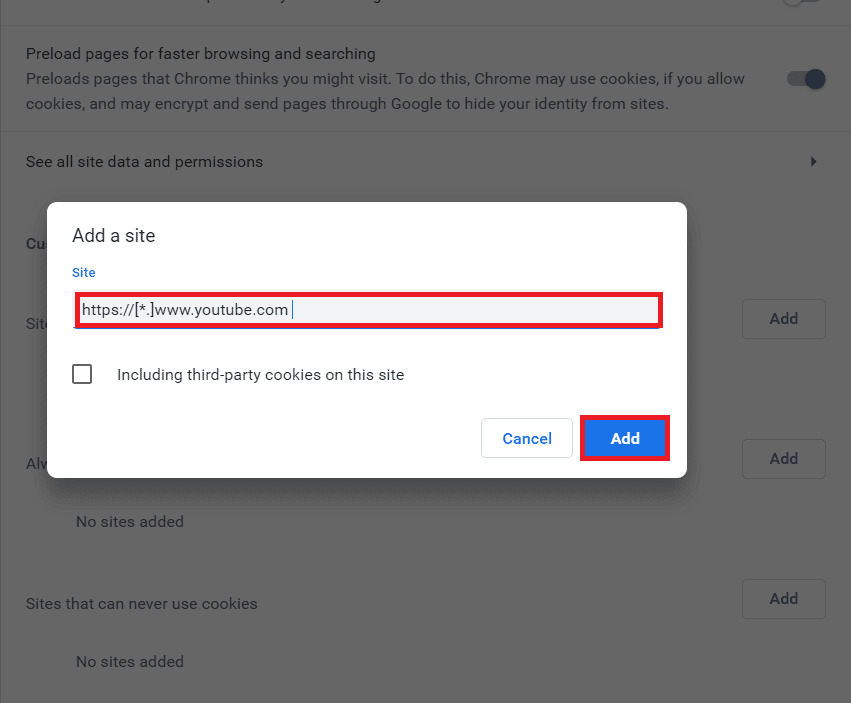
Step 7: Now, refresh the tab and try logging back into your YouTube account.
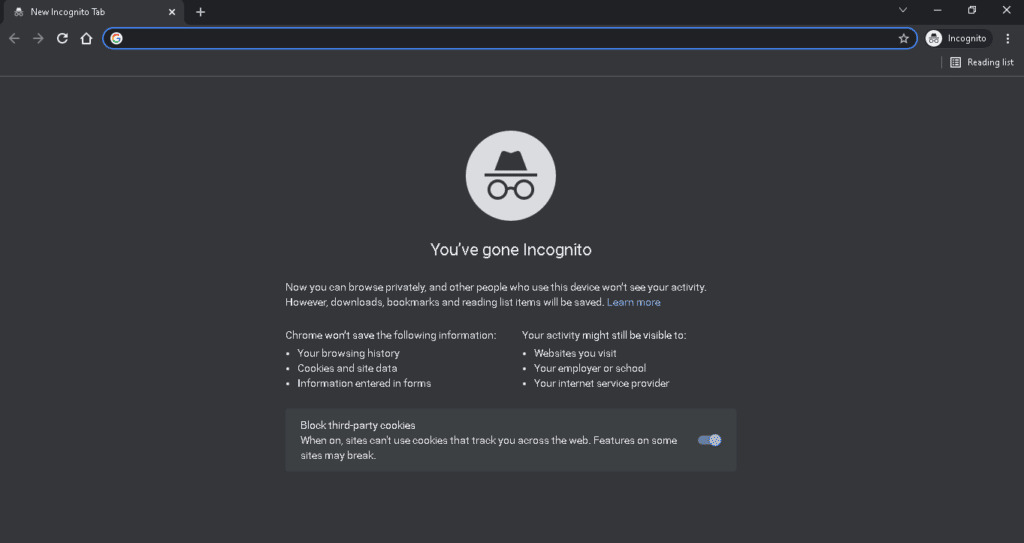
Method 11: Use Incognito Mode
Your browser's Incognito Mode helps protect your privacy and allows you to browse safely. By blocking cookies and hiding your search history, you can browse freely. If you're having trouble logging into YouTube, using Incognito Mode is the best solution.
Method 12: Reset network settings
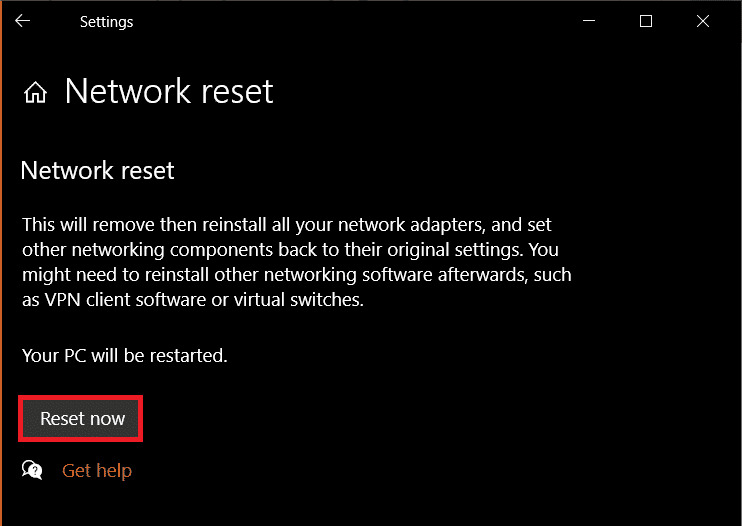
If browser-related solutions haven't worked and you're still unable to log in to YouTube, try resetting your PC's network settings. Resetting these settings has been shown to resolve many connection issues, and in this case, you should be able to log in to your YouTube account. For instructions on how to reset your network settings in Windows 10, please read our guide to troubleshooting network problems.
Method 13: Switch to a new Google account
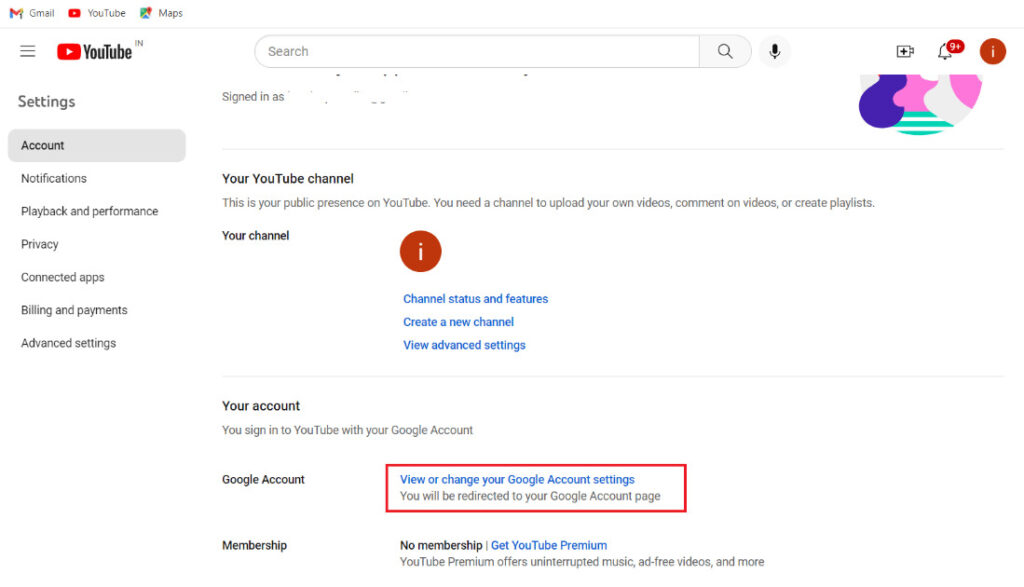
If you can't access YouTube with your old account, signing in will be difficult. YouTube's policies consider any inactive account or one created before 2009 to be outdated. To resolve this, you'll need to switch to a new Google account. To do this, visit your YouTube account page and follow the instructions.
Step 1: Opening the link above will redirect you to your YouTube account page.
Step 2: Sign in using your Gmail ID.
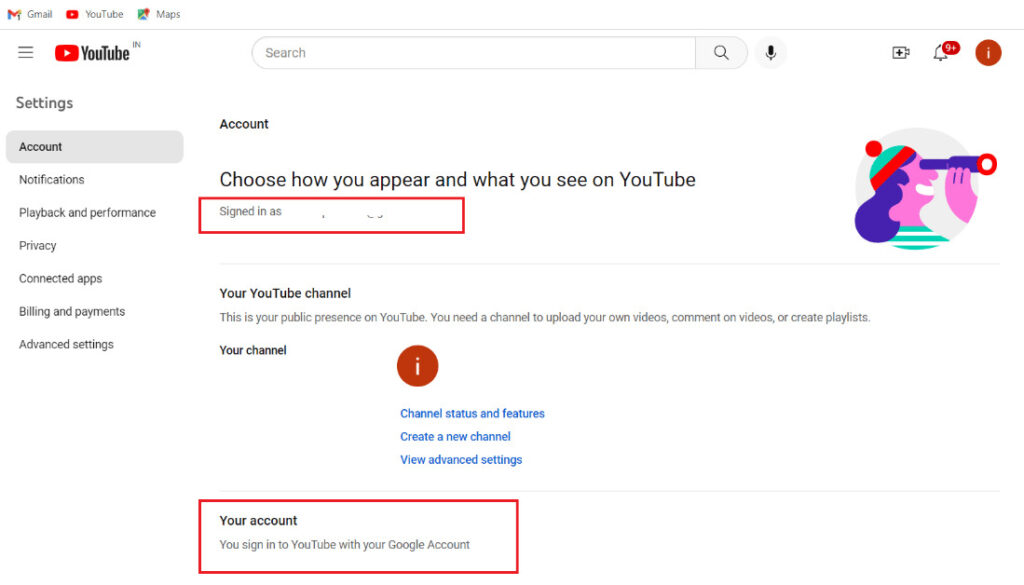
Step 3: If you are already signed in, "View or change your Google account settings" Click to make changes and add a new account.
Method 14: Contact YouTube Help
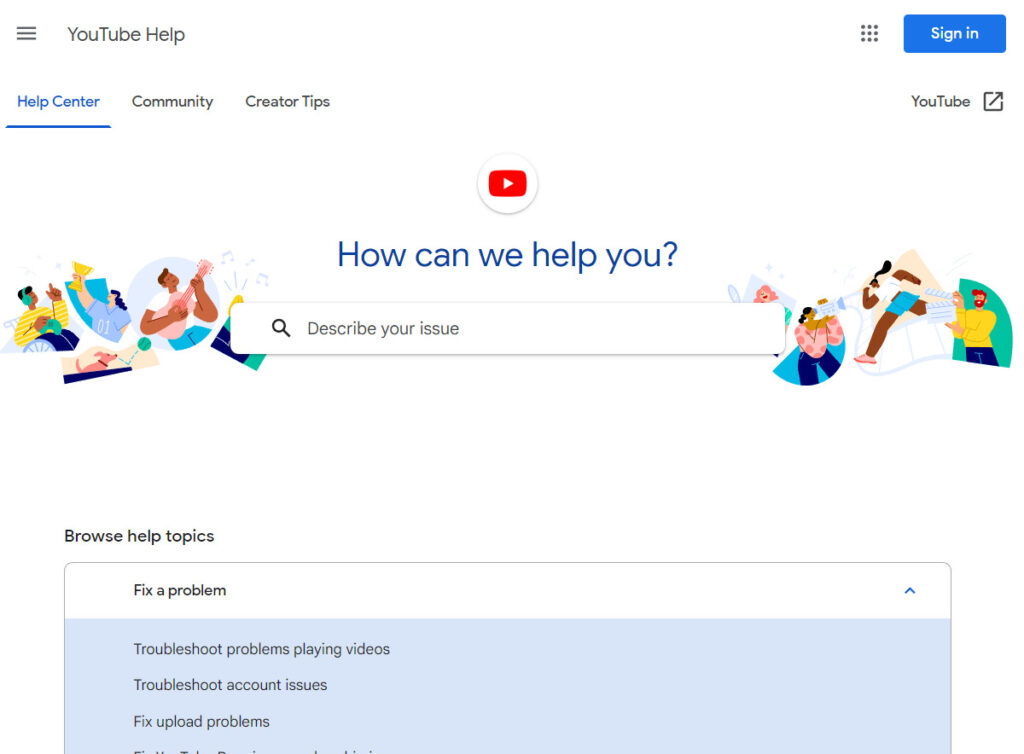
Finally, if none of the above methods help and you are still experiencing problems logging into your YouTube account, you should contact YouTube Help, which provides expert consultation. After contacting YouTube Help, a ticket will be issued, and the issue should be resolved within 2-5 business days.
We hope this article, which explains the causes and solutions to the problem of not being able to log in to YouTube, is helpful. If you have any further questions or suggestions, please leave a comment.