Finding good music for your playlists requires effort, patience, and time. If you've created playlists with your favorite songs on Spotify and want to switch to YouTube Music, you might want to bring those precious tracks with you.
While YouTube Music and Spotify don't allow direct transfer of playlists on their platforms, there are several ways to import Spotify playlists into YouTube Music using third-party tools.
Why switch from Spotify to YouTube Music?
Both Spotify and YouTube Music offer over 100 million tracks, so there's a good chance your favorite songs and artists are available on both streaming services. However, each service has some limitations when using their free plans.
Spotify is one of the best YouTube Music alternatives, but its free plan has several limitations. These include limited use of shuffle mode when playing songs from playlists; you can only play your own selected songs if they are included in your personal Daily Mix; and you are limited to skipping up to six songs per hour. You also cannot download songs for offline playback, and the audio quality is limited to 160kbps.
YouTube Music has no such restrictions. You can play any song you like and skip any songs you don't want as many times as you want. However, the biggest drawback of YouTube Music is that it won't play in the background or when your phone is locked. Like Spotify, you can't download songs to listen offline. On the other hand, YouTube Music streams songs at up to 256Kbps, resulting in better sound quality.
YouTube Music is one of the best Spotify alternatives. And, if you're using the free plan, it has the advantages of high-quality sound and the ability to skip tracks as needed. Therefore, switching from Spotify to YouTube Music is the right choice.
How to transfer Spotify playlists to YouTube Music on your iPhone
If you want to transfer your Spotify playlists to YouTube Music on your iPhone, SongShift is the perfect solution. It can transfer playlists from over 12 streaming services.
SongShift is designed for iPad, but it works perfectly fine on iPhones as well. You can try the process using the free plan, but you'll need a premium plan to add multiple source platforms or transfer playlists in bulk.
Step 1: Download and open the SongShift app on your iPhone.
Step 2: From Spotify Select this option and log in to your account.
Step 3: Next, from the list YouTube Select this option and log in to your Google account.
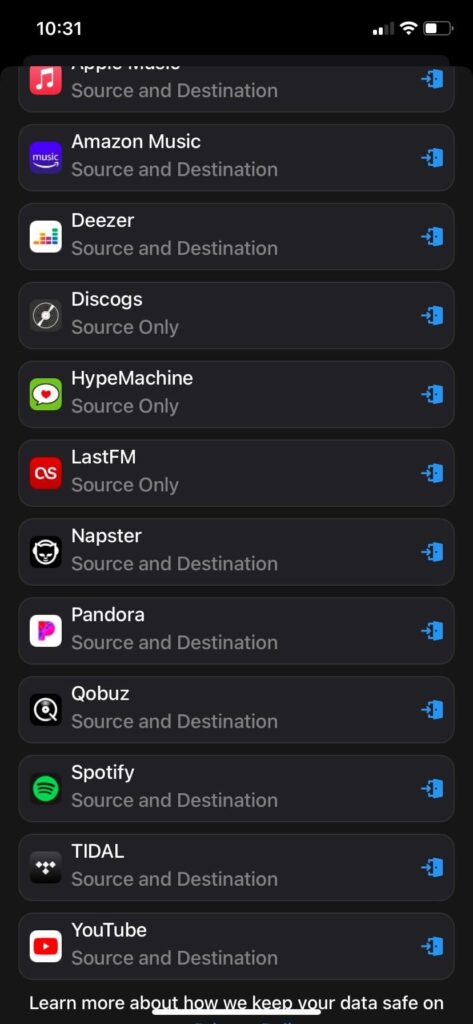
Step 4: Next, tap the Continue button, 開始 I will.

Step 5: The plus sign in the upper right (+) Aiko Select n.
Step 6: Spotify > Playlists Tap > Select the playlist to transfer.
Step 7: confirmation Tap the button.

Step 8: YouTube Select this as the recipient.
Step 9: Shift 開始 Press the button to proceed.

The playlist migration process will begin. After the process is complete, you can tap the review button to check if all songs have been migrated from Spotify to YouTube Music.
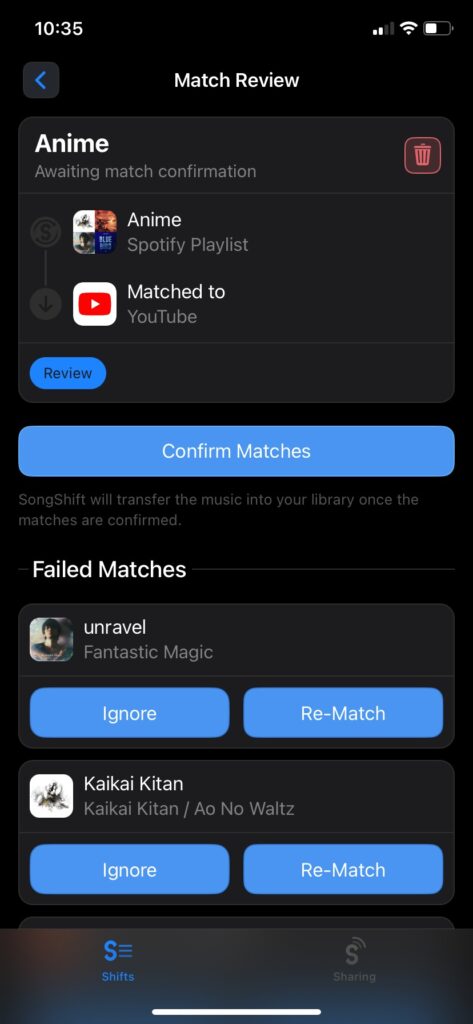
Once completed, you can enjoy your favorite Spotify playlists on YouTube Music on your iPhone.
How to transfer Spotify playlists to YouTube Music on Android
If you're using an Android device, you can use Soundiiz to migrate your Spotify playlists to YouTube Music. Soundiiz is available for free download from the Google Play Store. The free version allows you to migrate playlists, artists, and tracks from Spotify to YouTube Music, but you can only select one playlist at a time. You can also move up to 200 songs at a time, but the migration process is smooth and fast.
Step 1: Install and launch Soundiiz on your phone and create an account. You also have the option to log in with your Spotify account.
Step 2: If you did not use your Spotify account when logging into the platform, "Let's get started." Tap the button.

Step 3: Spotify account and YouTube Music Connect it with your Google account.
Step 4: Tap the three-line icon in the upper left corner.

Step 5: From the menu "transfer" Tap the option.
Step 6: As a source platform Spotify , as destination platform YouTube Music Select one.

Step 7: 「開始」 Tap the button.
Step 8: "Playlist" Select, Edit button (pencil icon) Tap it.

Step 9: Select the playlist you want to migrate, "Confirm and continue" Tap it.
Step 10: "Confirm your selection" Tap the button to configure keep Tap the button.
All-in-one video converter
Download videos with one click from YouTube, Facebook, Twitter, Instagram, NicoNico, TikTok, Reddit, Netflix, and other video sites. Lossless music converter compatible with Apple Music, Spotify, YouTube Music, SoundCloud, and more. Try it now!

Step 11: You can select/deselect songs from the playlist you want to migrate. Once finished, "confirmation" Tap the button.
Step 12: "Transfer initiated!" Tap the button.
The playlist transfer will begin, and the estimated time until the process is complete will be displayed. Once the transfer is complete, the app will indicate that the conversion was successful and show any errors!

How to import Spotify playlists to YouTube Music on the web
Now you can easily transfer Spotify playlists to YouTube Music on Android and iPhone. But what if you want to move multiple playlists from Spotify to YouTube Music for free? You don't need to purchase a premium plan on any platform for this. To transfer playlists in batches, use a browser on your computer or mobile phone. Music Converter You can use it. The procedure is as follows:
Step 1: Open Music Converter in your browser.
Step 2: "Let's begin." Click the button.
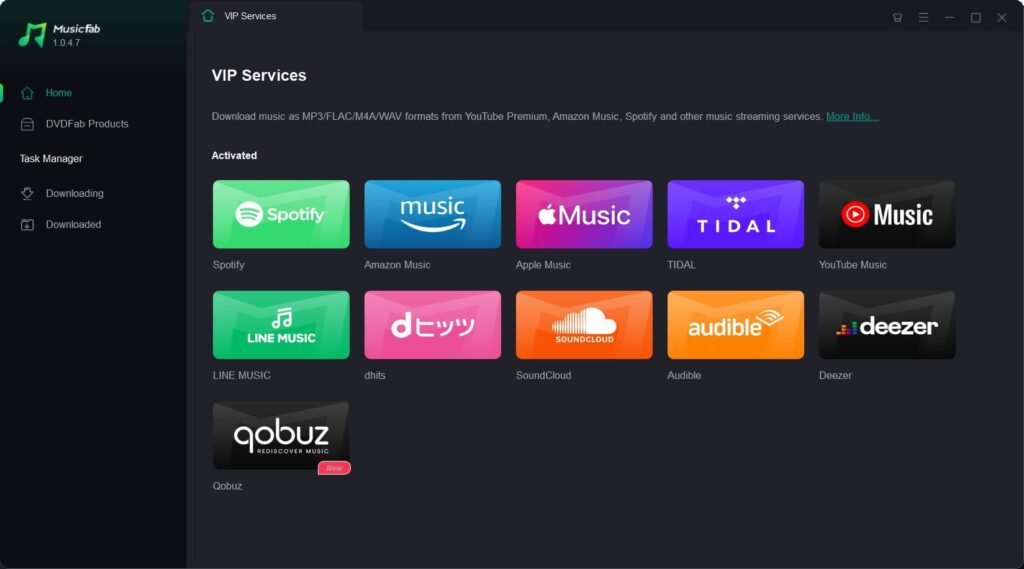
Step 3: As a source platform Spotify Select one.
Step 4: Spotify account Import the playlist from or paste the playlist URL. "Loading from URL" Click the button.
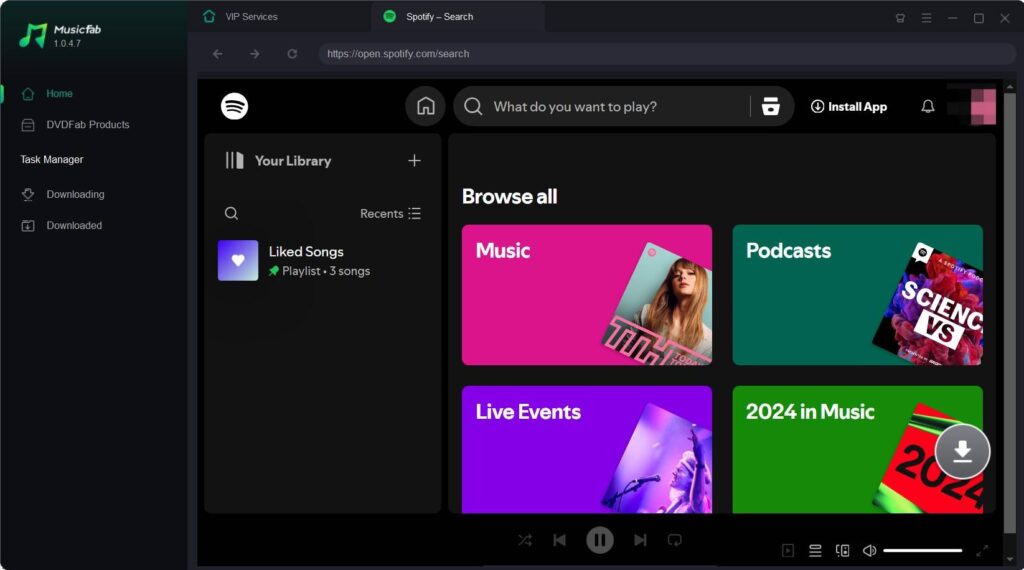
Step 5: Once you have selected all the playlists you want to transfer, "Select recipient" Click the button.
Step 6: As the destination platform YouTube Music Select one.
Step 7: "Transfer started" Press the button.
That's all. The playlist will be copied from Spotify to YouTube Music. Once the transfer is complete, you will see which songs have been moved and which are missing.
How to transfer your favorite songs from Spotify to YouTube Music
While the tools mentioned above allow you to transfer Spotify playlists to YouTube Music, you might also want to move your favorite songs from Spotify to YouTube Music. To do this, you'll need to install the FreeYourMusic app on your device. This tool is available for Windows, Linux, macOS, Android, and iOS.
With the free plan, you can transfer your favorite songs from Spotify to YouTube Music, but there's a limit of 300 songs.
Step 1: On your device
FreeYourMusic
Launch the app.
Step 2: Select Spotify as the source platform,
Spotify account
Log in.

Step 3: Next, select YouTube Music as your destination platform and log in to your Google account.
Step 4: From
"nice!"
Select the song you want to play.

Step 5: "Transfer started" Press the button.

Once the transfer process is complete,
[Library] > [Highly Rated Songs]
You can go there to see all your favorited songs on YouTube Music. Besides your favorited songs, you can also move multiple playlists from Spotify to YouTube Music at once. Now you can enjoy all the songs in your Spotify library on YouTube Music.
Transfer your favorite songs
Once you understand the services described in this article, you won't need to recreate your Spotify playlists on YouTube Music. You can easily move songs from your Spotify playlists to YouTube Music without any hassle.
FAQ
1. How do I export my Spotify playlists?
A. Music Converter You can export your Spotify playlists to other music streaming platforms using third-party tools such as Soundiiz, FreeYourMusic, and SongShift.
2. Is YouTube Music better than Spotify?
A. If you're using the free plan, YouTube Music offers a better music streaming experience than Spotify. However, if you're planning on getting a premium subscription, Spotify is the better choice than YouTube Music.
3. What is the best service for transferring playlists between music streaming sites?
A. Music Converter is the best service for transferring playlists between music streaming sites for free.