


Snapchat is excellent at protecting privacy, but it allows you and the recipient to save messages. This can be a major issue, especially when sharing sensitive or private content on the platform.
Depending on user settings, Snapchat messages typically disappear within a certain time frame after being read or within 24 hours. Therefore, if a message remains after this time, it has been saved and its background should be gray rather than solid white.
Furthermore, once a message is saved, neither party can delete it. It can only be deleted if neither the sender nor the recipient has saved it. Therefore, if privacy is a priority, you should consider deleting all your saved messages on Snapchat. But is it possible to delete all your saved messages on Snapchat at once?
Can I delete all saved messages on Snapchat at once?
Unfortunately, there is no way to delete multiple saved Snapchat messages at once. You can only delete them one by one. Also, there are no third-party apps or services that can do this.
The only solution is to set Snapchat messages and Snaps to be automatically deleted immediately after viewing or within 24 hours. However, this only applies to future chats and Snaps you send and receive on the platform. This also applies if you want to send old photos as new Snaps.
If someone sends you a Snap that can only be viewed for a few seconds (10 seconds or less), you cannot save it. However, this only applies to Snaps, not messages.
How to delete saved messages in Snapchat
When you save a message in Snapchat, the background of the saved message turns gray. This makes it easy for both parties in the conversation to see that the message has been saved. Deleting saved messages is also easy in Snapchat, but you need to open the conversation first.
1. Open the conversation in Snapchat with the person whose saved messages you want to delete.
2. Press and hold the saved message.
3. "Unsave in chat" Tap the button.
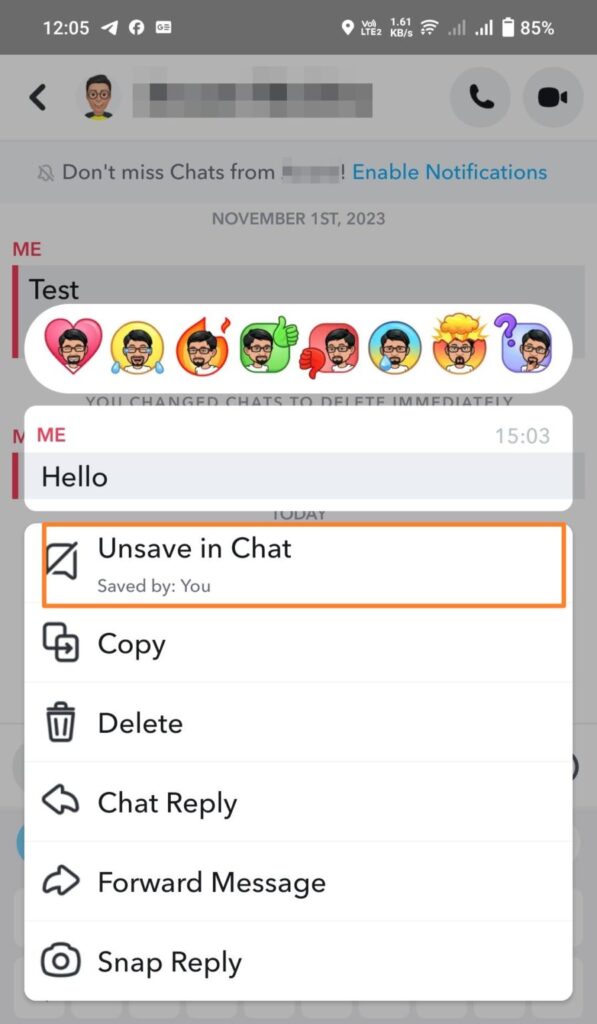
How to remove unwanted Snapchat conversations from your feed
Want to quickly get rid of the clutter in your Snapchat inbox? You can do this by deleting all conversations from your inbox.
Deleting a conversation on Snapchat does not delete saved messages. It simply removes the conversation from your feed. Saved messages and snaps will reappear if you exchange more chat messages and snaps with the same person.
However, if you have a lot of conversations you don't want to show up in your feed, this method is great for organizing your Snapchat inbox.
1. Open Snapchat on your mobile phone.
2. chat Tap the icon.
3. Three-item menu Tap, "Flyout Menu" Open it.
4. "Chat management" Select one.
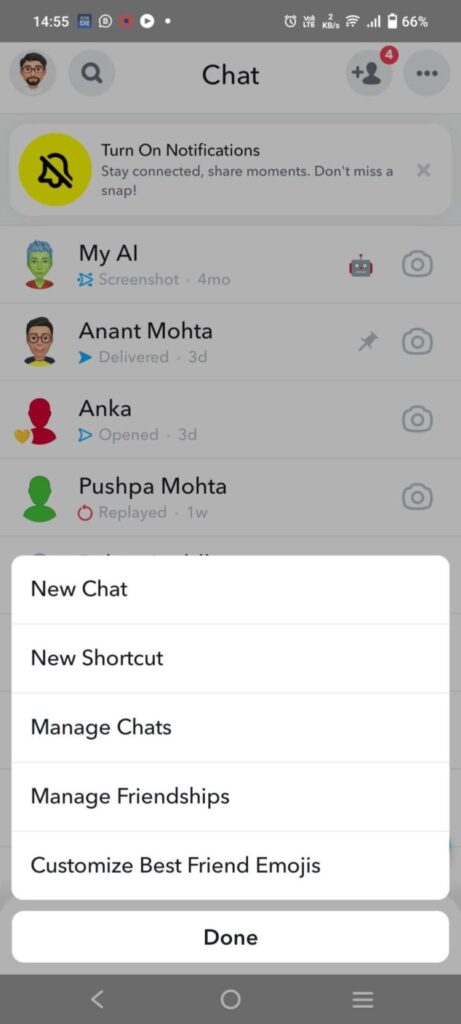
5. Next to the profile Tap the close icon located there.
6. "Clear" Press the button.
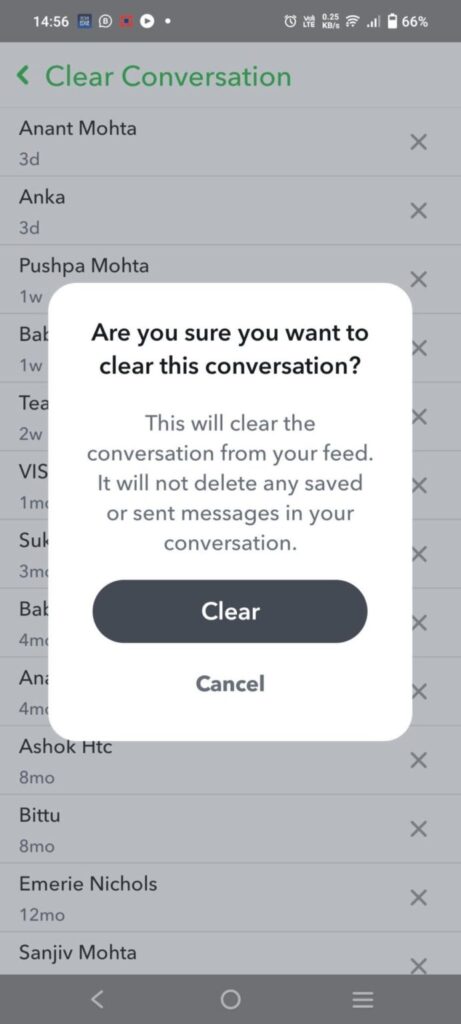
To check if the conversation has disappeared, restart Snapchat and go to your inbox. There should be no trace of the thread anywhere.
結論
It's inconvenient that you can't delete multiple Snapchat conversations at once, especially if messages are saved. Unfortunately, it's unlikely that Snapchat will change its stance anytime soon.
FAQ
Q. Can I delete my Snapchat account to delete saved messages?
A. Of course, if you completely delete your account, your messages will be deleted. However, other users' messages will not be deleted. Your profile will no longer exist, but the app will still display what you have sent.
Q. If I unfriend someone on Snapchat, are their messages automatically deleted?
A. No. When you unfriend someone on Snapchat, the conversation between you and that person disappears on your end, but it will still be visible to other users.
Q. If I delete a conversation on Snapchat, will the entire conversation streak also be deleted?
A. Yes. Clearing a conversation on Snapchat resets your consecutive chat streak with that person to zero.