YouTube makes it easy to stream content from your favorite creators, but sometimes you might want to save videos for personal use. Or perhaps you're building a video collection of your favorite artists. In either case, YouTube makes it easy to download videos for offline viewing. However, you can't save videos to cloud storage. Fortunately, there's a way to save YouTube videos directly to Google Drive. Follow this guide!
Can I download YouTube videos to Google Drive?
There is no way to directly download YouTube videos to Google Drive. While it is possible to download and play videos offline using the official YouTube mobile app, you cannot play videos saved from other apps. Furthermore, Google does not provide a native way to save YouTube videos to Google Drive.
Fortunately, there are several workarounds. The steps differ depending on whether you're using a PC or mobile device, but they are relatively simple.
How to download YouTube videos to Google Drive on your PC
The only way to download YouTube videos to Google Drive on your PC is to change the download location before starting the download. However, changing the download location means that everything you download from the web will be saved to Google Drive. Therefore, if you don't intend to use up all of your Google Drive storage space with downloaded files, you should change the download location on your PC after downloading the YouTube video to Drive.
However, to avoid the hassle of repeatedly changing the download location, you can download YouTube videos and manually upload them to Google Drive when you want to save them to cloud storage. If you still want to download YouTube videos to Google Drive, you can follow the two-step process below.
1. Change the download save location.
If you have the Google Drive app installed on your PC, change your browser's default download location to the Drive folder. This will automatically back up all your downloads, including YouTube videos, to Google's cloud storage.
- Google Drive app Download and install the software, then log in with your Google account.
- Once the initial setup is complete, a Google Drive folder will be created on your PC.
- Open Google Chrome or your preferred browser.
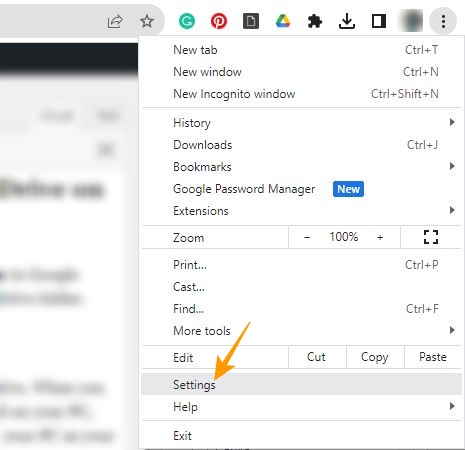
- Click the three vertical dots in the upper right corner.
- From the pop-up menu "setting" Select one.
- From the settings menu on the left "download" Select one.
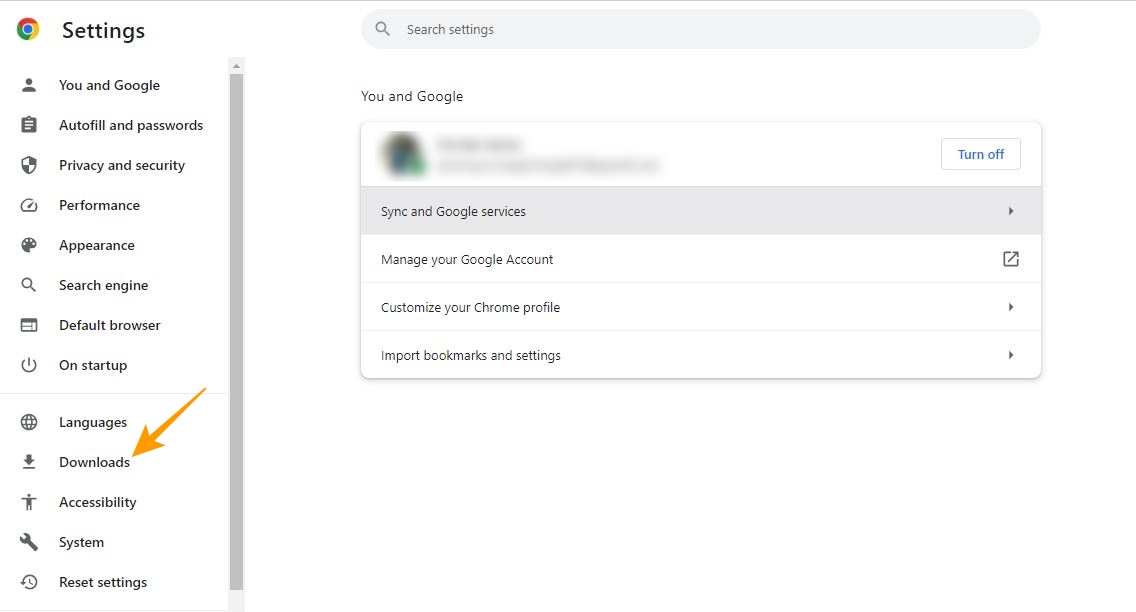
- Next page Change Click to change the download location.
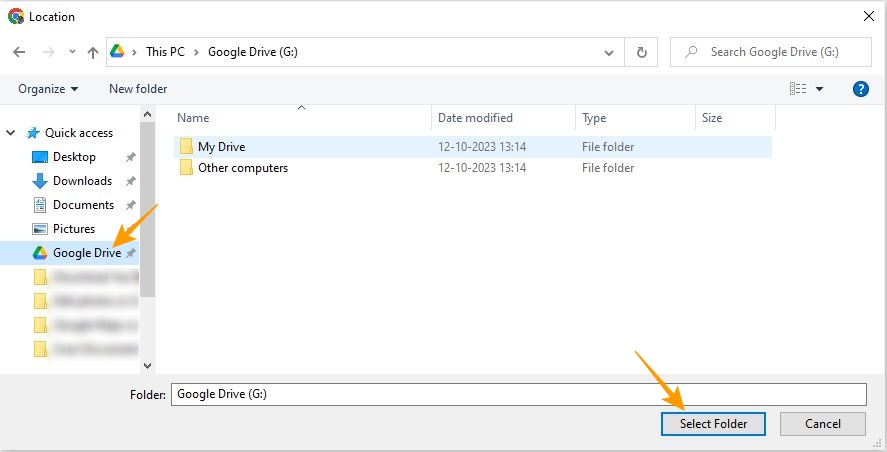
- "Quick Access" From section Google Drive(G:) Select a folder and change the download location. Select folder Click the button.
2. Download YouTube videos directly to Google Drive.
If you change the download location, you can download YouTube videos to Google Drive. However, downloading YouTube videos from unofficial sources carries privacy risks and your data could be leaked to the dark web.
The following are the steps to download YouTube videos to Google Drive on your PC:
- Access YouTube using your web browser.
- Play the video you want to download from YouTube.
- Click the address bar, Ctrl+A key Press to select the video link, then Ctrl+C key Press to copy the video URL.
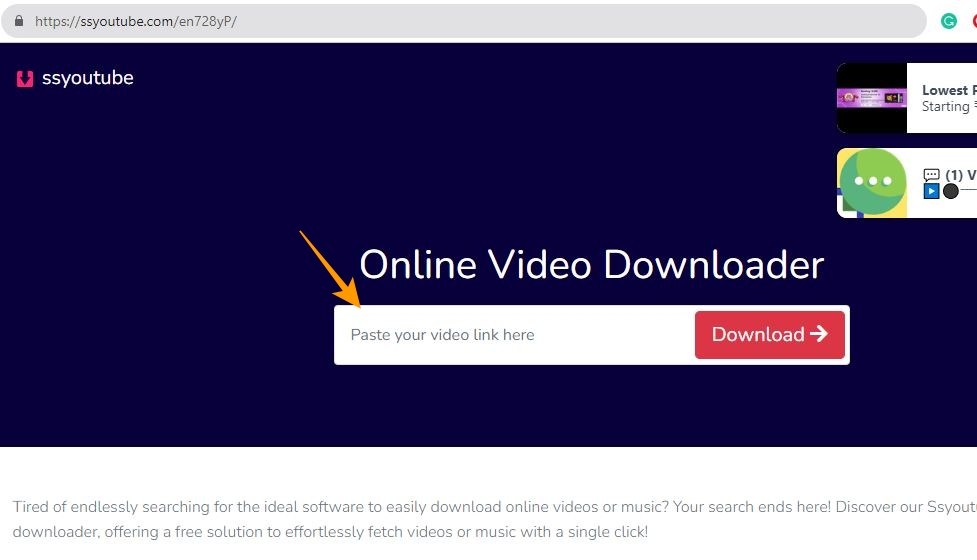
- Access SS YouTube using your web browser.
- Copy the link "Please paste the video link here." Paste the video into the field and click download to save it directly to Google Drive.
How to manually download YouTube videos and save them to Google Drive on Android
The only way to save YouTube videos to Google Drive on an Android phone is to download the videos and then manually upload them to Google Drive. Here's how:
- Launch the YouTube app on your Android phone.
- Open the video you want to download.
- Below the video Total Tap the option.

- From the share popup "Copy link" Select it and copy the video link.
- Go to SS YouTube using your web browser app.
- YouTube video link "Please paste the video link here." Paste it into the field and tap the download icon.

- Launch the gallery app and navigate to the videos folder.
- Select the YouTube video you want to upload to Google Drive.
- Bottom left "send" Tap it.

- "Share files" From the pop-up 「Drive」 Select one.
- To save the video to Google Drive, click in the upper right corner. "keep" Tap the button.
How to download YouTube videos on your iPhone and save them to Google Drive
Similar to Android, you cannot directly download YouTube videos to Google Drive on an iPhone. However, you can manually download YouTube videos and save them to Google Drive using the Google Drive app on your iPhone.
- Follow steps 1 through 6 in the previous section to download YouTube videos on your iPhone.
- Once you've downloaded the video, open the "Files" app on your iPhone.
- Bottom left "recently" Tap it.

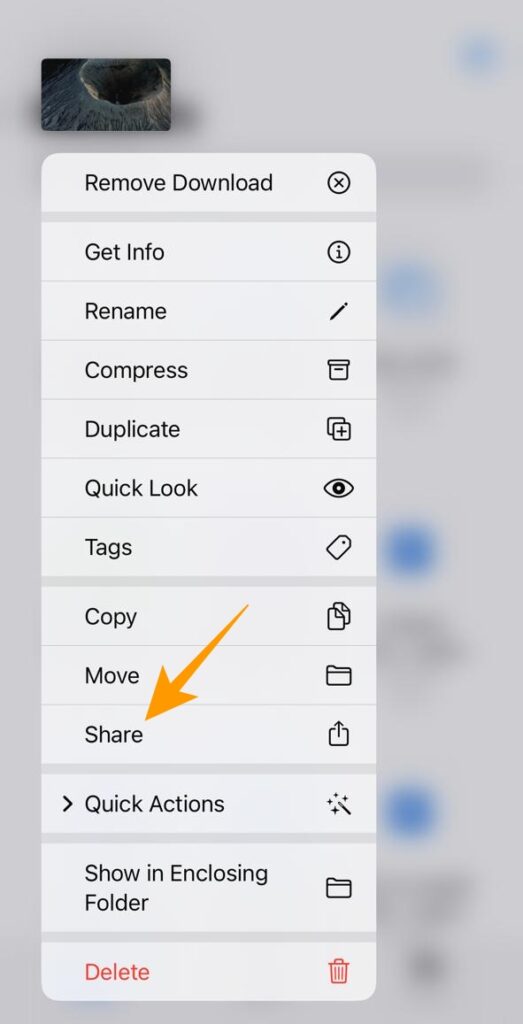
- Press and hold the video you downloaded from YouTube.
- From the popup options 「共有」 Tap it.
- On the next screen, swipe right on the app list to find and tap the Google Drive app.
- : "Upload" Tap to upload your YouTube video to Google Drive.
FAQ
Q: How can I upload a video to Google Drive without downloading it first?
A: To upload videos to local storage instead of downloading them, you need to install the Google Drive app on your PC. Once installed, change the download location in your browser settings. Open your web browser and go to Settings > Downloads > Location > Change. In the location pop-up, select the Google Drive folder and set it as your download location. Once you change the download location, all videos downloaded from YouTube will be saved directly to Google Drive.
Q: How can I download YouTube videos to my laptop without a premium subscription?
A: There are various websites and applications that allow you to download YouTube videos. Two of the most popular websites that allow you to download YouTube videos without a premium subscription are SS YouTube and Savefrom.Net.
Q: Why aren't my videos uploading to Google Drive?
A: There could be several reasons why you're unable to upload videos to Google Drive. First, check your internet connection. An unstable or slow internet connection could be preventing videos from uploading to Google Drive. Next, check your Google account storage. When your Google Drive storage is full, it will stop uploading and syncing files from your local storage.