
Are you tired of sending error-filled messages via Instagram DMs? You might realize you've forgotten something important after hitting the send button. No more worrying! Instagram offers two ways to solve this problem: edit the message you sent, or unsend it. The latter is the best option if you want to take the entire message back, while editing is perfect for correcting small typos.
Restrictions on editing Instagram Direct Messages
Editing sent messages on Instagram DMs works similarly to editing sent messages on WhatsApp, and is subject to similar limitations. Specifically, you can edit a message within 15 minutes of sending it. Furthermore, you can only edit a sent message a maximum of 5 times.
Another point to note is that the message you've edited will be labeled "Edited," and the recipient will be able to see this. However, they won't be able to see the editing history.
One of the key limitations when editing direct messages on Instagram is that you cannot edit messages that contain mentions or commands. This means that if you send a silent notification using the "\silent" command, you cannot edit it. However, you can undo and resend it.
How to edit Instagram Direct Messages
The option to edit sent Instagram Direct Messages is available in the app, but not on the web. Therefore, if you are using Instagram on a Windows PC, you cannot edit messages sent via your Windows PC.
1. Open the Instagram app and click on the top right of the screen. "Message Icon" We will move to this location.
2. Open the conversation that contains the message you want to edit.
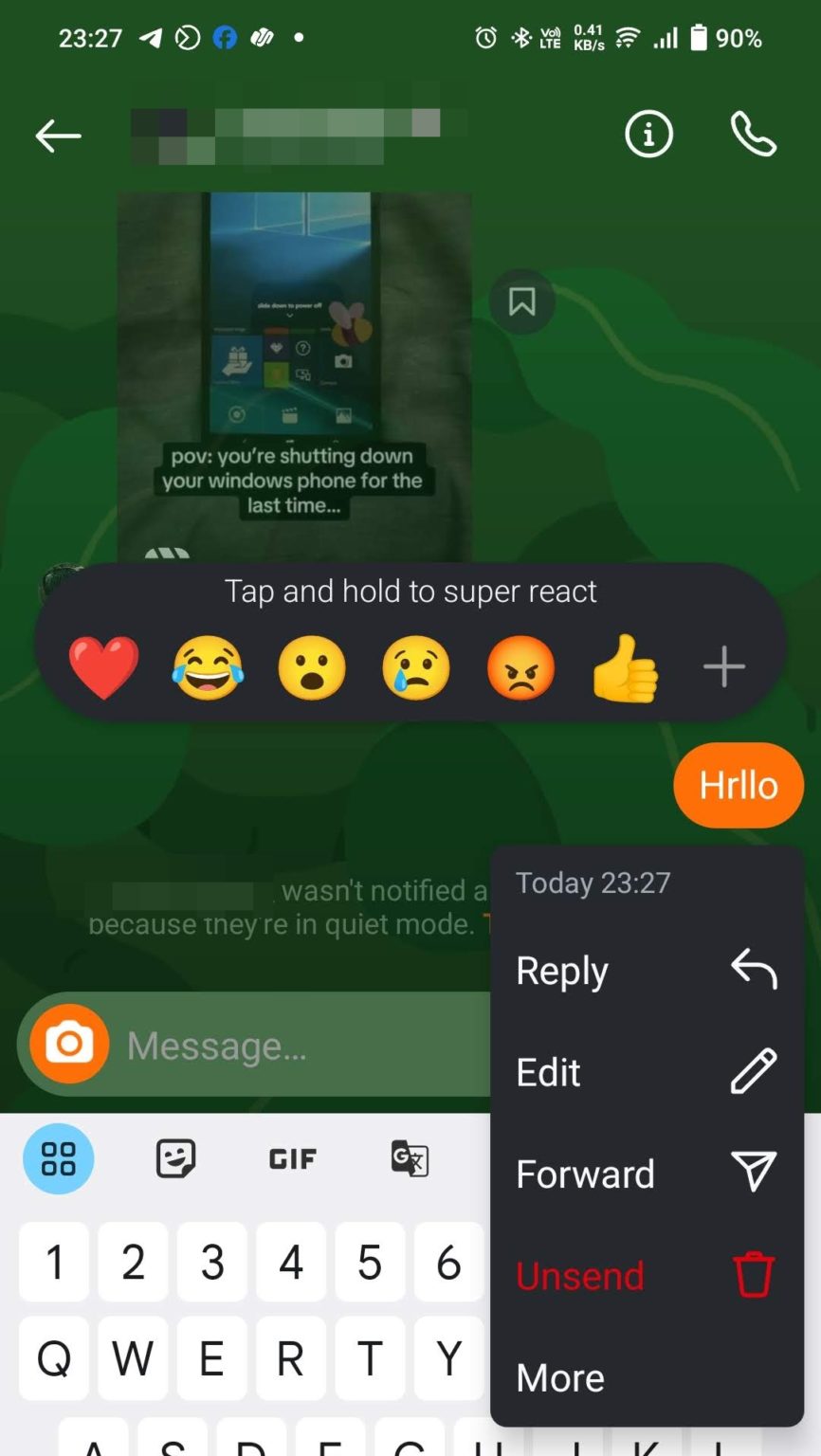
3. The message you want to edit Nagashi I will do it.
4. edit A pop-up with options will appear; tap it.
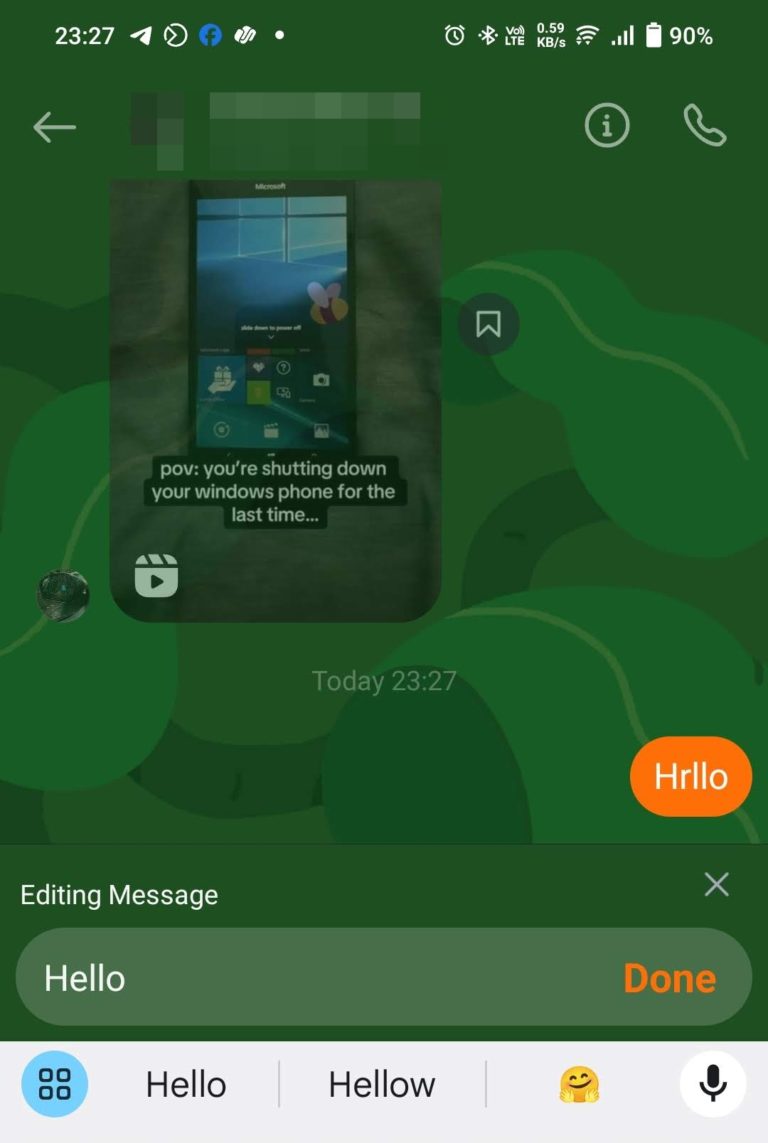
5. Finally, correct or edit your Instagram message. "completion" Tap to send the edited version.
Also, if someone shows you a fake Instagram message, ask them to edit the message they sent and share a screenshot. If there's no edit tag, it's definitely fake.
Correct the error
Instagram now allows you to edit messages up to 15 minutes after sending them. This is especially useful for correcting typos or making last-minute changes, particularly with longer messages. However, please note that the recipient will see a note indicating that the message has been edited.
If you need more time to compose the perfect message, consider using the "Undo Send" option instead. However, be aware that this will permanently delete the message, requiring you to rewrite it from scratch.
FAQ
Q: How can I customize my direct messages on Instagram?
A: The only way to customize your DMs on Instagram is by changing the chat theme. You can set different chat themes for different contacts. To set a theme, you need to open the chat box and click on the person's name > theme. Finally, select your favorite theme and you're done.
Q: Why can't I reply to certain messages on Instagram?
A: In most cases, you won't have any problems replying to messages on Instagram. However, you might encounter issues replying to certain messages on Instagram if you're using an older version of the app or if Instagram has released a new feature. Occasionally, Instagram may prevent you from replying to messages older than 24 hours, but this is rare.