
YouTube Premium offers many benefits, including ad-free video streaming and music streaming on YouTube Music. However, this membership is no longer as affordable as it once was, and may not be as valuable now.
If you're thinking about canceling your membership but don't know how, you've come to the right place. This article will explain in detail how to cancel your YouTube Premium membership from Android, iPhone, and the website.
What happens if I cancel my YouTube Premium subscription?
If you cancel your YouTube Premium membership, you will lose all the benefits included in your membership. You will start seeing ads on YouTube, you will no longer be able to play videos in the background when switching to another app, and you will lose the ability to stream 1080p video at a higher bitrate. Furthermore, canceling YouTube Premium will also mean losing your YouTube Music Premium benefits. Without YT Music Premium, you will not have access to the following benefits:
- YouTube Music app continues to play music in the background even when closed.
- Download songs and listen to them offline.
- Stream music without ads
If you have a YouTube Family Premium plan, all other family members will also lose the above benefits.
If you purchased an annual YouTube Premium subscription, you can request a refund through the YouTube Help & Support page. YouTube allows you to request a refund even in the middle of a billing cycle. If eligible, the company will issue a refund through the payment method used. If not eligible, your membership will simply be canceled. This means you can continue to enjoy YouTube Premium benefits until the next billing date, after which your subscription will not renew.
How to cancel YouTube Premium from the web
If you want to cancel your YouTube Premium membership using a web browser, follow these steps. If you're unsure whether to cancel, you also have the option to temporarily pause your subscription.
Step 1: From your PC, use a web browser Youtube.com Go to [website address] and log in to your YouTube account.
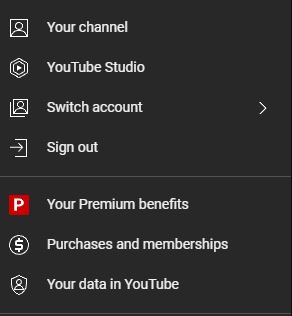
Step 2: Profile Icon Click, [Purchases and Memberships] Select one.
Step 3: "Membership Management" Click, "Deactivate/cancel membership" Select one.
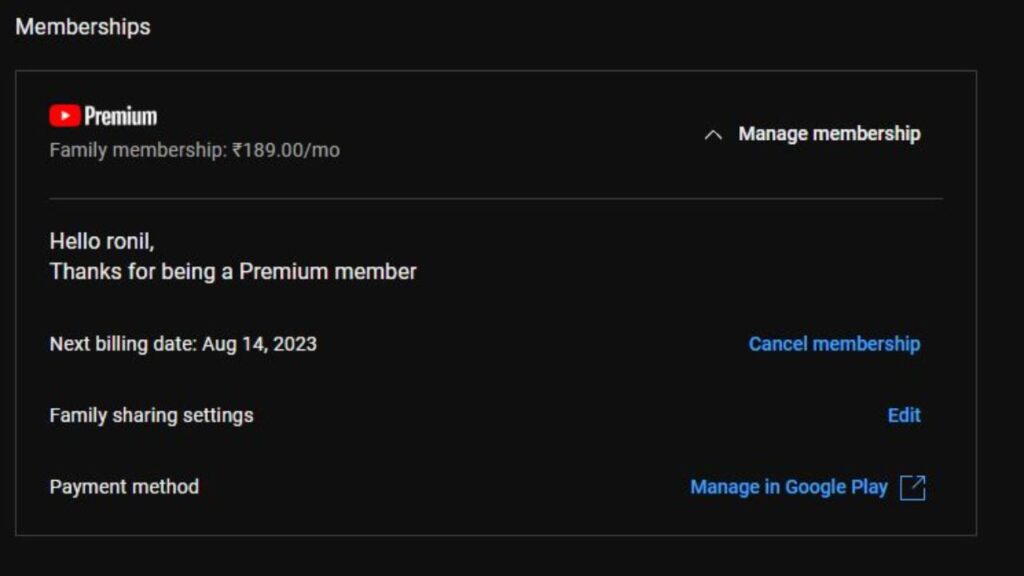
Step 4: [Continue with cancellation] Select an option. If you wish to pause your membership for up to 6 months, press the blue pause button instead.
Step 5: Select a reason for cancellation. "Continue" Click here.
Step 6: [Cancel Premium] Select and confirm your decision.
Your YouTube Premium subscription will not automatically renew after this action. You can continue to enjoy your membership benefits until your next billing date. Deleting your YouTube account does not cancel your YouTube Premium. If you plan to delete your account, please cancel your membership first.
How to cancel your YouTube Premium membership from your iPhone
If you pay for YouTube Premium via the App Store on your iPhone or iPad, the process for canceling your subscription is different from when you do it using the web or an Android smartphone.
To cancel your YouTube Premium membership using your iPhone, follow these steps:
Step 1: iPhone "setting" Open it, 「Apple ID」 Select one (tap the name).
Step 2: "Subscription" Tap and select YouTube from the list.
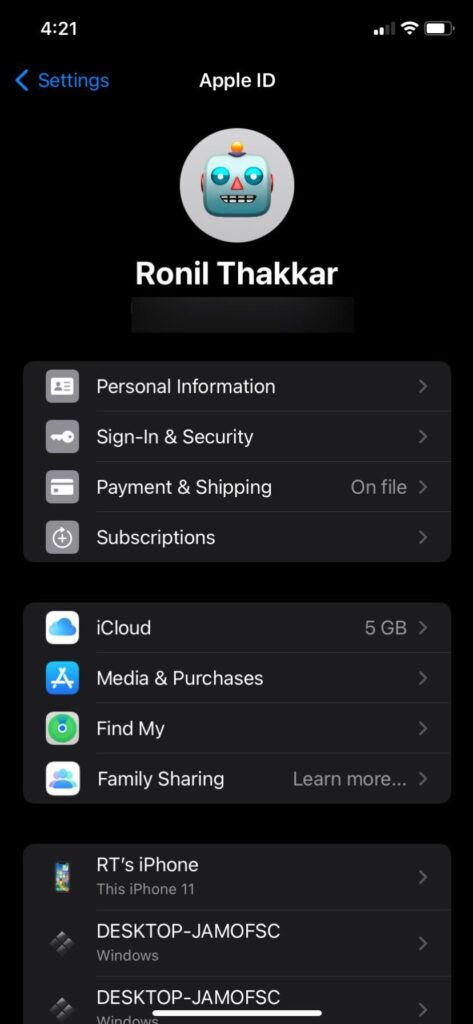
Step 3: Red "Cancel subscription" Press the button.
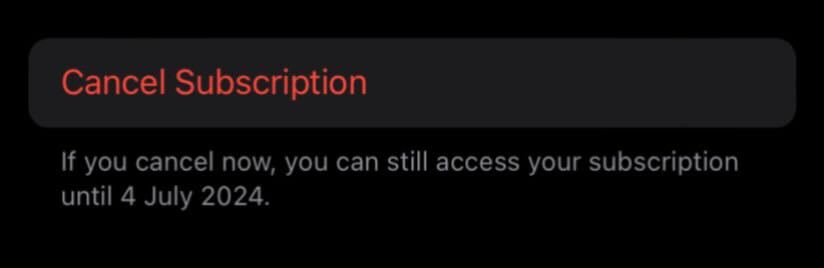
Step 4: When the prompt appears, "confirmation" Tap the button.
If you haven't paid for YouTube Premium through the App Store, you can cancel your plan from the YouTube app on your iPhone. Open the YouTube app, tap your profile icon, [Purchases and Memberships], [Active Subscriptions], [Deactivate/Cancel Premium] Select them in this order.
How to cancel or pause YouTube Premium
On Android, you can cancel your YouTube Premium subscription from within the app. However, if you paid through Google Play, the method for canceling your membership is slightly different.
Here's how to cancel your YouTube Premium plan using an Android phone:
Step 1: YouTube Launch the application, and in the upper right corner Profile icon Tap it.
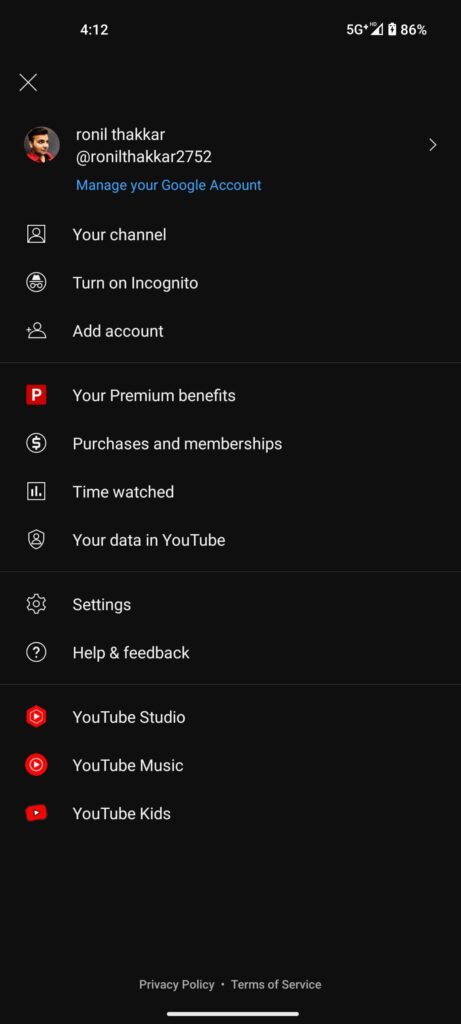
Step 2:
"Purchases and Memberships"
Select it and tap your active subscription under the Membership section.
Step 3: Blue
"Unsubscribe/cancel subscription"
Press the Options button.
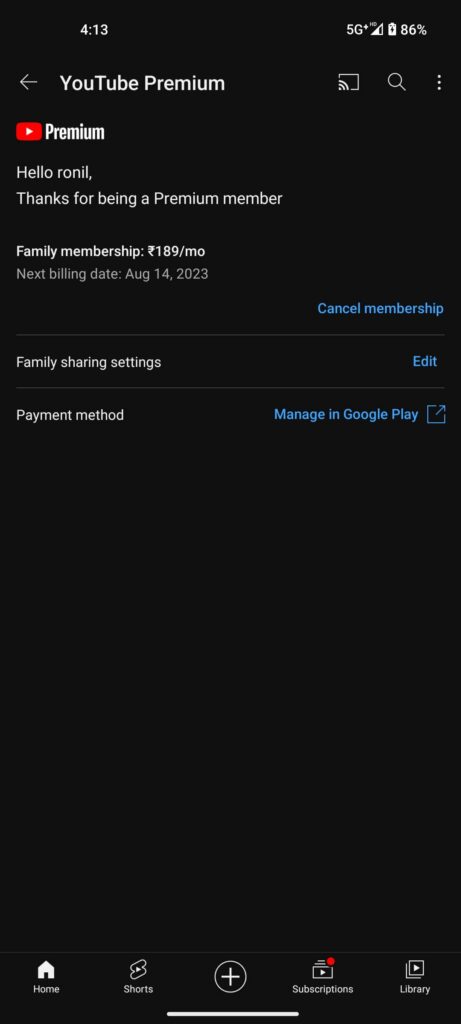
Step 4:
"to the next"
Tap,
"Cancel Premium"
Press the button.
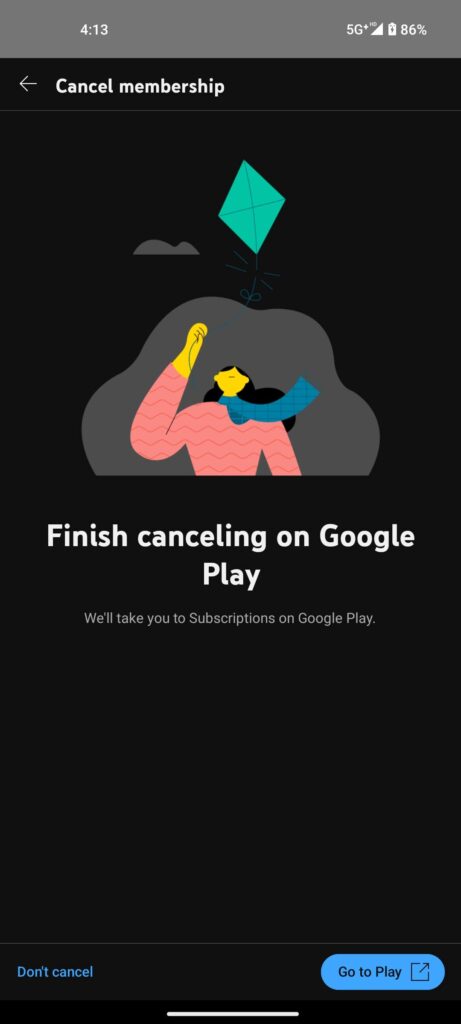
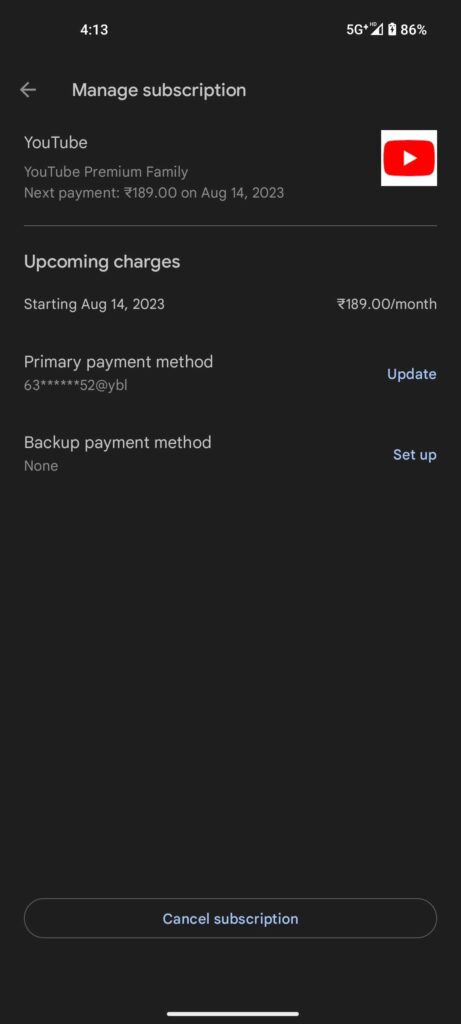
If you purchased your subscription via Google Play, you will be redirected to the Google Play Store to cancel your plan. Tap "Cancel Subscription" and confirm your decision. Your membership will now end.
What should I do after canceling my YouTube Premium subscription?
You might be wondering what to do next after canceling your YouTube Premium subscription. There are plenty of alternatives to YouTube, so be sure to check them out. Alternatively, if you want to continue using YouTube without a premium subscription, you can use the Brave browser to watch videos ad-free.
While you might not mind ads appearing while watching YouTube videos, it can make listening to music on YouTube Music difficult. Thankfully, there are several YouTube Music alternatives worth checking out.
FAQ
1. Why can't I cancel my YouTube Premium subscription?
If you are unable to cancel your YouTube Premium membership, try refreshing the webpage or restarting the app and repeating the same steps. You can also try a different web browser or switch to incognito mode on your desktop. Alternatively, try logging into your YouTube account on a different phone and canceling your subscription from there.
2. Can I cancel my YouTube Premium subscription midway through?
On YouTube, you can cancel, pause, or resume your YouTube Premium and YouTube Music Premium subscriptions at any time during your membership period. You can also switch plans while your subscription is active, if needed.
3. Will YouTube Premium automatically terminate?
When you sign up for a paid YouTube subscription, you will be automatically charged the membership fee at the start of each new billing cycle until you cancel it. You will not be charged again after canceling your membership unless you re-subscribe to a Premium plan. YouTube Premium features remain active until the last day of your billing period.
4. How do I cancel my YouTube Premium free trial?
To cancel YouTube Premium through the app, open the YouTube app, tap your profile icon, select your active subscription and membership, deactivate/cancel Premium, and then click Next to Cancel Premium.
5. What happens if I don't pay for YouTube Premium?
If your monthly YouTube Premium subscription payment fails, YouTube will notify you via email so you can reactivate your membership. You must resolve the issue within 3 days of receiving this email before you lose access to your premium benefits.