
While YouTube Music may not have as many features as Spotify, its streaming service makes up for it with an extensive music library. Google's music streaming service is available on all major platforms, so you can enjoy your favorite songs no matter what device you're using. But what if you've logged into a friend's PC or device with your YouTube Music account and then want to log out? While logging into YouTube Music is easy, logging out isn't quite as straightforward.
How to log out of YouTube Music (web version)
Logging out of YouTube Music on a desktop browser is relatively easier than logging out through the Android or iPhone apps. This is because the web version offers an option to log out directly from the platform.
Step 1: Open your preferred web browser on your PC.
Step 2: YouTube Music Access this page.
Step 3: Click on the profile picture or initials of your name in the upper right corner.
Step 4: From the pop-up menu "sign out" Select one.
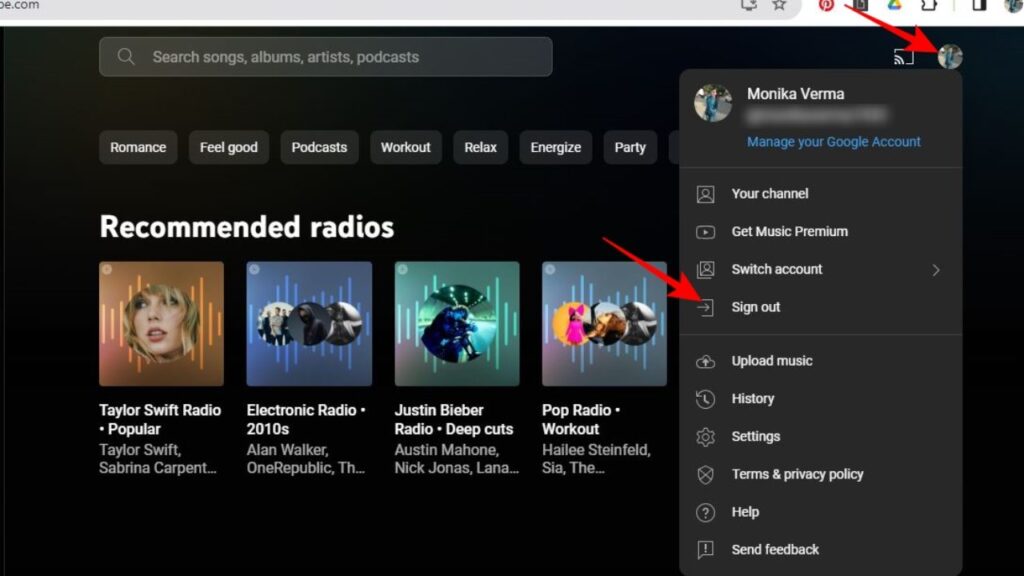
The problem is that signing out of YouTube Music also logs you out of your Google account. Therefore, you need to sign in again if you want to access other Google services.
How to log out of YouTube Music on Android
The YouTube Music Android and iPhone apps do not offer a direct sign-out option. You log in using your Google account. The only way to log out is to delete the account from your respective device. Note that deleting your Google account will also sign you out of all Google apps on your phone.
- Open the YouTube Music app.
- Tap your initials or profile picture in the upper right corner.
- From the menu that opened "Manage your Google account" Select one.
- Please move to the following email address.
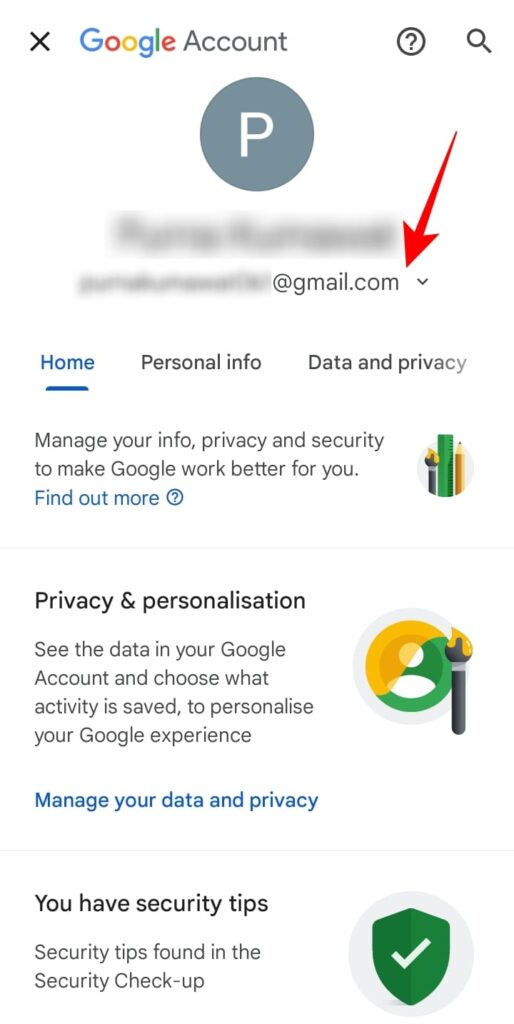
In the pop-up window, select "Manage this device's account."
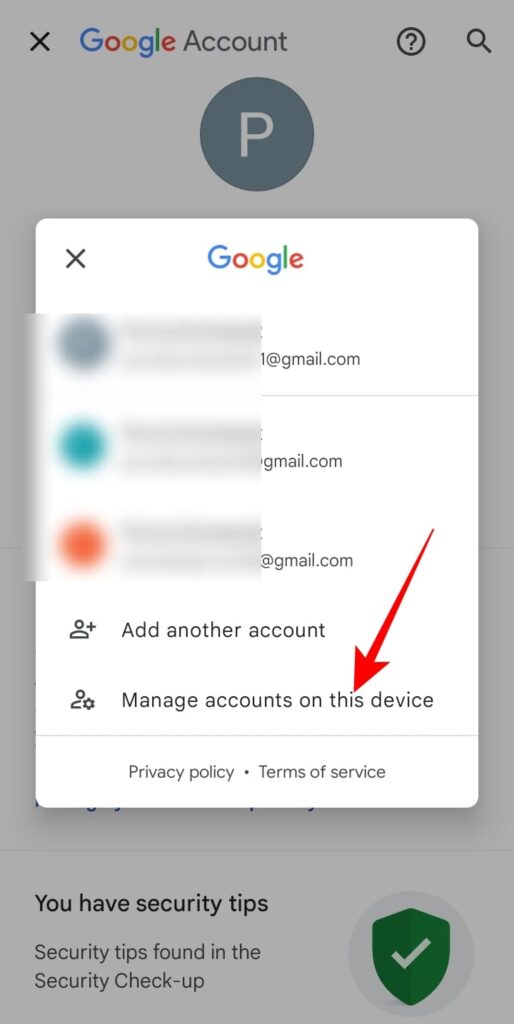
- Tap "Google" under "Accounts and sync".
- Select the email ID you used to log in to YouTube Music.
- Tap [Remove Account] to sign out of this account from all apps on your device, including YouTube.
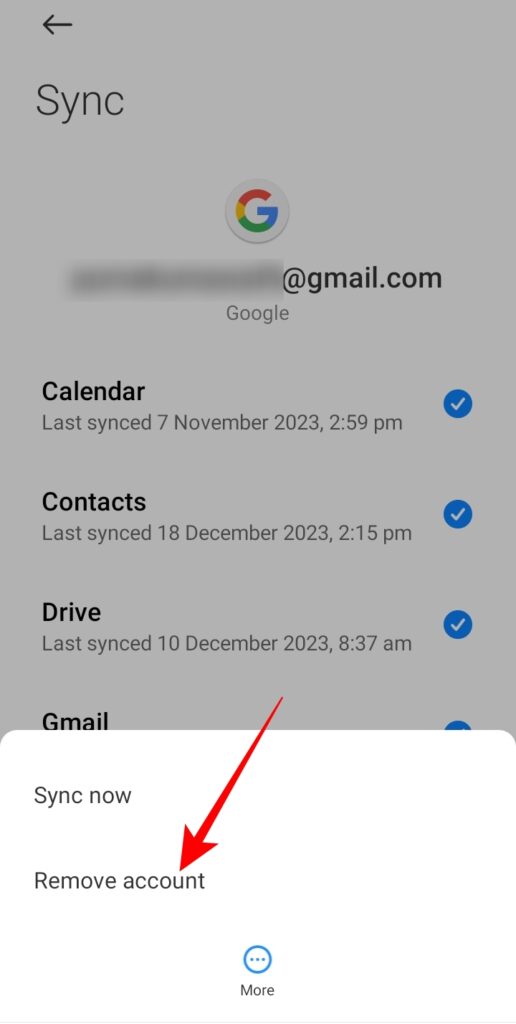
Without deleting your Google account
If you don't want to be logged out of all Google apps, clear the YouTube Music app data on your Android smartphone and reset it to default settings. This will also sign you out of the app. However, any music you've downloaded for offline playback will be deleted as part of this process. Therefore, if you have downloaded playlists or tracks and don't want to lose them, this method is not recommended.
- Go to Settings > Apps > All apps
- Search for and select YouTube Music.
- Tap "Storage and cache".
- Next, tap "Clear Storage" and "Clear Cache" to delete all data stored in the app.
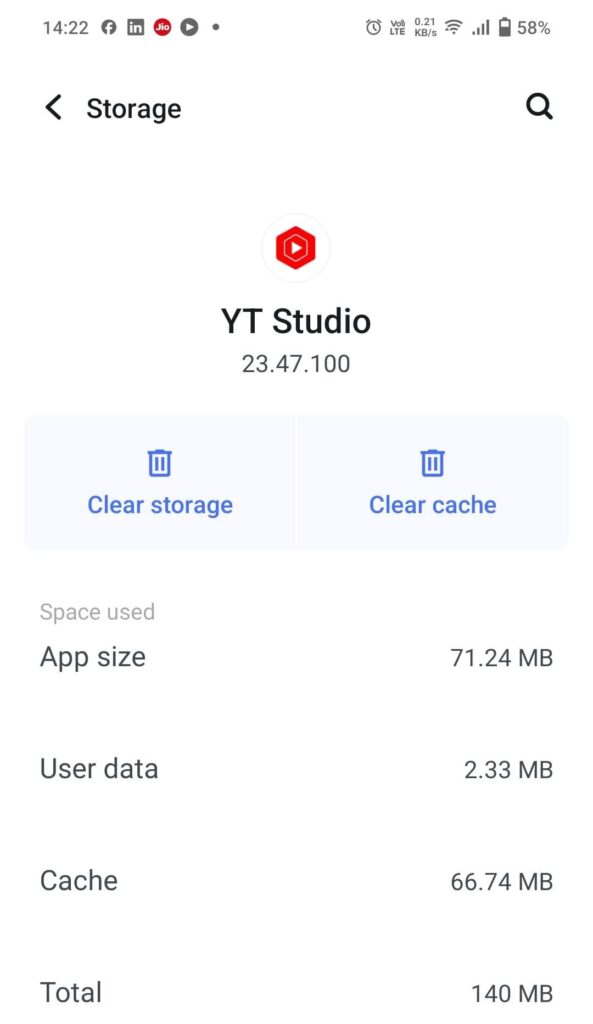
This will delete all data from the YouTube Music app on your device and automatically log you out. The next time you open YouTube Music, you will be prompted to sign in with your Google account.
How to log out of YouTube Music on your iPhone
The YouTube Music interface is the same across all mobile apps, but the logout process is slightly different on iPhones.
- Open YouTube Music on your iPhone.
- Tap your profile picture or initials in the upper right corner.
- "Switching accounts" Select one.
- this Managing device accounts We will move to this location.
- The email ID you use to log in to YouTube Music [Remove from this device] Tap it.
- In the "Delete Account" pop-up... "delete" Select one.
If you're having trouble logging out of the service on your Android or iPhone, you can try an alternative service to YouTube Music.
Find your favorite music on YouTube Music.
YouTube Music lets you connect with your favorite artists, discover new music, and stream playlists across all your devices. Like Spotify, you can view your yearly recaps on YouTube Music and share them with friends and social media followers. Plus, if you want to save your favorite tracks locally, you can use the Android and iPhone apps to play them from your device without logging into your Google account.
FAQ
Q. How do I log out of YouTube Music from all my devices?
A. To log out of YouTube Music from all your devices, go to YouTube Music in your web browser, click your profile picture in the upper right corner, and go to > Google Account Management > Security > Your devices. Under [Devices], click the device you want to log out of, and on the device page, select [Sign out]. You can also go to each device's page and sign out of all your devices individually.
Q. Can I use YouTube Music on two devices?
A. YouTube Music can be used on up to two additional devices, but if you are a YouTube Premium member, you can only stream music on one device at a time. Therefore, if you are logged in on multiple devices, you can log out of YouTube Music at any time to limit the sharing of your premium membership.