It can be frustrating when you can't send messages on Facebook Messenger. It's something almost everyone has experienced at least once. Sometimes the problem lies with Meta's servers, but sometimes it's a problem with the app, your device, or your connection. So, what do you do in those situations? Below are some solutions to fix the problem of not being able to send messages on Facebook Messenger.
Why isn't my messenger sending my message?
One common reason to consider is whether the Meta or Messenger servers are down. Platforms like DownDetector can help determine if you can access Messenger. Unfortunately, in such situations, there's nothing you can do but wait for Meta to resolve the server issues.
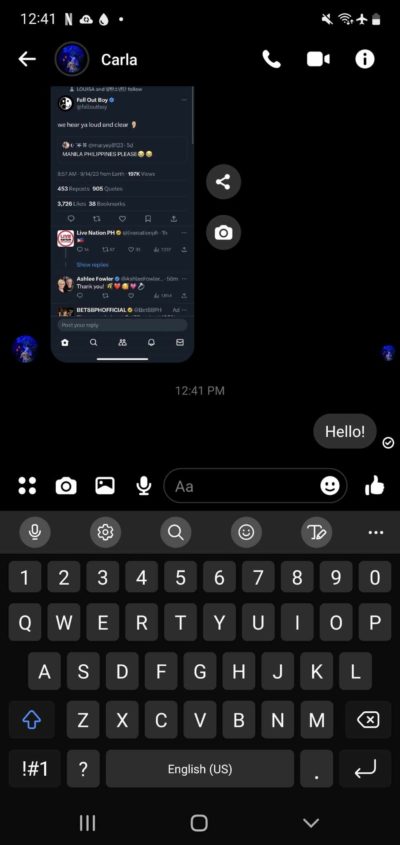
Another possibility is that the person has blocked you. Similar to when Meta's servers are down, there's no way to fix this other than waiting for the other person to unblock you on Messenger.
How to fix the Facebook Messenger not sending messages
If none of the above reasons apply and you are unable to send messages via Messenger, there are a few solutions you can try.
1. Disable data saver mode.
If you're using Facebook Messenger on your Android smartphone, you can check if Data Saver mode is enabled. This feature limits the amount of data the app uses. Unfortunately, when the app is in Data Saver mode, some messages, especially those containing videos or images, will not be sent. Here's how to turn it off:
- Messenger Open it.
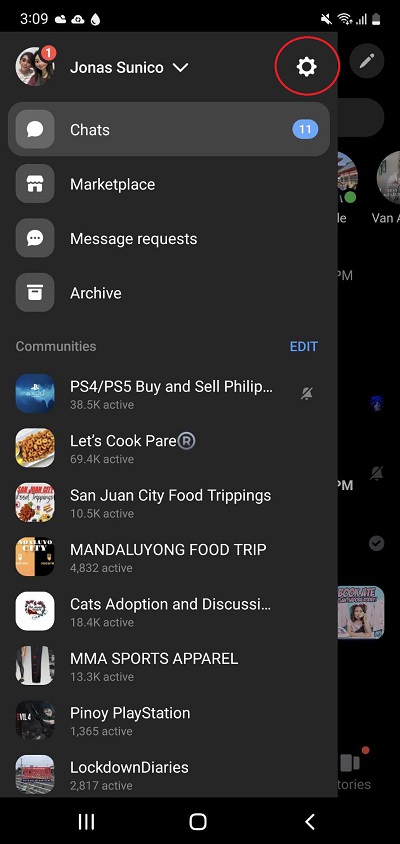
- Tap the hamburger icon at the top.
- Select the gear icon to open the settings.
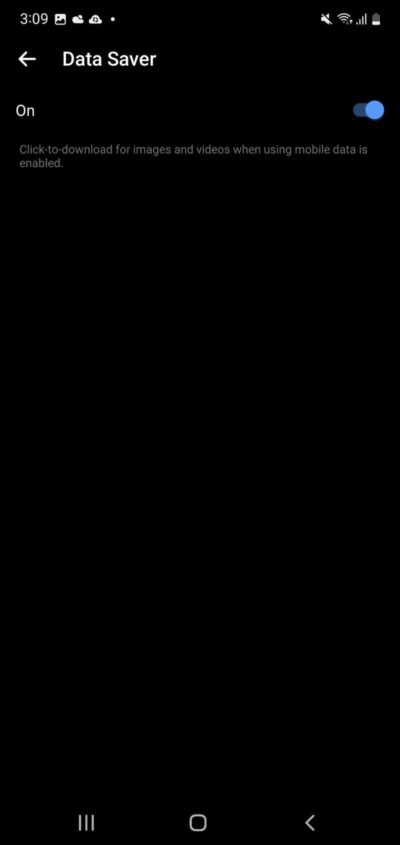
- Swipe down "Data Saver" Tap it.
- Switch it and make sure it's turned off.
You should also check if your phone is running in battery saver mode or on a restricted data network. If so, you should disable it until the message is sent.
Force stop and restart the messenger.
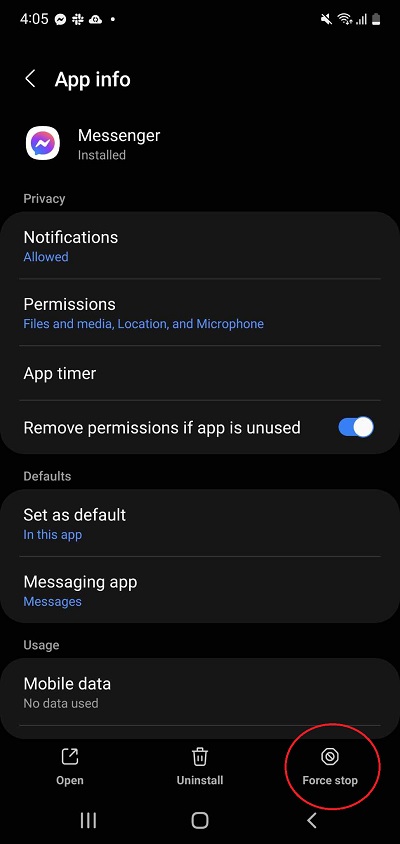
If your messenger app isn't working as intended on your mobile phone, you should first try force stopping it. This will reset the app and close any potential issues that might have occurred along the way. Once done, restart the messenger and see if the problem persists. Here's how to do it on an Android smartphone:
- Settings menu Open it.
- Scroll down "App" Tap it.
- Messenger Please look for it.
- "Force stop and check." Tap it.
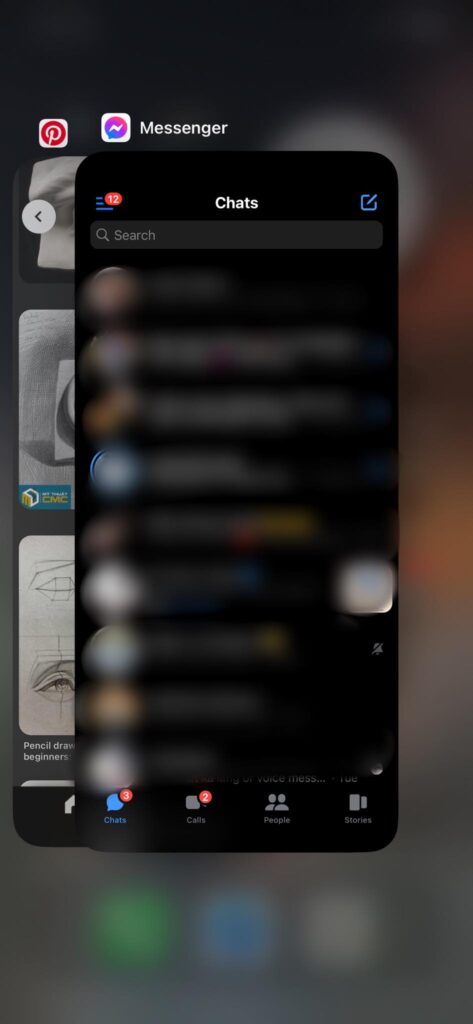
If you're using iOS, you'll need to swipe down on the app's carousel selection (to force close Messenger, swipe up).
3. Update your messenger app.
Meta frequently updates its messenger app, adding new features and bug fixes. If your messenger chats repeatedly fail to deliver, make sure you're running the latest build of the app available on the App Store or Play Store. Alternatively, log out of Facebook Messenger and sign back in to see if that resolves the issue.
4. Check the connection.
Facebook Messenger recommends download speeds of 3 Mbps and upload speeds of 1 Mbps. While neither is particularly high, speeds lower than these can significantly impact your Messenger experience. Try resetting your internet connection or switching to mobile data/Wi-Fi to see if that resolves the issue.
In many cases, simply restarting your Wi-Fi router will do the trick. Turn off your router for 30 seconds. Turn it back on, connect to the internet, and try sending the message again. Resetting your router can resolve possible connection issues. If you think you're not getting the speed promised by your internet plan, call your ISP.
If your internet connection is slow, you may not be able to use your avatar in Messenger video calls.
Of course, make sure your cell phone is not in airplane mode.
5. Avoid sending too many messages.
Facebook has various restrictions in place to prevent spam sending via Messenger. You can send a maximum of 150 messages at a time. When you approach this limit, Messenger will display a warning that you are sending too many messages. If you ignore the warning and continue to send messages, your account may be temporarily restricted.
Once the restriction is in effect, you will need to wait until the restriction is lifted and you can send messages again.
6. Check if you have blocked that person.
You cannot send messages to someone you have just blocked on Messenger. To unblock a user, please follow these steps:
- Open Messenger.
- Hamburger icon Tap it.
- Gear icon Select one.
- "Privacy and security" Tap it.
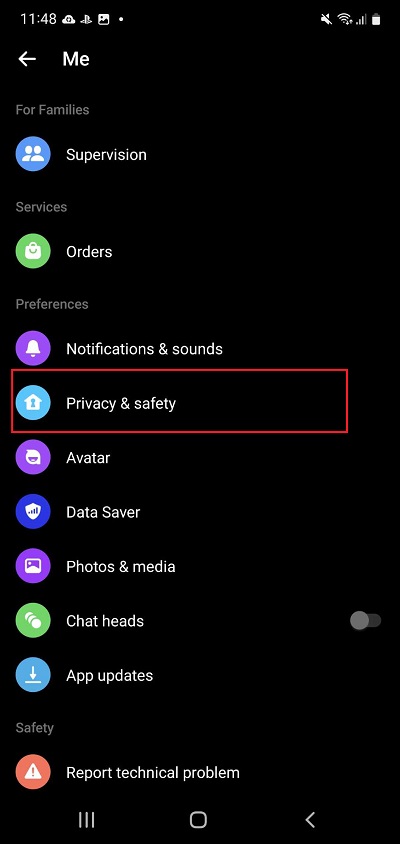
- Select "Block account".
- Tap the person you want to unblock.
- Tap the minus icon next to [Unblock messages and calls] and confirm.
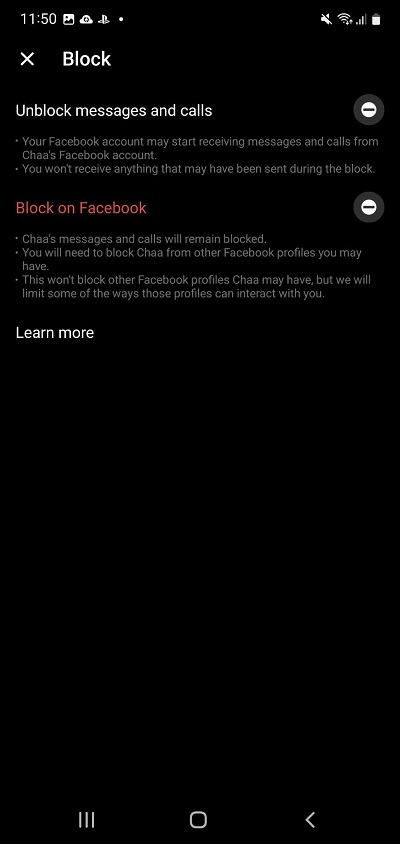
If you are blocked, all you can do is wait until you are unblocked.
7. Switching from mobile to web.
Can't send messages from your mobile phone's messenger app? Try switching to Facebook on the web and see if that works. Facebook's servers might be partially down, causing only the mobile (or web) app to malfunction. If the app doesn't work, use the web version. The reverse is also true.
Please don't cut off contact anymore.
It's incredibly frustrating when messages get stuck in Messenger. Hopefully, these fixes will work on your end and you won't be left out again. Don't delete your Messenger account just because you're temporarily unable to send messages.
FAQ
Q: What is a messenger light?
A: This is a data-efficient version of the messenger that only includes core functions such as messaging and calling. If your internet speed is slow, this is a great alternative for easily sending messages.
Q: What happens to unsent messages on Facebook Messenger?
A: If the conditions are met, the message will eventually be sent. For example, if you try to send a message when you are not connected to the internet, it will fail. The message will remain and will be sent once you are connected to the internet.
Q: What is the minimum speed required to run Facebook Messenger?
A: To use the messenger, you need a download speed of at least 3 Mbps and an upload speed of 1 Mbps. However, sending files such as videos and images can take a long time, and in some cases, it may not be possible to send them at all.