
Facebook uses several different factors to determine which videos you see. Its algorithm analyzes your browsing patterns and suggests videos based on that. However, Facebook sometimes suggests random videos that are unrelated to your engagement or viewing history, which can be stressful. In this guide, we'll share various ways to prevent unwanted videos from appearing on Facebook.
How to avoid seeing unwanted videos on Facebook
There is no official way to switch off unwanted or inappropriate videos to prevent them from appearing in your feed. While Facebook has strict policies to filter out unwanted and inappropriate content, they aren't always sufficient. However, there are workarounds to prevent unwanted videos from appearing in your feed. It's probably better than getting frustrated and deleting your Facebook account.
These steps are the same regardless of your device (Facebook Web, iPhone, Android). Only the way you access Settings may differ. The steps and screenshots shown in this article are from an iPhone. On the web, Facebook Settings is located below your profile picture, while on Android, you use a hamburger menu.
1. Use the Hide Video button.
This method is very simple: hide unwanted content on your feed so that Facebook's algorithm suggests fewer similar videos.
- Open Facebook in your web browser or mobile app and log in using your credentials.
- Tap the X in the upper right corner of the video you want to hide.
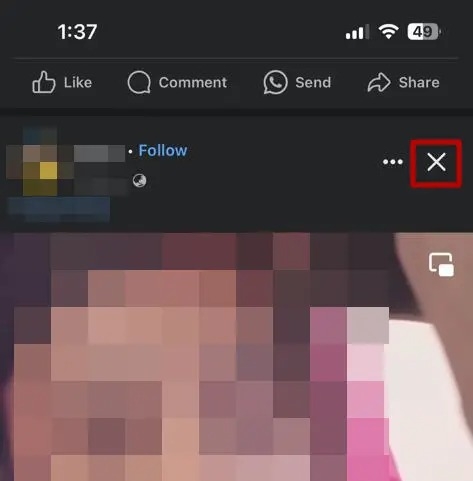
- This will hide unwanted videos from your timeline.
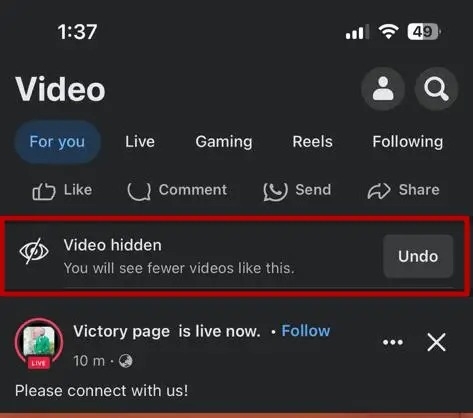
If you accidentally hide a video, tap the X button and then tap the "Undo" option that will appear for a few seconds.
2. Select "Show less".
You can adjust Facebook's algorithm to reduce the number of video suggestions that appear in your feed.
- Next to the video player 3-dot menu button Tap it.
- "See less" Select one.
This will reduce the frequency with which video suggestions similar to the recommended content appear in your feed.
3. Using the Report Button
Facebook also offers the option to report videos you deem inappropriate and have them hidden or blocked from your feed.
- Opens a video that is deemed inappropriate.
- In the upper right corner of the video 3 points Tap it.
- "Report video" Select one.
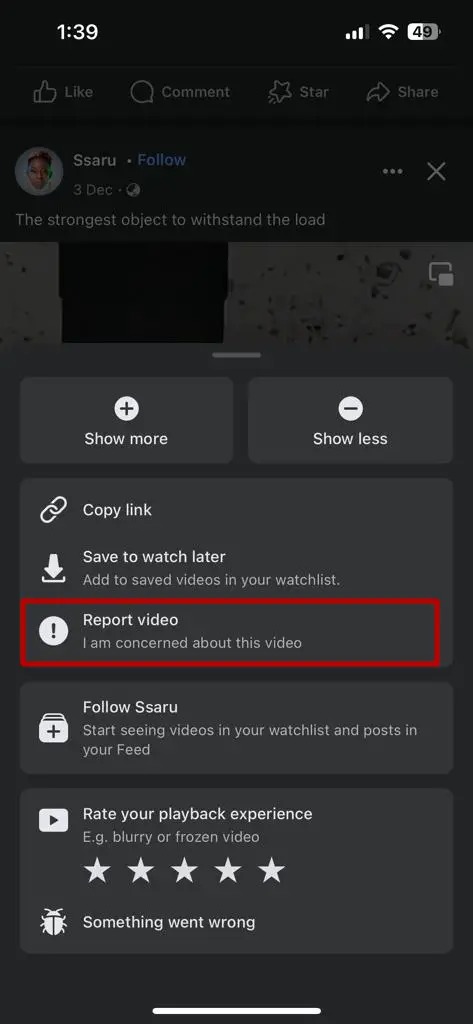
If you report content and provide a reason, Facebook will offer you a "Hide All" option to prevent posts from that page from being displayed. [Block profile] You can also tap to block that account. If someone on your friends list shares a video you don't want to see, you can block them on Facebook.
4. Adjusting feed settings
Facebook adjusts your feed based on how you interact with posts, continuing to show you more of what you normally see. The easiest way to adjust your feed is to change your settings.
- Tap the hamburger menu in the bottom right corner, "setting" Tap it.
- Scroll down to "Settings" and tap "News Feed".
- You can adjust your feed settings to suit various preferences. Using favorites, you can select the people and pages you want to prioritize. Unfollowing allows you to remove people and pages from your followers. You can also temporarily stop seeing posts from specific pages or users while snoozing them.
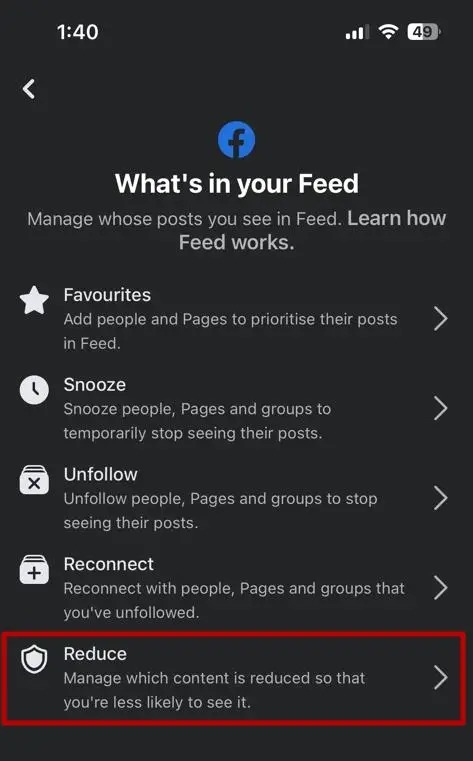
- To manage the content you want to reduce the display of in your Facebook feed, "reduce" Tap it.
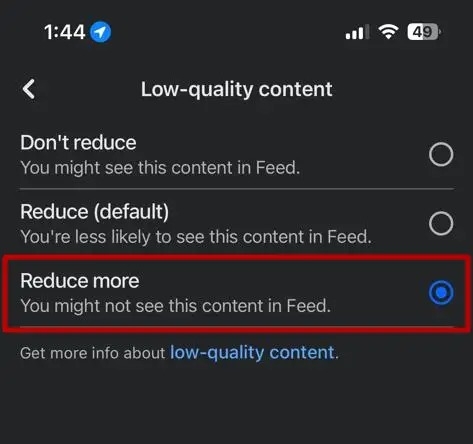
- Here, tap what you want to control: low-quality, non-original, or sensitive content.
- You choose how much of that content to reduce. [Reduce further] Tapping it may cause that content to disappear from your feed.
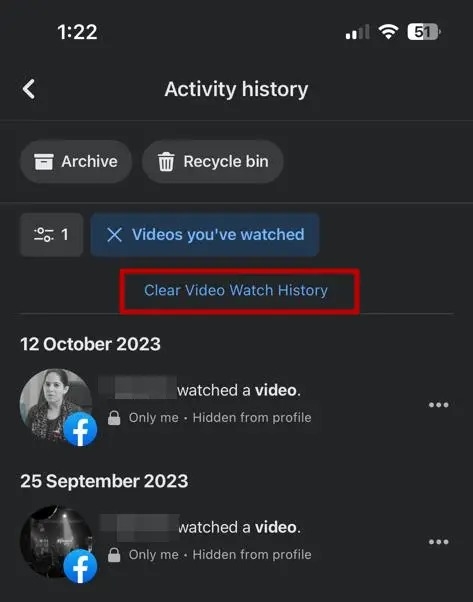
5. Clear your viewing history.
Clearing your Facebook viewing history will reset your recommendations.
- [setting] Navigate to [the relevant section] and tap the search bar to search your activity log.
- Tap the "Watched Videos" option. This will show you all the videos you've watched on Facebook.
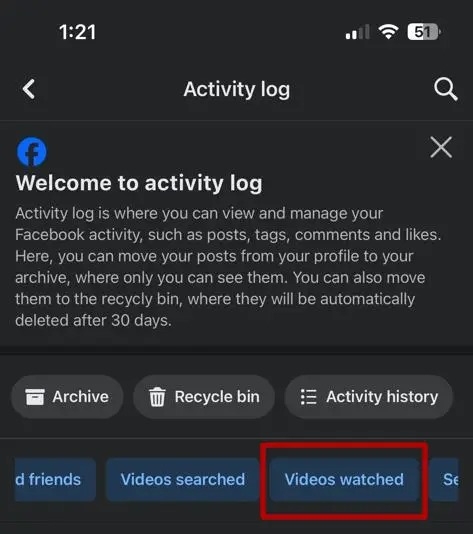
- Next, tap "Clear video playback history" to delete your playback history.
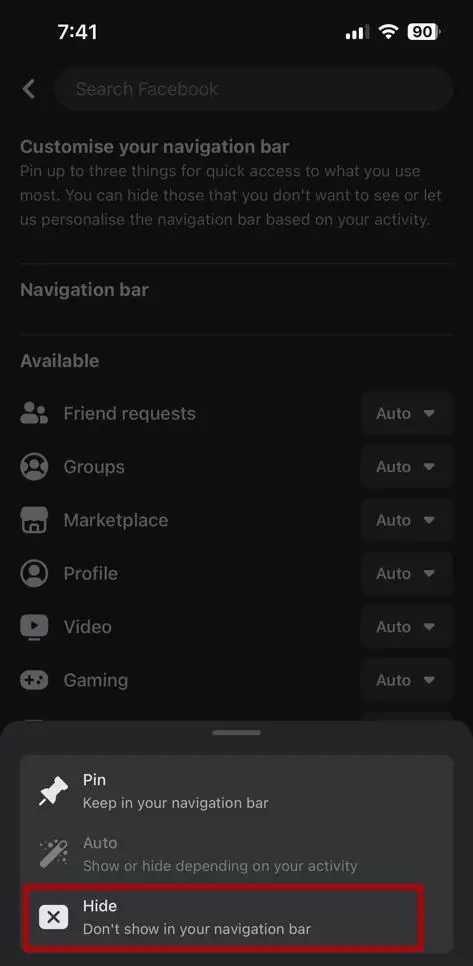
6. Hide video mode from the navigation bar.
Removing video mode acts like a child lock on Facebook. Hiding video mode from the main page can be a good preventative measure.
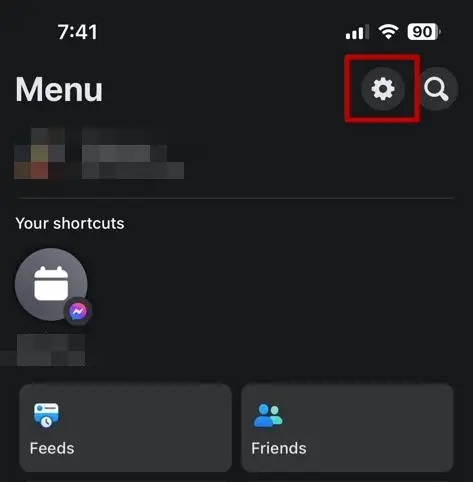
- Tap the gear icon in the upper right corner.
- Scroll down under "Preferences" until you find "Navigation Bar Settings".
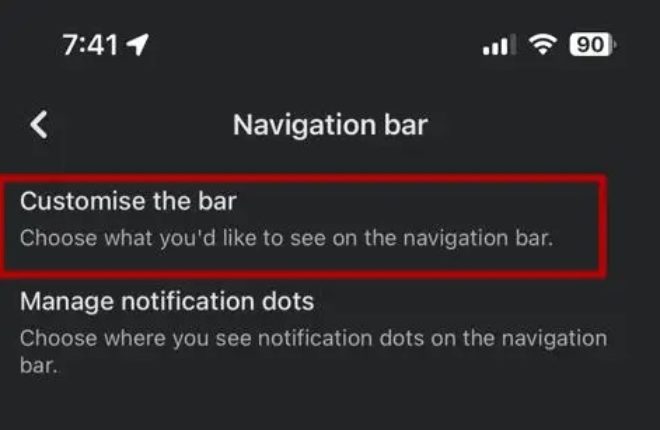
- Next, tap "Customize bar".
- "video" Tap the dropdown next to it and select "Hide." This will hide video mode from your home screen. However, video mode will still be available in your profile section.
Videos are a huge waste of time.
Having control over what you see online has become essential. For platforms like Facebook, which are used by almost all age groups, checking your privacy and preferences should be crucial to blocking unwanted or inappropriate content.
FAQ
Q: How can I stop inappropriate content on Facebook?
A: While it may be impossible to completely stop inappropriate content on Facebook, you can control what is displayed on the platform. Continue reporting and reducing the types of videos you post can lead to better results.
Q: Why am I seeing unwanted posts on Facebook?
A: Facebook analyzes your patterns and engagement activity to target posts and ads. However, posts may appear in your feed regardless of your patterns. This could be due to the popularity of the post or because it's targeted to a specific region.