
Instagram Notes has become a new favorites feature for sharing quick updates with your followers and building connections.
However, this feature may disappear from your account.
This article delves into why Instagram notes disappear or become inaccessible for some accounts and provides solutions to fix the problem.
Why Instagram notes aren't showing up and how to fix it
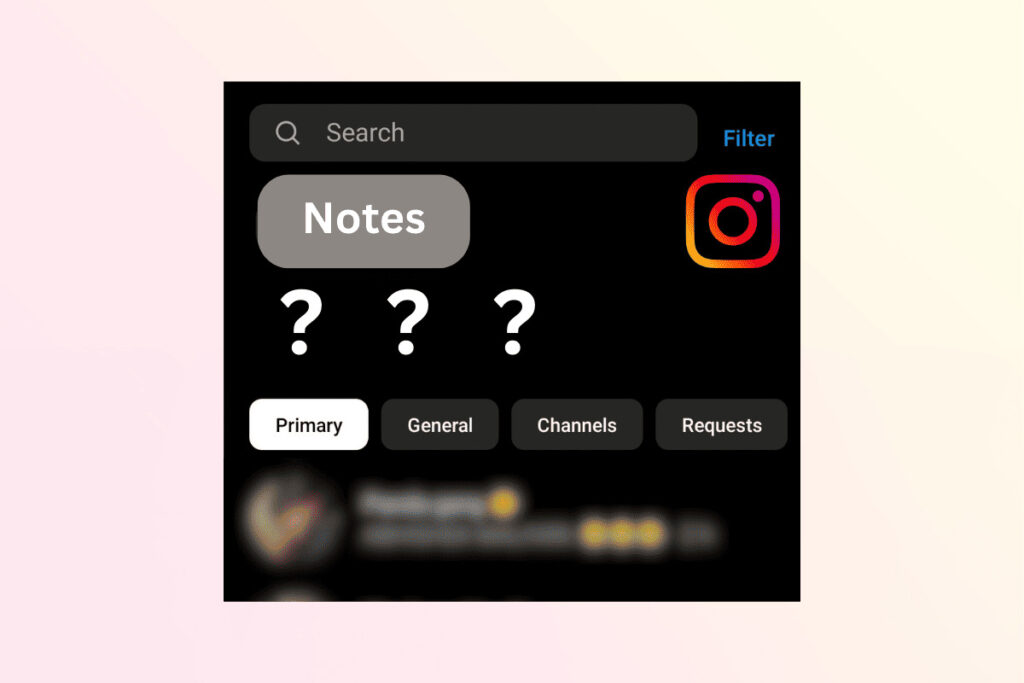
Instagram's Notes feature is a great way to leave short messages for your friends.
Notes disappear after 24 hours, just like Instagram Stories. They appear as chat bubbles below your name, rather than appearing in direct messages.
If you're not seeing your Instagram notes on your account, this could be due to: the notes feature being disabled, your account being suspended or disabled by Instagram, having more notes saved than allowed, or a technical issue.
Quick response
- If you're using Instagram Lite for your mobile phone, it may not support notes or other new features. Therefore, to enjoy all the features, please install the regular Instagram app. Additionally, trying a different device or logging out and logging back in might resolve the issue.
Method 1: Enable peer status
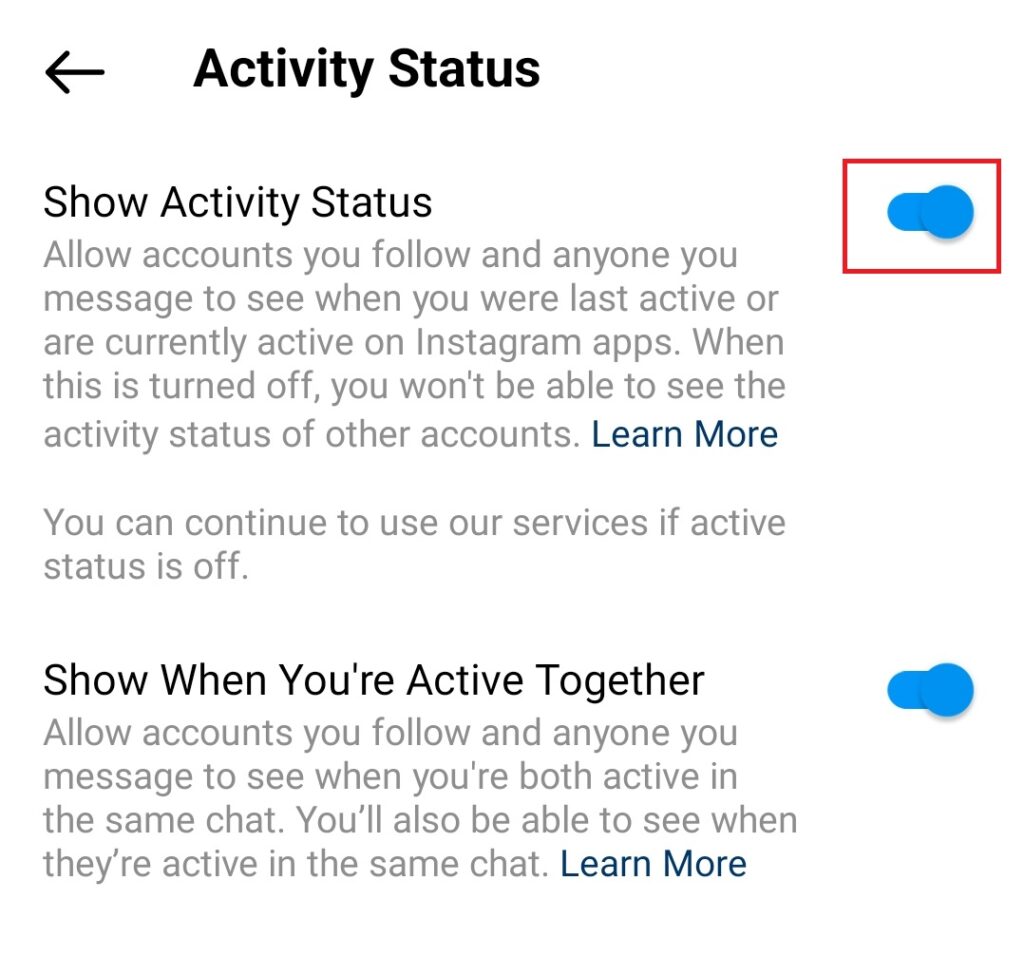
When your activity status is turned on, people who follow you can see when you're online and when you were last active. Some users have reported that turning off Instagram's activity status may cause the notes feature to disappear.
Step 1: Instagram profile We will move to this location.
Step 2: Tap the hamburger icon, [Settings and Privacy] Select one.
Step 3: Swipe down, [Replies to messages and stories] Tap it.
Step 4: [Show activity status] Tap, [Show activity status] Turn on the toggle.
Method 2: Create a closed friends list
This feature only works with closed friend lists. Therefore, if Instagram notes are not showing up on your Android device, try creating a closed friend list first before attempting this feature.
Method 3: Verify your email address
For security reasons, Instagram may block some accounts from using newly introduced features if their email address hasn't been verified. This rarely happens, but since it has worked for some users, you might want to try this method.
Step 1: Profile settings We will move to this location.
Step 2; [Account Center] > [Personal Information] Select one.
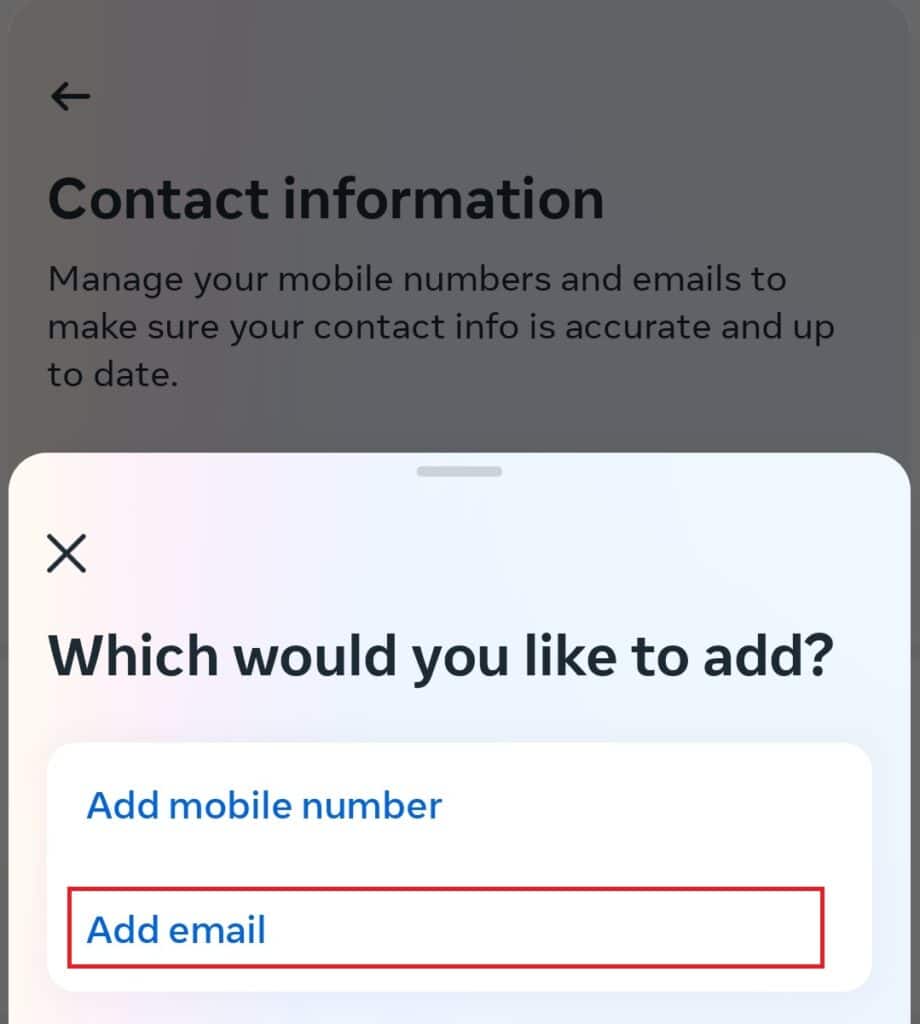
Step 3: [Contact Information] Select and at the bottom of the screen [Add a new contact] Tap it.
Step 4: [Add email] Select one.
Step 5: Enter your email address, [to the next] Tap it.
Step 6: Enter the code you received in the email to verify.
Method 4: Clear the cache and data
Cached data can become corrupted and may cause bugs and problems within the app. Clearing Instagram's cache may remove potentially problematic data and resolve issues such as missing notes.
Method 5: Update your Instagram
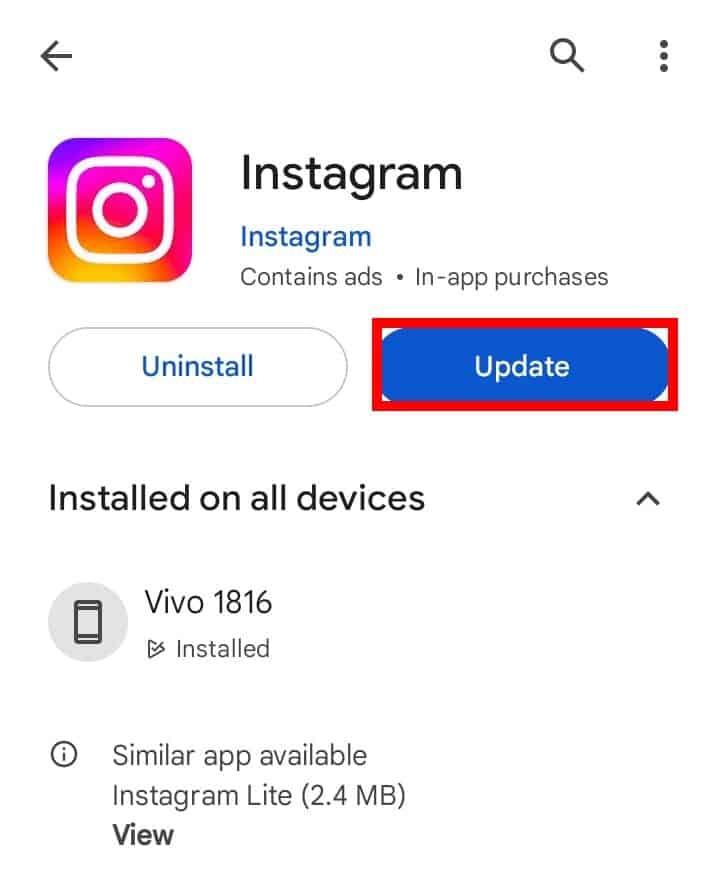
Updating Instagram is also a very effective way to resolve certain issues. Sometimes, an older version of the app can cause problems with Instagram Notes not displaying. You can try updating the app from the Play Store to see if that resolves the issue.
How to fix the issue of Instagram notes disappearing or not showing up on your iPhone.
If you're experiencing issues with Instagram Notes disappearing or not showing up on your iPhone, you can try offloading or updating Instagram to remove any bugs or corrupted files that might be interfering with the app's functionality.
If these don't work, try the following troubleshooting steps to resolve the issue:
Method 1: Remove the account from other devices
If your notes aren't showing up on Instagram, updating your account might not be sufficient, and the issue could be due to syncing on other devices or other account-related problems. In such cases, try deleting your account from other devices.
Step 1: Instagram profile Move to Hamburger icon Tap it.
Step 2: "Settings and Privacy" > "Account Center: Password and Security" Select one.
Step 3: "Location where you are logged in" Tapping this will show all devices that are signed into your Instagram account.
Step 4: To log out of a specific device, tap the device name. "Log out" Tap it.
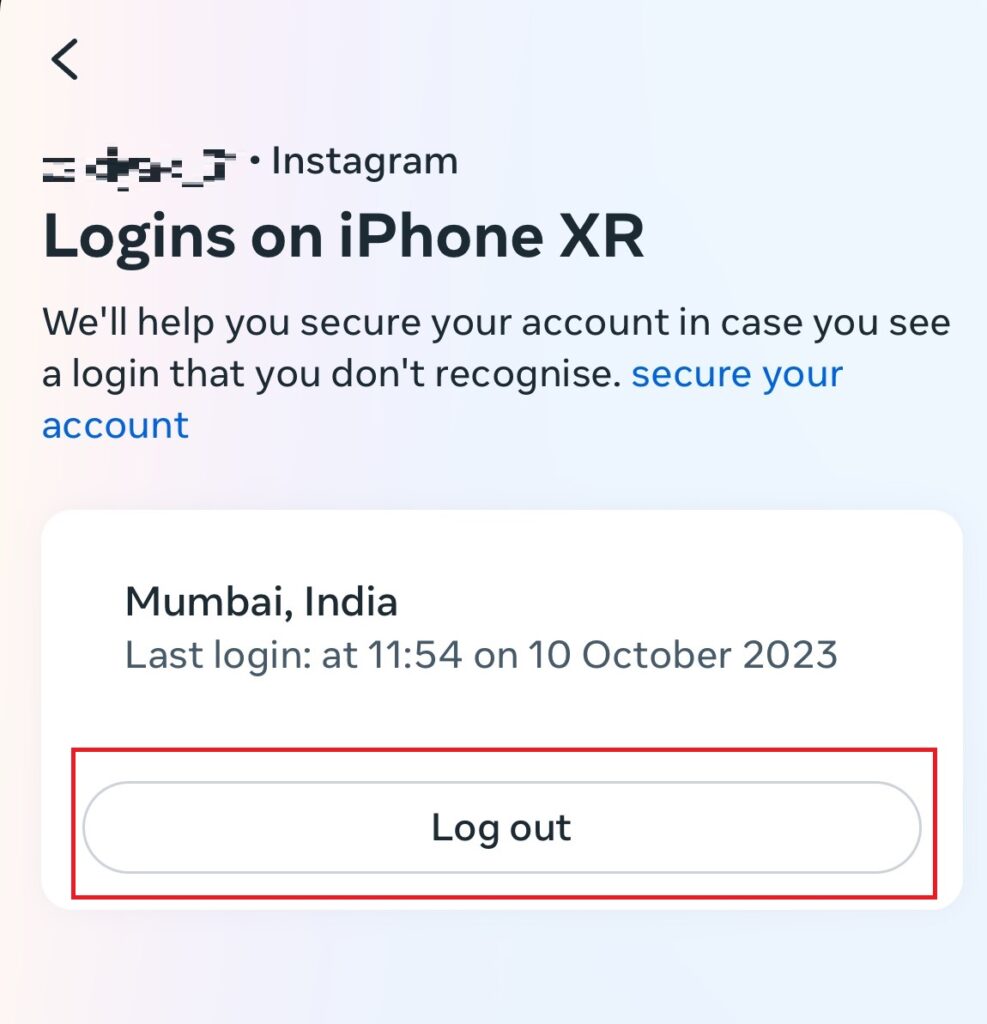
Step 5: Pop-up "Log out" Tap it.
Method 2: Check your account status
Instagram may restrict the features available to your account if it determines that you are not complying with its Community Guidelines or Terms of Service. In that case, you will receive an email when the features become available again. To check your account status:
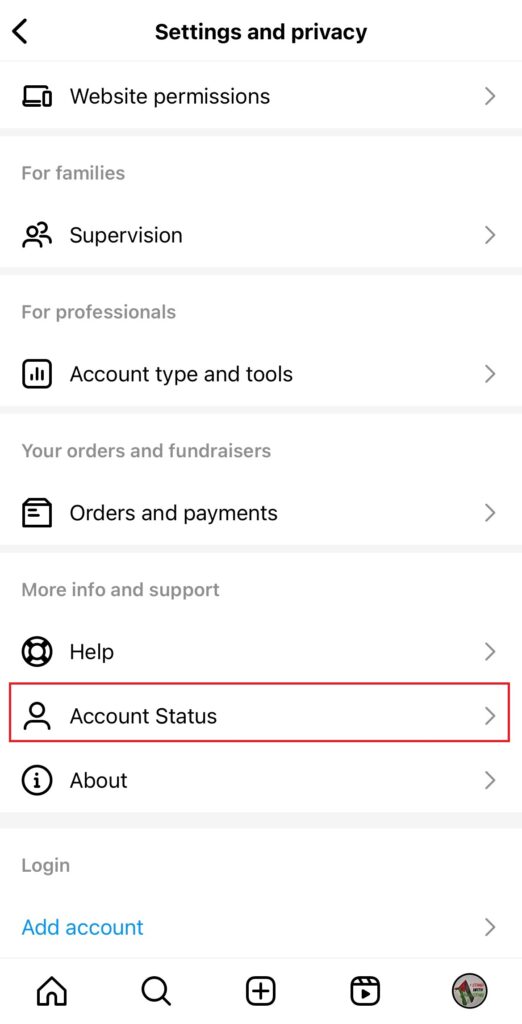
Step 1: setting This will take you to privacy.
Step 2: Swipe down, "Account Status" Select to check the status.
Method 3: Switch between personal and business accounts
Some features are only available to private Instagram accounts, while others are only available to public accounts. If Notes are not showing up, we recommend trying to switch your account from public to private, or vice versa. How to fix Instagram Notes not showing up on iPhone:
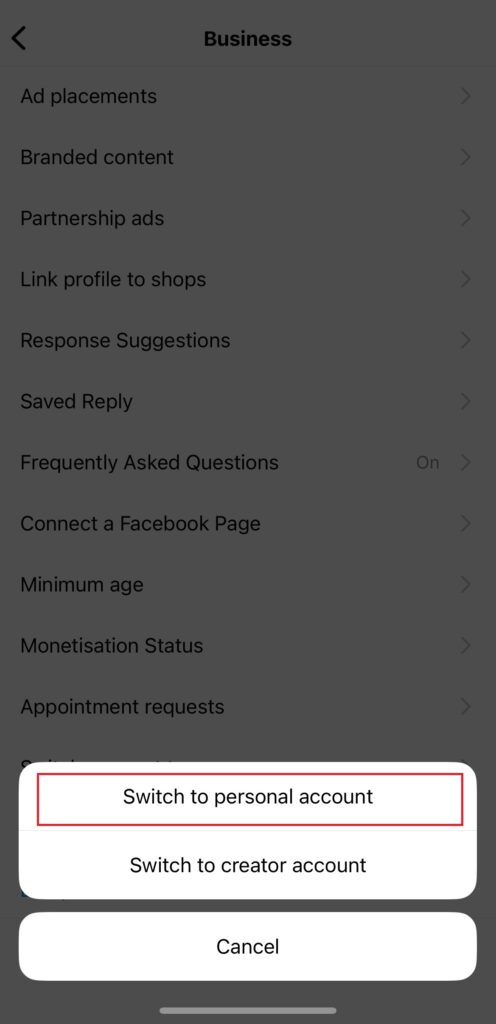
Step 1: Settings and Privacy Move to "Creator Tools and Controls" Select one.
Step 2: Swipe down and tap Switch Account Type, "Switch to personal account" Select one.
Notice: If you are using a personal account, "Switch to a business account" Select one.
Method 4: Disable the VPN
Typically, VPNs and proxies on iOS devices are primarily focused on improving online privacy, security, and accessibility, and may interfere with the functionality of installed apps, including Instagram. Always disable the VPN you are using before opening Instagram.
If all other methods fail, please seek further assistance from the Instagram support team. There may be restrictions preventing access to your account, or there may be technical issues that the team can resolve.
How to retrieve Instagram notes from both accounts
Normally, Instagram's Notes feature is automatically enabled for your account. So, if you have two accounts and want to use Notes on both, simply log in and use it.
Notice: You can only add a maximum of 60 characters to Notes.
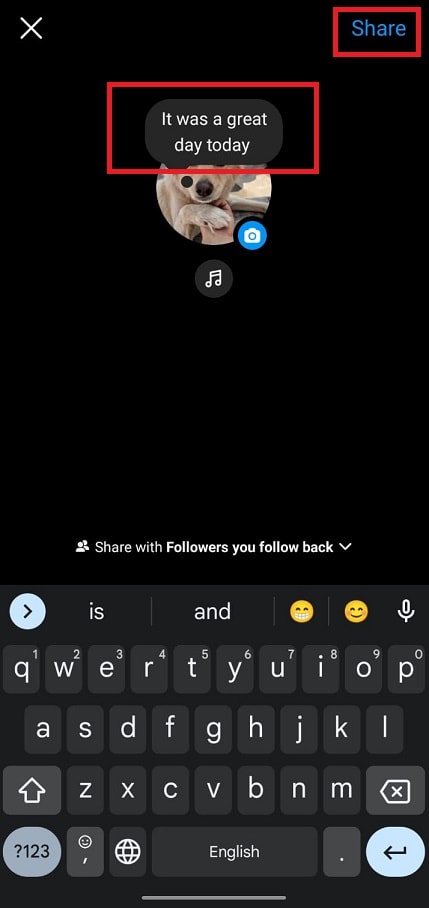
Step 1: Instagram Open it, Messaging section We will move to this location.
Step 2: At the top of the message, Profile picture Tap to enter your thoughts or add music.
Step 3: Next, at the top of the screen 「共有」 Tap to finish.
The technology may be a little complex, but by following the correct procedures, The issue of Instagram Notes disappearing. This may help troubleshoot and resolve the issue. Connect to Techcult to see more guides like this.