


In 2016, Netflix introduced a download feature to its app, allowing subscribers to save thousands of TV episodes and movies for offline viewing. This feature is especially useful in places without Wi-Fi, such as while traveling on an airplane.
While Netflix claims that most of its content is downloadable, not every title on the platform can be downloaded as desired. Furthermore, there are some limitations to the download function. If you frequently experience download errors on Netflix, we've put together a comprehensive guide to address common Netflix download errors and offer simple workarounds.
1. Fix the error message "Download function is not supported".

If you see the error message "Download feature not supported," it means that despite Netflix's ongoing efforts, the download feature is not available on most devices. According to Netflix's support page, you need to use a device that meets certain requirements to access the download feature.
- Android smartphone or tablet
- iPhone or iPad
- Windows 10 or Windows 11 computer
- Amazon Fire Tablet
- Google Chromebook
To resolve this error, please switch to a different device that meets these requirements. Windows 7 or 8 If you are using [a specific operating system], please refer to Part 7 of this article to see other ways to download Netflix videos on your operating system.
2. Fix the "Download failed" error.
If you receive the error message "Download failed," it indicates that there was a problem with one or more download attempts. This problem is... In many cases, network performance is poor or unstable. This is the reason. To ensure a successful download, we recommend downloading the video when you have a stable internet connection.
3. Fix the "Annual Download Limit"

"You have reached the annual download limit for this video." If you see this error message, it means you have exceeded the maximum number of downloads allowed for that particular video. The download limit for a specific title is determined by the license holder and can range from, for example, 4 to 20 times. Unfortunately, there is no way to predict when you will reach the limit. Once you reach the limit, you will have to wait a long time before you can download the title again.
4. Fix the "Too many downloaded videos" error.

Netflix allows you to store up to 100 titles on a single device at one time. However, there may be limits on the number of titles you can download under the same license agreement. If you see the error message "Maximum download limit exceeded," it means you have downloaded more than 100 titles or exceeded the limit set by the license agreement for that particular content. To resolve this error, follow these steps:
1. Tap the "Download" icon. If the "Download" icon is not displayed, tap the menu icon and then select "My Downloads".
2. Tap the "Edit" icon in the upper right corner of the screen.
3. Check the box next to each title you want to remove from your device.
4. Tap the "Delete" icon in the upper right corner of the screen.
5. You should now be able to try downloading your desired TV show or movie again.
5. Fix the "Too many devices" error.

"There are too many devices." If you see this error message, it means you have already downloaded the title to multiple devices or profiles. This indicates that you have exceeded the maximum number of devices on which you can simultaneously store downloaded titles. The exact error message may read: "Too many devices have downloaded this title. Delete a download from another device or check your plan options at netflix.com/changeplan (NQL.23000)."
Netflix offers various subscription plans that allow you to download content to one, two, or six devices at a time. This error occurs when you try to download a title to an additional device beyond the limits of your subscription plan. To continue downloading videos on a new device, you can either delete older downloads from another device or upgrade your streaming plan to support more devices.

6. Fix the Netflix "Download Expired" Error

The "Download Expired" error occurs when content downloaded from Netflix has expired. Each download has a specific expiration date, which varies depending on the licensing agreement between Netflix and the content creator. Some titles may expire within 48 hours of starting to watch them. You can check the remaining time by going to the download page.
If a video expires, you'll need to renew it to watch it offline again. The renewal process may vary depending on your device, but the basic steps are as follows:
Step 1: Open the Netflix app, select the menu icon, and go to "My Downloads."
Step 2: Tap the "!" icon next to the expired download.
Step 3: Select "Update Download" to update the title.
All-in-one video converter
Download videos with one click from YouTube, Facebook, Twitter, Instagram, NicoNico, TikTok, Reddit, Netflix, and other video sites. Lossless music converter compatible with Apple Music, Spotify, YouTube Music, SoundCloud, and more. Try it now!
Note: Please note that some titles may only be updated a limited number of times, and once the service ends, they will no longer be available for offline viewing on Netflix.
7. Fix the "Unable to download Netflix videos on Windows 7 or 8" issue.
While Netflix's download function isn't available on Windows 7 or 8, you can stream videos offline on your Windows 7 or 8 computer using Netflix Downloader, a professional video downloader designed specifically for Netflix. Video Converter allows you to download any movie or TV show in HD MP4 or MKV format. To download Netflix videos on Windows 7 or 8 using Video Converter, follow these steps:
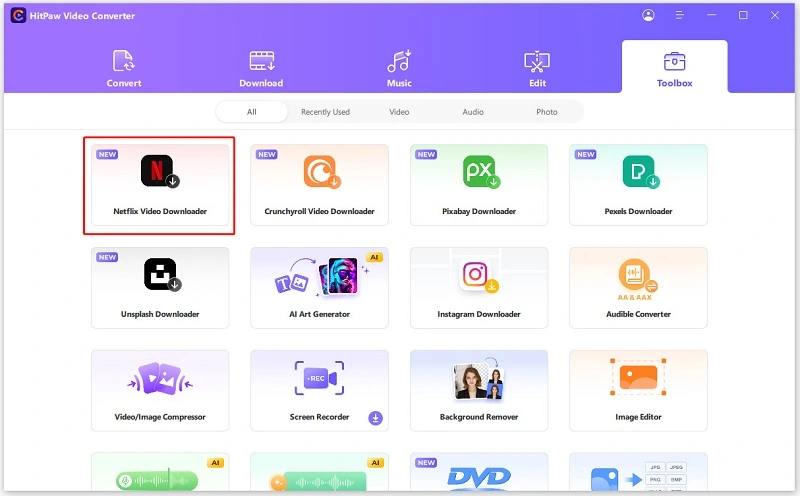
Step 1: Download and install Video Converter on your computer. After installation, launch it and find Netflix Video Downloader in the "Toolbox" tab. Click to open it.
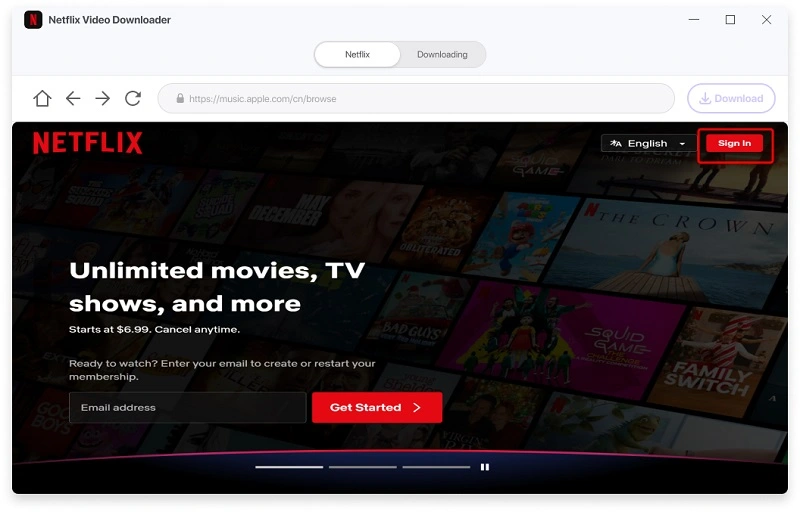
Step 2: Sign in to your Netflix account and prepare to download.
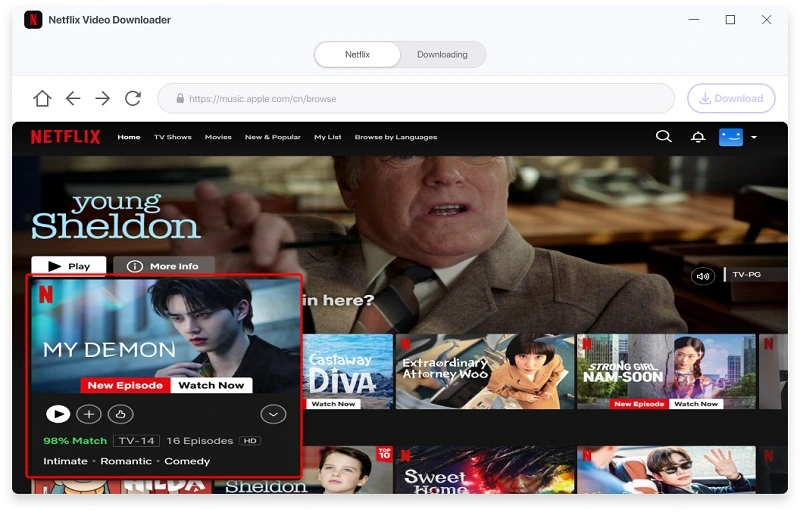
Step 3: Search for your favorite TV shows and movies on Netflix. After making your selection, click the "Download" button.
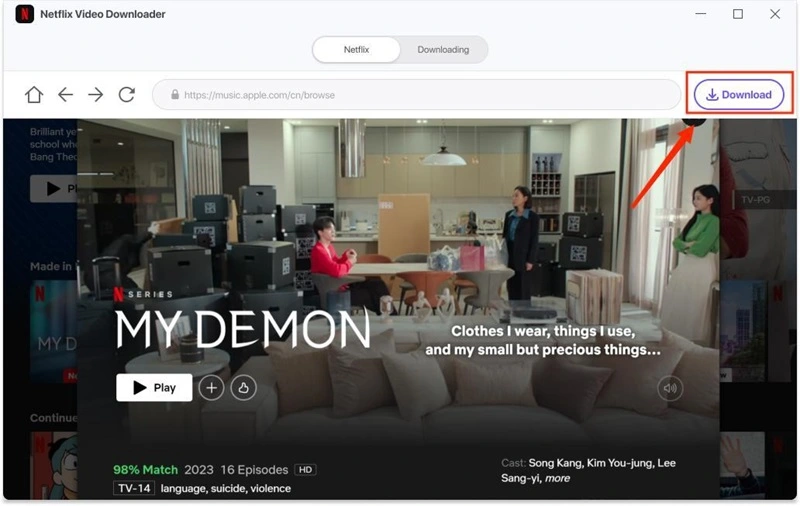
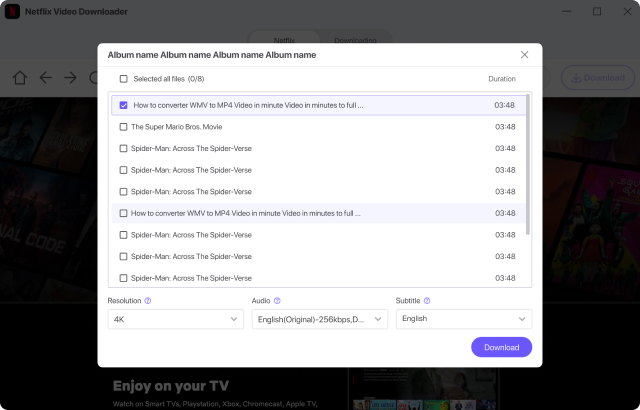
Step 4: Then, press the "Download" button. You can customize the download by selecting the video file, resolution, audio, and subtitles to suit your needs. After making your settings, click the "Download" button to start the download.
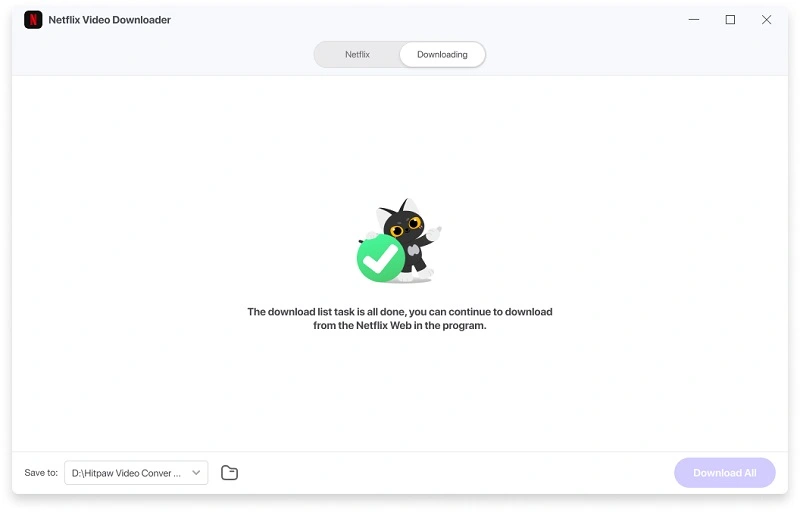
Step 5: Once the download task is complete, the downloaded Netflix episodes will be saved to the "Destination" folder.
8. Fixed the issue of "unable to share Netflix downloads with friends".
You cannot directly share Netflix downloads with friends unless you share your Netflix username and password with them. This is because each Netflix video is encoded in a proprietary format that can only be viewed within the Netflix app. However, there is a solution to share Netflix videos with friends in shareable MP4 or MKV format using Video Converter. By following the same steps described in Part 7, you can download any video from Netflix as an MP4 or MKV file and share it with others without restrictions.
9. How to fix Netflix error 10016-22005
If you see this error code, it indicates that you have exceeded the maximum number of downloads permitted by your studio or distributor's license agreement. You can fix this error by deleting previously downloaded content that you have finished watching.
10. How to fix Netflix error 10016-22002
This error code is similar to the "Too many downloaded videos" error and occurs when you reach the maximum number of videos your device can download simultaneously. To resolve this error, delete some of the titles you have already downloaded.
11. How to fix the "There was a problem with this download" error.
If you see this error message on your iPhone, iPad, or iPod touch, it often means that you need to update the Netflix app on your device. To resolve this issue, follow these steps:
1. Go to the App Store and search for Netflix.
2. Find Netflix in the list and tap it, then tap "Update." You may be asked to enter your Apple ID password. If you have forgotten your password, follow Apple's instructions to reset it.
If none of these error codes match the error code you are experiencing, please visit the Netflix Help Center. "Troubleshooting Netflix Downloads" Search for other solutions.
結論
After trying the above workarounds, you should be able to resolve most common errors that occur when downloading videos from Netflix for offline playback. However, please note that downloaded titles have an expiration date and will no longer be available after that date.
If you want to extend the expiration date and save Netflix videos to your device indefinitely, we highly recommend Video Converter. This powerful tool allows you to download any video from Netflix as an HD MP4 or MKV file and save it to your device without worrying about expiration dates.





