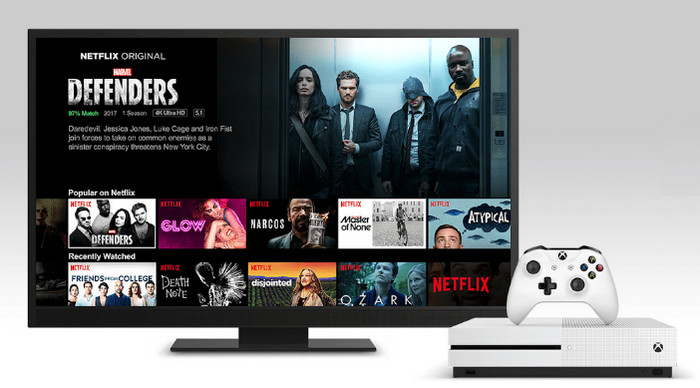
Can I watch Netflix on Xbox? Yes, Netflix is available on Xbox devices and other gaming consoles besides Nintendo Switch. If you want to fully enjoy Netflix's exciting content on your Xbox, this comprehensive guide will tell you everything you need to know to use Netflix on Xbox, from supported Xbox modes to troubleshooting common issues. Whether you're a first-timer or facing difficulties, we'll guide you step-by-step with helpful tips. Let's get started and make the most of Netflix on Xbox!
Which Xbox models does Netflix support?
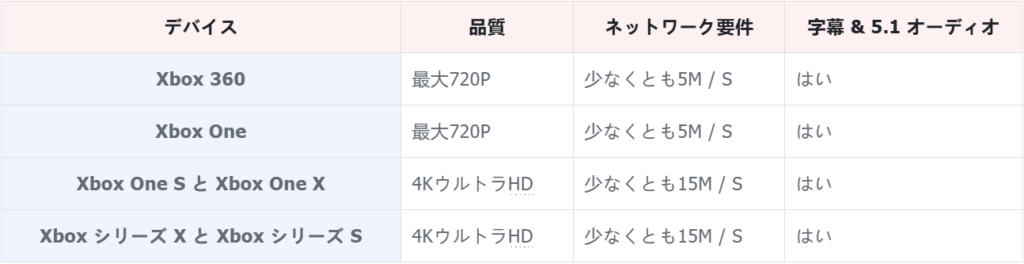
Netflix supports Xbox 360, Xbox One, and Xbox Series X/S models. To smoothly watch Netflix content on Xbox, you'll need a valid Netflix subscription, a broadband internet connection, an Xbox Live account, and the Netflix app. Below are more specific requirements and what you can watch from Netflix on different Xbox models.
Hint: Do I need a Game Pass Ultimate account to watch Netflix on Xbox?
No, you don't need a Game Pass Ultimate account to watch Netflix on Xbox. Netflix is a separate streaming service and requires its own subscription. While Game Pass Ultimate gives you access to cloud gaming, Xbox Live Gold, and a game library including Xbox Game Pass, it's not required to use the Netflix app on Xbox.
How to set up Netflix on Xbox
The steps for setting up Netflix on a different Xbox device are slightly different.
For Xbox 360:
Step 1: Turn on your Xbox 360 and sign in to your Xbox Live account. If you don't have an Xbox Live account, you'll need to create one.
Step 2: Press the Xbox button in the center of the controller to go to the Xbox dashboard.
Step 3: Go to the "Apps" section and select the "Netflix" app. If Netflix is not displayed, go to the "Store" section, search for "Netflix," download and install it.
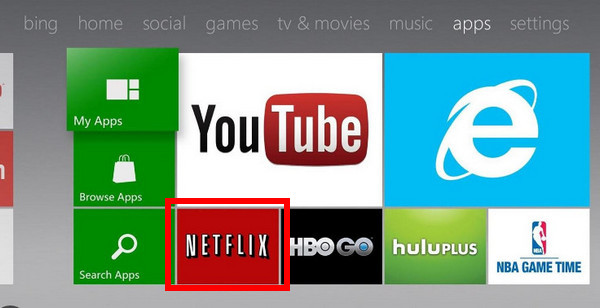
Step 4: Launch the Netflix app and sign in with your Netflix account.
On Xbox 360, you can now directly browse and stream movies and TV shows from your Netflix library.
For Xbox One series and Xbox Series X/S:
Step 1: From the home screen, scroll right through the main menu to go to the Xbox Store.
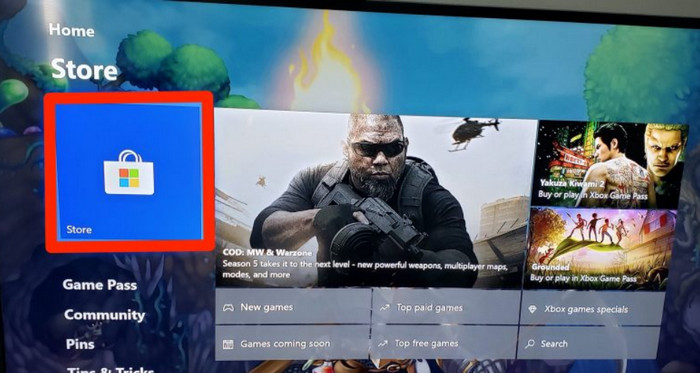
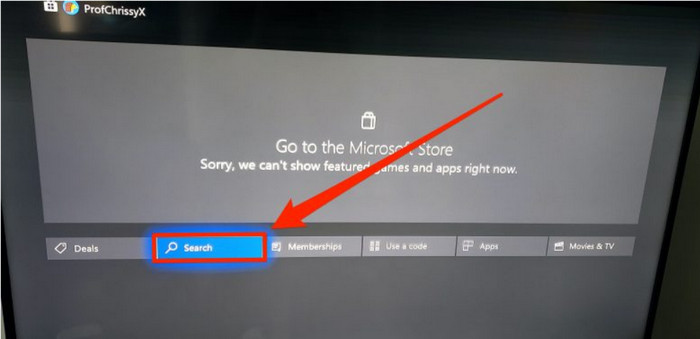
Step 2: Use the search function in the Xbox Store to search for "Netflix," or browse the Apps section.
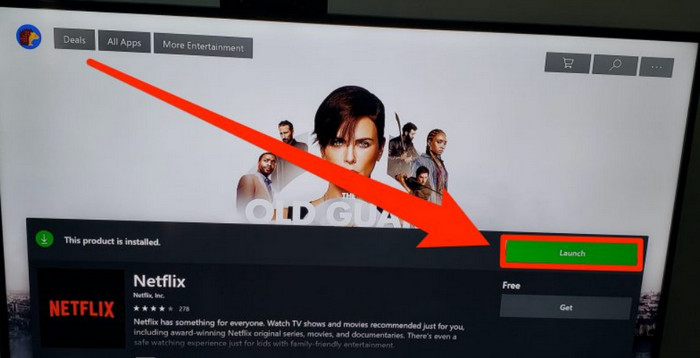
Step 3: Select the Netflix app and click the "Install" button to download and install the Netflix app on your Xbox console.
Step 4: Once the installation is complete, the "Install" button will change to "Launch," so launch Netflix.
Step 5: After that, sign in and enter your Netflix email address and password.
How to sign out of Netflix on Xbox
This guide explains how to sign out of Netflix using an Xbox One as an example.
Step 1: Open the Netflix app and use the controller 「B」 Press the button to move to the left side of the screen and access the menu.
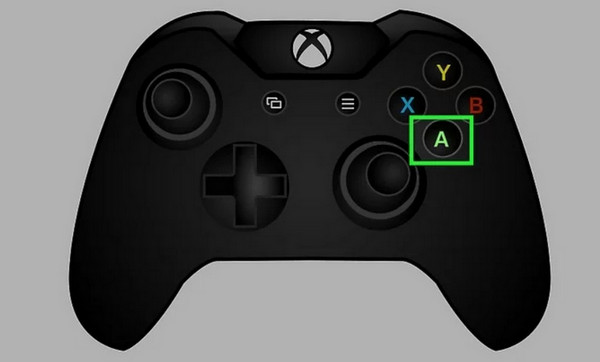
Step 2: Controller 「A」 Press the button to access the settings window and select the "Logout" option.
Step 3: A confirmation prompt will appear asking if you want to sign out. Select "Yes" to confirm.
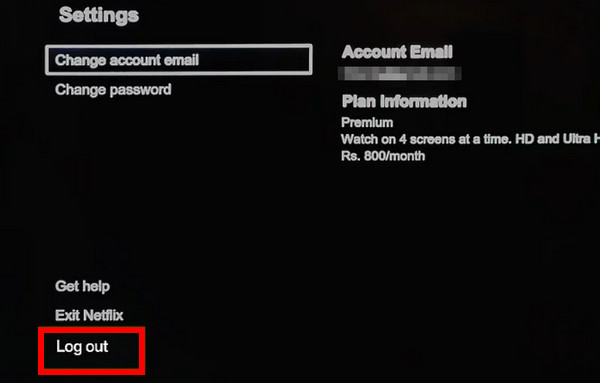
Step 4: After verification, you will be signed out of your Netflix account on your Xbox console.
All-in-one video converter
Download videos with one click from YouTube, Facebook, Twitter, Instagram, NicoNico, TikTok, Reddit, Netflix, and other video sites. Lossless music converter compatible with Apple Music, Spotify, YouTube Music, SoundCloud, and more. Try it now!
Can I download Netflix movies and shows on Xbox?
No, you cannot directly download Netflix movies or shows on an Xbox console. Xbox can only stream Netflix content online. The ability to download content from Netflix is currently only available on certain devices, such as smartphones, tablets, and some Windows PCs.
However, there is a workaround that allows you to watch offline on Xbox using a third-party tool called Netflix Video Downloader. This is a versatile video downloader and player that provides the ability to download content from Netflix. With it, you can download your favorite movies and shows from Netflix in MP4 or MKV format. Once downloaded, you can import them to a USB drive and play your Netflix downloads with Xbox Media Player.
Part 1: Download Netflix in MP4 format
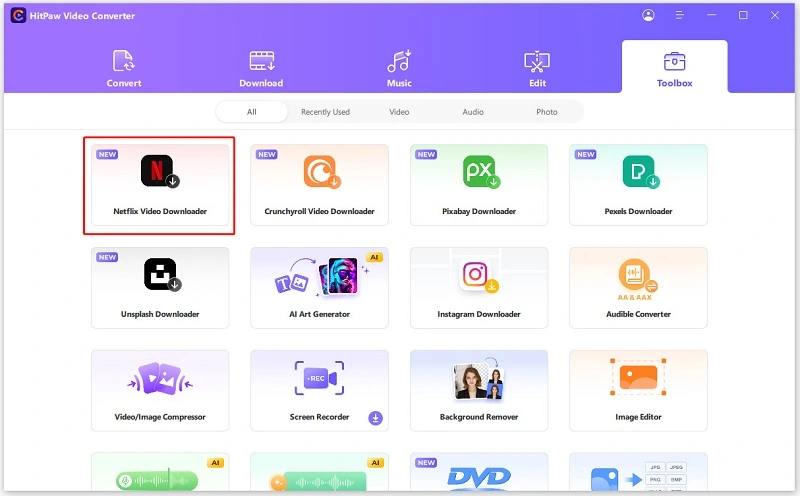
Step 1: Download and install Video Converter on your computer. After installation, launch it and find Netflix Video Downloader in the "Toolbox" tab. Click to open it.
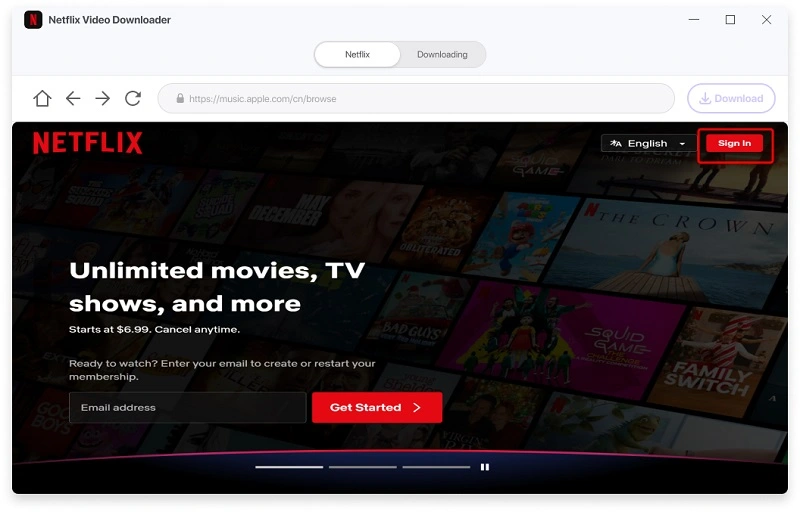
Step 2: Sign in to your Netflix account and prepare to download.
Step 3: Search for your favorite TV shows and movies on Netflix. After making your selection, click the "Download" button.
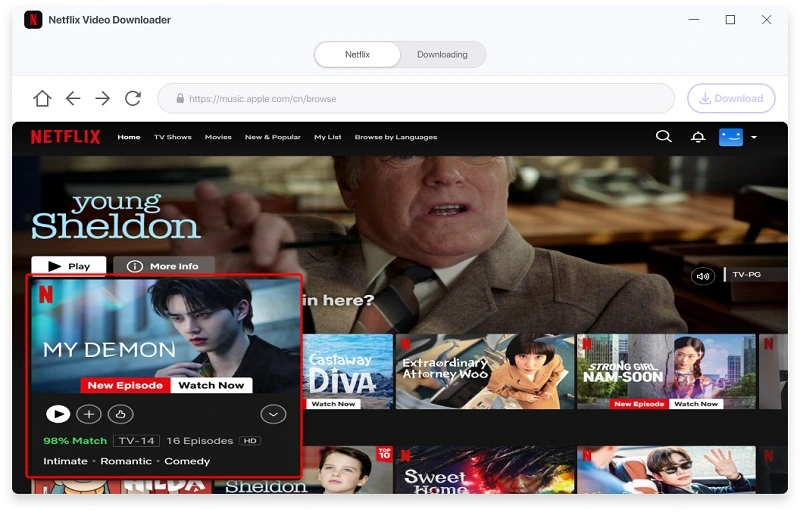
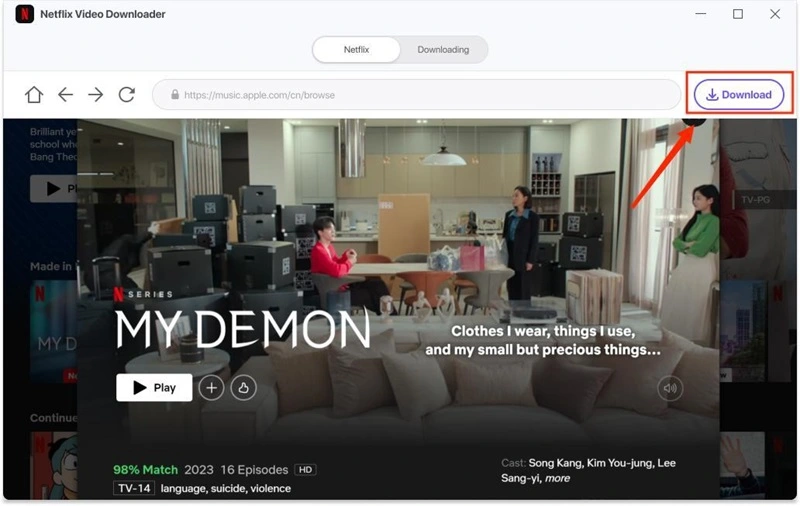
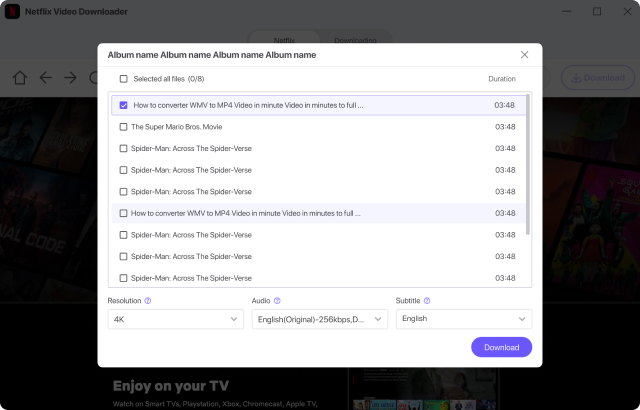
Step 4: Then, press the "Download" button. You can customize the download by selecting the video file, resolution, audio, and subtitles to suit your needs. After making your settings, click the "Download" button to start the download.
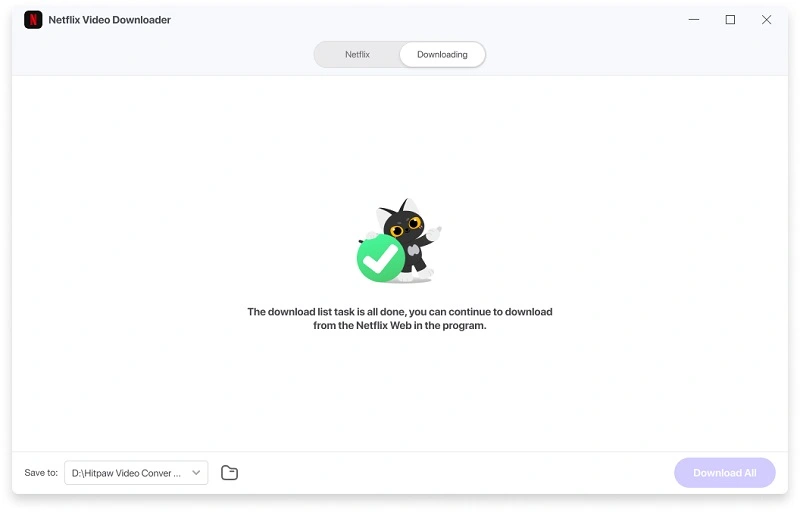
Step 5: Once the download task is complete, the downloaded Netflix episodes will be saved to the "Destination" folder.
Part 2: Playing Netflix downloads with Xbox Media Player
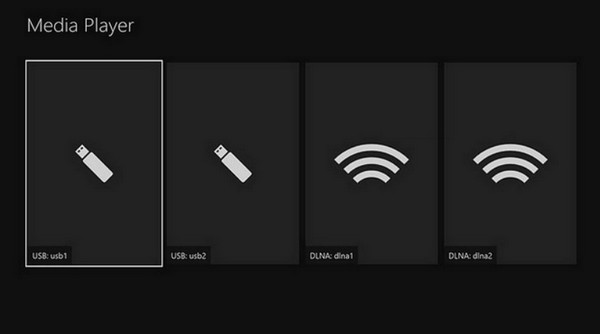
Xbox Media Player supports playing videos from USB drives. Therefore, simply transfer your Netflix downloads to a USB drive and connect the drive to your Xbox console. Once connected, you can use the Xbox Media Player app to navigate to the USB drive and play videos directly from it on your Xbox console.
Netflix not working on Xbox? 6 fixes
If Netflix isn't working on your Xbox, there are several troubleshooting steps you can try to resolve the issue.
Check your internet connection: Ensure your Xbox is connected to the internet and that the connection is stable. You can test the connection by opening another app or game that requires internet access.
Restart your Xbox: Sometimes, simply restarting your Xbox can resolve temporary issues. Turn off your Xbox, wait a few seconds, and then turn it back on.
Update the Netflix app: Make sure your Xbox Netflix app is updated to the latest version. To do this, go to the "My Games & Apps" section, select Netflix, and check if there are any updates available.
Clear the cache of the Netflix app: In some cases, clearing the cache of the Netflix app on Xbox can resolve the issue. Go to "My Games & Apps," select "Netflix," press the menu button on your controller, select "Manage Apps," and then select "Clear Saved Data."
Check for system updates: Make sure the latest system update is installed on your Xbox console. Go to Settings > System > Updates & Downloads to check if there are any system updates available.
Reinstall Netflix: If the problem persists, try uninstalling and reinstalling the Netflix app on your Xbox. Go to "My Games & Apps," select "Netflix," press the menu button on your controller, and select "Uninstall." Then, reinstall the app from the Microsoft Store.
summary:
Now you have all the information you need to use Netflix on Xbox. Whether you're streaming your favorite shows, signing out, or troubleshooting problems, this guide will give you a comprehensive understanding of how to use Netflix online on Xbox. To watch Netflix offline on Xbox, Video Downloader That's all you need. Using this, you can download Netflix movies in the common MP4 format. Enjoy!