


Instagram and Snapchat are different, but they share one thing in common: Stories. Sharing images and videos as Stories on both social media platforms is one of the best ways to keep your followers updated on what you're up to.
However, there are times when you might want to share something you've posted on Instagram with your Snapchat friends, or vice versa. While there isn't a native way to cross-post from Snapchat to Instagram or vice versa, there are a few workarounds you can try.
This article explains how to share Instagram Stories to Snapchat and vice versa.
Can I sync Instagram with Snapchat?
The simple answer is no. You cannot directly link Instagram and Snapchat. Snapchat and Instagram are different social media platforms with their own unique features.
Both networks focus on sharing temporary content and short videos, but they are separate and not integrated with each other. Therefore, unlike connecting Facebook and Instagram, you cannot link Instagram to Snapchat.
To share content from Instagram to Snapchat, you need to manually save or capture the content and upload it separately to both platforms.
However, there are ways to share Instagram Stories on Snapchat and vice versa. Let's take a look at all of them. Admittedly, sending old photos as new snaps on Snapchat is easier than cross-posting between Instagram and Snapchat.
How to share Snapchat stories on Instagram
Sharing Snapchat stories on Instagram is a very simple process. While there isn't an option to share stories directly from Snapchat to Instagram, you can manually share stories this way.
1. On your mobile phone Snapchat Launch the application, and in the upper left corner "Your Story" Tap the icon.
2. "My Story" Tap and select the story you want to share.
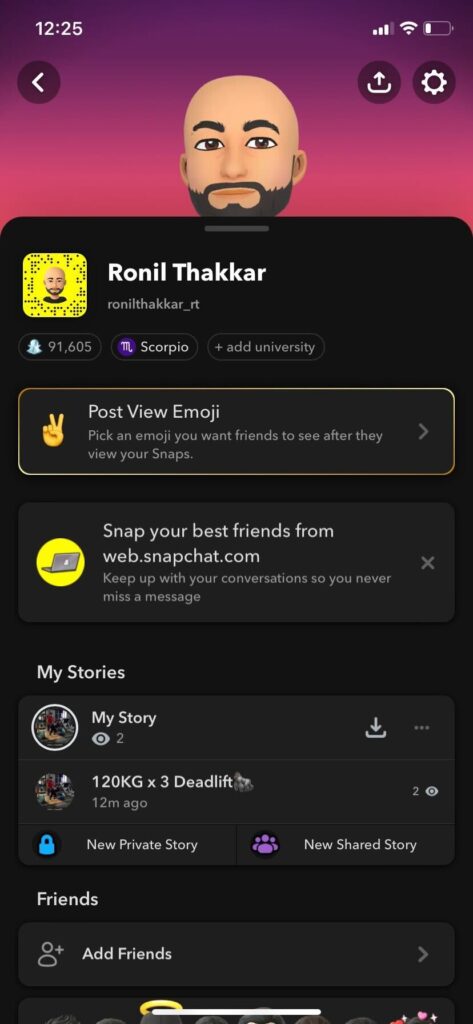
3. In the upper right corner Three dots icon Press, "Save snapshots/photos/videos" Tap to save media files to your phone.

4. Once completed, Instagram Move to "+" icon Tap to add a story.

5. Select a story you saved from Snapchat.
6. Edit your story using filters, text, stickers, GIFs, music, and anything else you like, as needed.
7. "Send" Tap the button to share your story.

That's it! You've successfully shared your Snapchat story on Instagram. Furthermore, you can use this method to add multiple videos to your Instagram story.
How to post Instagram Stories to Snapchat
Posting Instagram Stories to Snapchat is also easy.
1. on my cell phone Instagram Open it and go to the story you want to share.

2. At the bottom 「共有」 Tap the icon, 「共有先」 Select an option.

3. Instagram will show you all the options for sharing your story. Snapchat Select one.
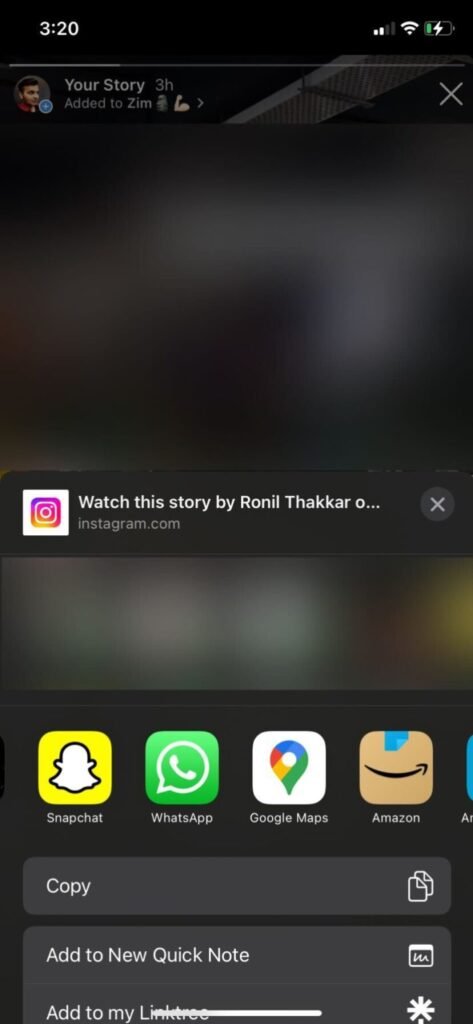
4. "Your Story" Tap the option, "send" Press the button. Alternatively, from the share menu... "My Story" You can also select an option.
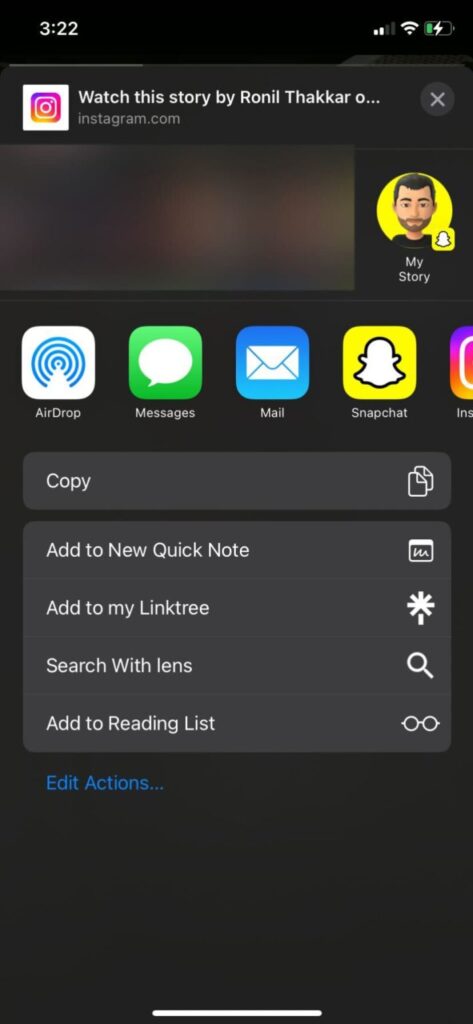
This makes it easy to share Instagram Stories with friends on Snapchat. Note that when you send it to a friend, this media will be sent as a chat, not as a Snapchat streak.
How to share old Snapchat stories on Instagram
While the above method makes it easy to share Snapchat stories on Instagram, what if you want to reshare old Snapchat photos on Instagram? Thankfully, that's also possible.
1. on my cell phone Snapchat Start it up, "memory" Tap the icon (a symbol of two photos).
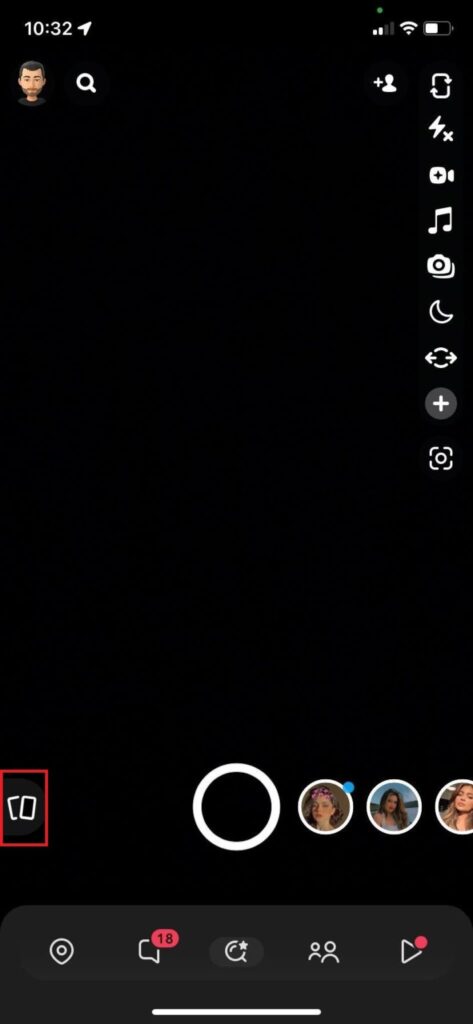
2. Select the snaps you want to share from the Snaps, Camera Roll, Screenshots, Stories, or My Eyes section.

3. In the upper right corner Three-dot menu icon Tap it.
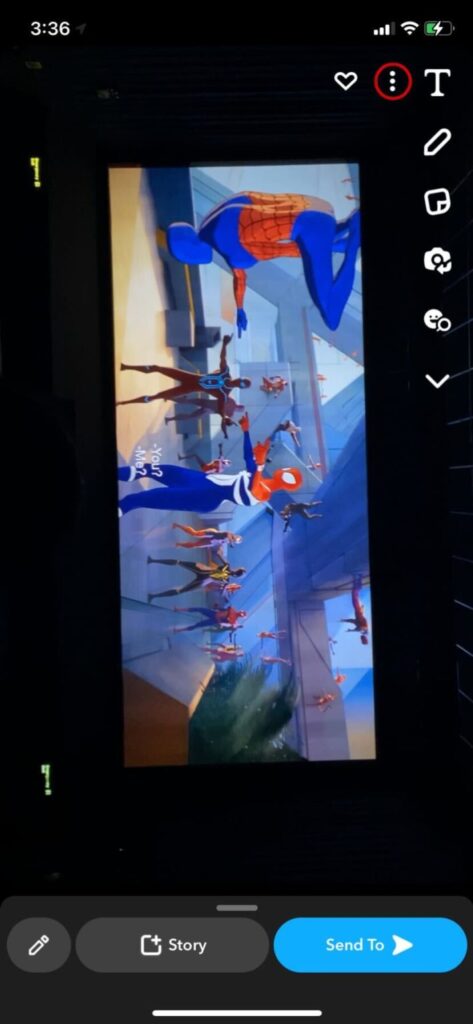
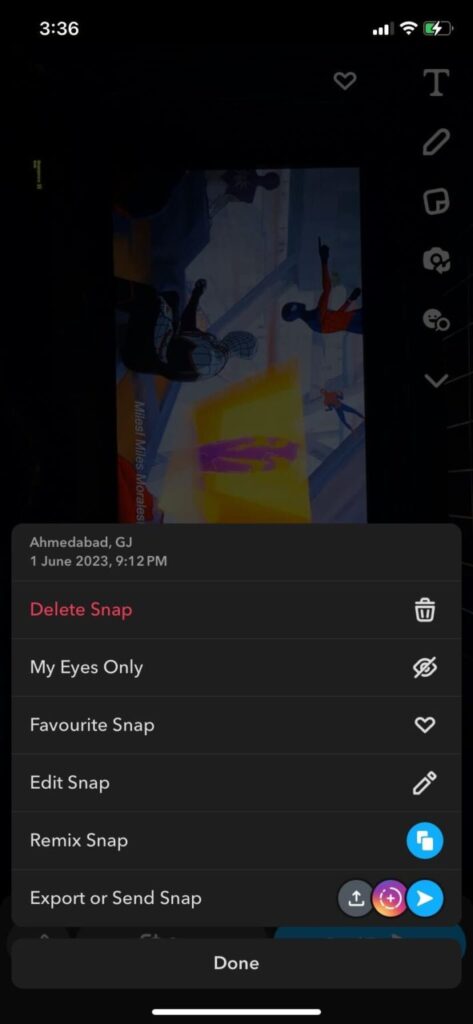
4. Snap export or Sending options Select one.
5. Other places Shared section from Instagram Stories Tap the option.
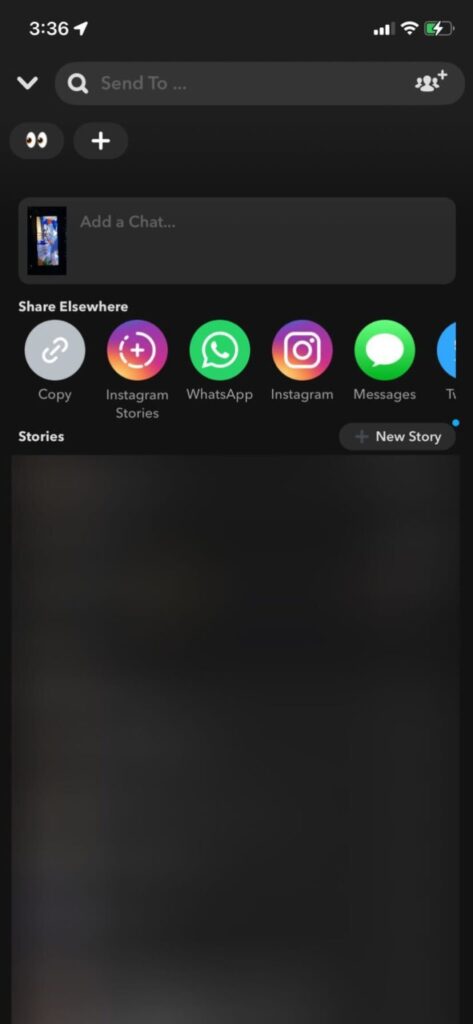
That's it! Your old Snapchat snaps will now appear as stories on your Instagram account.
How to share Instagram posts as Snapchat Stories
If you want to post your amazing photos on Instagram and share them with your Snapchat friends, follow these steps:
1. on my cell phone Instagram Open it and navigate to the post you want to share.

2.「共有」 Tap the icon, Copy the link Press the option.
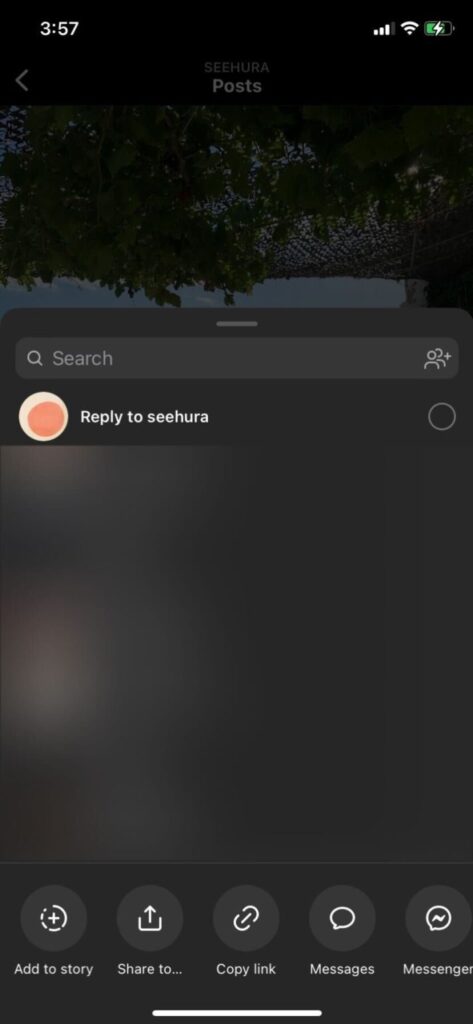
3. Next, close Instagram and use your mobile phone Snapchat Launch it.
4. Take a snapshot or select media from your camera roll. In the Edit menu, Link attachment icon (paper clip symbol) Tap to paste the link.

5. Enter the URL Options will be displayed. From Instagram copied Paste the URL. 。
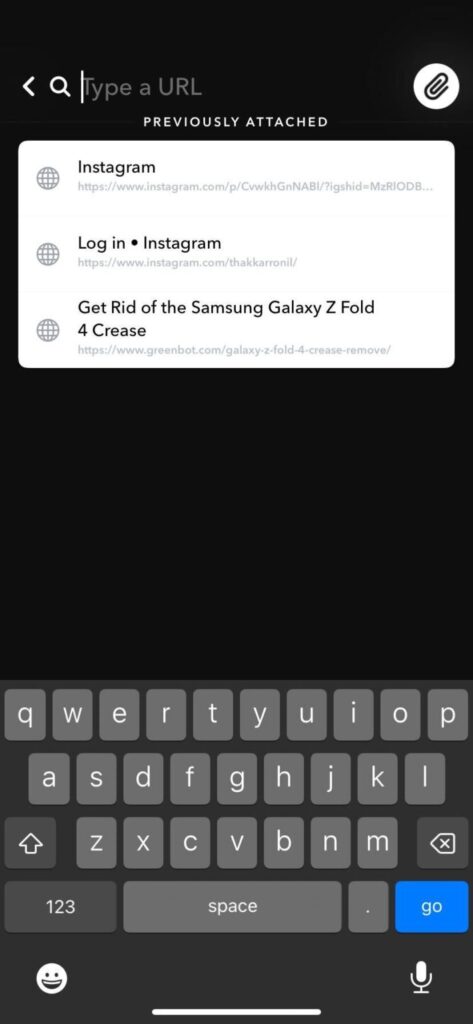
6. Snapchat loads the posts. Attached to the snap Tap the button.
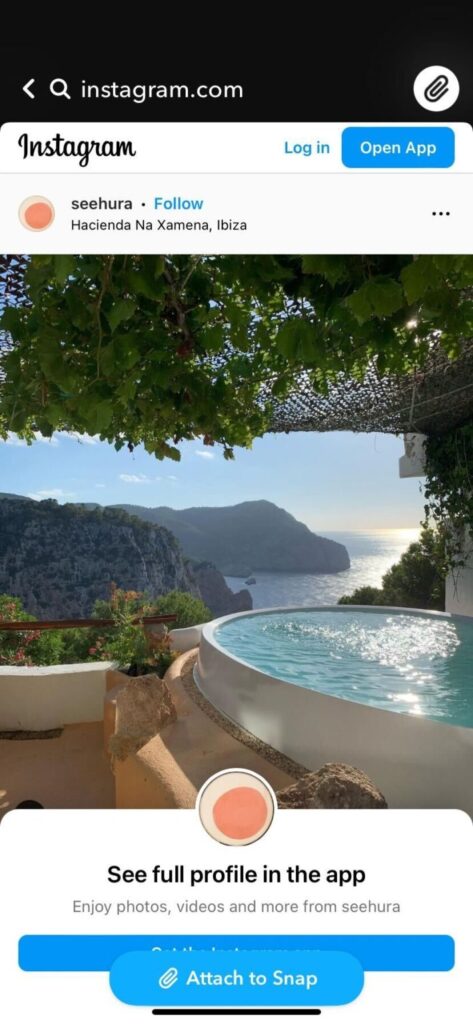
7. "Story" Press the button to share your Instagram post on Snapchat.
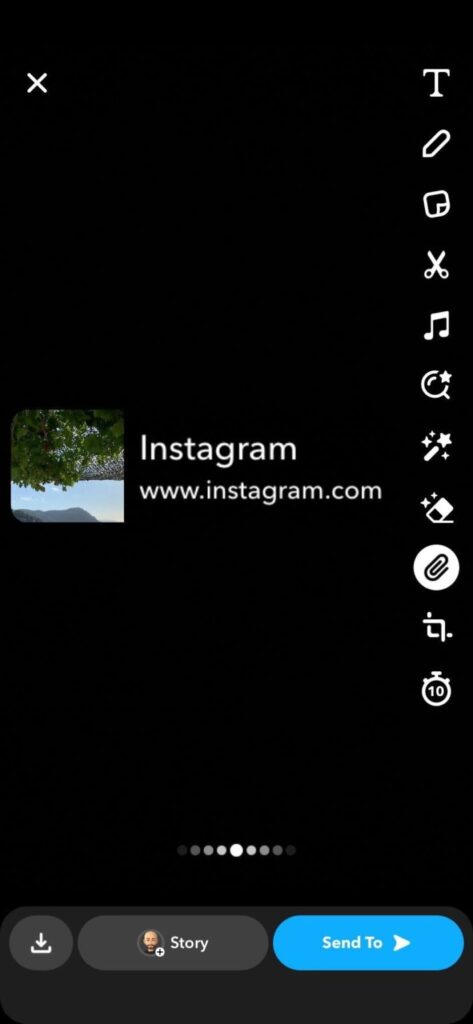
The recipient will see a link that redirects them to the Instagram post.
Let's share this precious moment!
Now that you know how to share Instagram posts to Snapchat Stories and vice versa, it's easier than ever to share content between your two favorite social media platforms and post your best moments with friends and family.
Using the methods described in this article, you can share almost anything on both social media platforms, from funny Reels you've shared on Instagram Stories to old snaps saved in Snapchat Memories. These methods work on both iPhone and Android smartphones.
Which platform do you use more often to post stories: Snapchat or Instagram? Let us know in the comments section below.