Instagram is a fantastic app for sharing photos, and we think it's the best. It's great to use on a mobile phone, but sometimes it's nice to be able to view photos on a larger screen or post without a small keyboard. Perhaps you've wished you could use Instagram without being tied to a mobile device. Have you ever wanted to access it from a Windows PC or Mac? We have a solution, and we'll show you how to get and use Instagram on your PC. Let's take a look.
Instagram Web version
The first way to access Instagram from your PC is to visit their website. Once you reach Instagram.com, you can log in if you already have an account. Otherwise, please sign up.
You can view Instagram photos, browse your feed, watch Reels, edit your bio, change your profile picture, check and reply to comments using GIFs, see how other users have liked your posts, and much more. You can also search for accounts to follow or search for specific things.
Previously, you couldn't post to Instagram from the web, but that's no longer the case. You can upload photos and videos and post new content. However, you still can't create new Reels or use Instagram's AR effects. Additionally, you can't post Stories, but you can view them.
Install the Instagram app from the Microsoft Store.
You might be surprised to learn that there's an official Instagram app for Windows. You can download it from the Microsoft Store.
1. Open the Microsoft Store and use the search bar to search for the Instagram app.
2. Next to the list "install" Click the button and wait for it to complete.
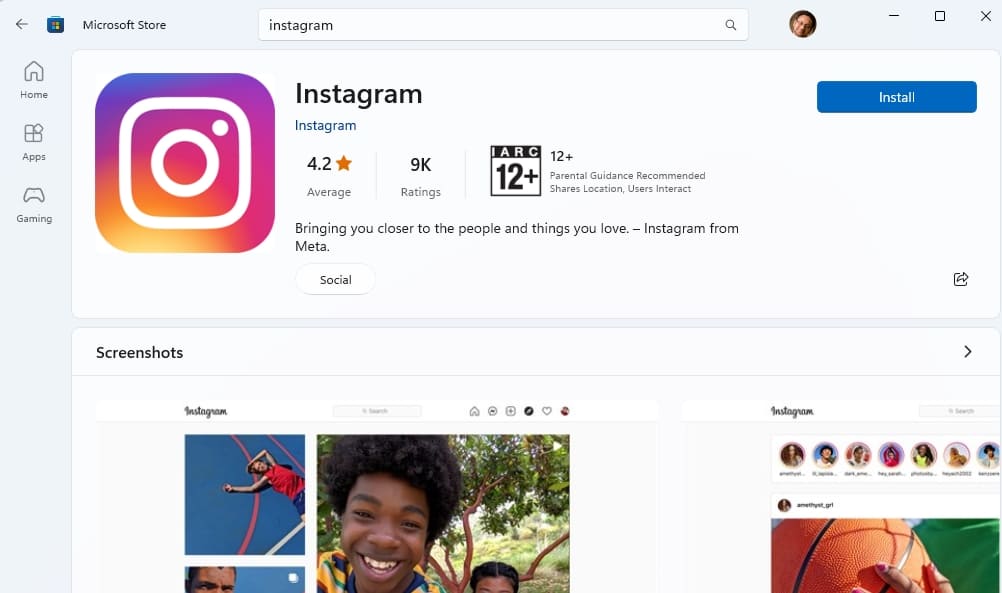
3. Once completed, open the app and sign in to your account.
4. This app can be used in the same way as a smartphone, but with some limitations.
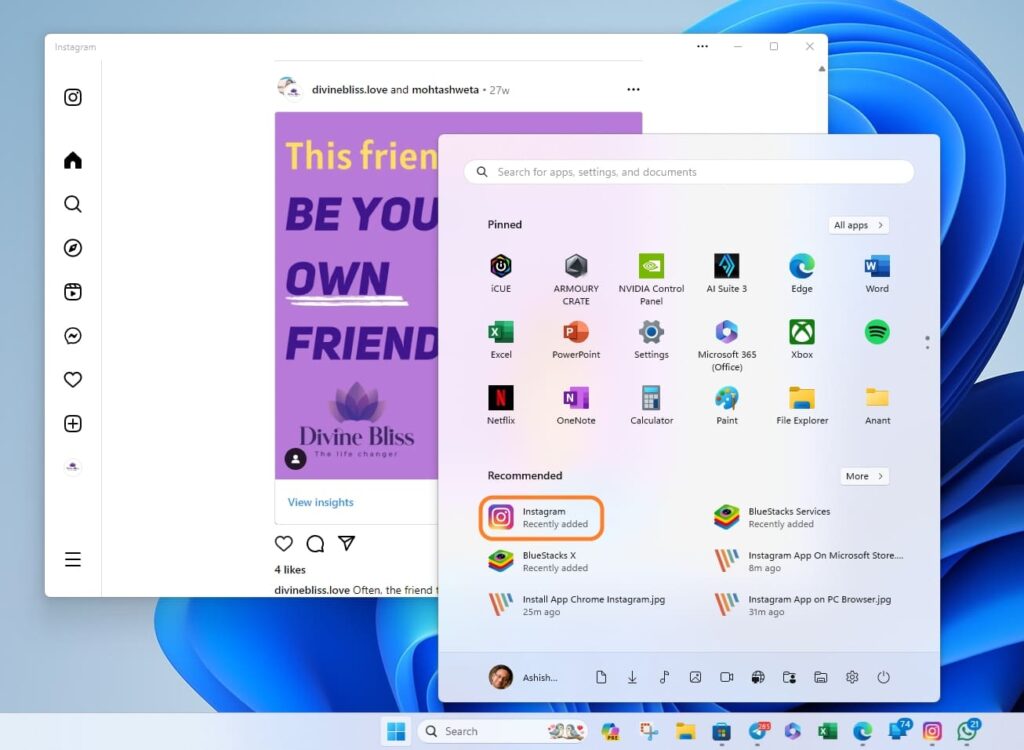
You can use the Instagram Windows app to upload new posts and browse your feed and stories. The missing features are access to Instagram video creators and the ability to create and post Reels and stories. Specifically, you cannot add text to Instagram Reels from your Windows PC. These limitations are the same as those of the web version of Instagram.
How to use the full version of Instagram on your PC
So, what if you want to use the full version of the Instagram app on your Windows PC? You can use an Android emulator to run the Instagram app on your Windows PC and have full access to all its features.
Here, we're using BlueStacks X, one of the best Android emulators that allows you to install Instagram without signing in to a Google account. Therefore, you don't need to create an account to access the Google Play Store.
1、 Bluestacks X Download and install it.

2. Top right Search bar Use this to search on Instagram.
3. Open the Instagram list from the search results.
4. To install Instagram, "Install to App Player" Click the button.
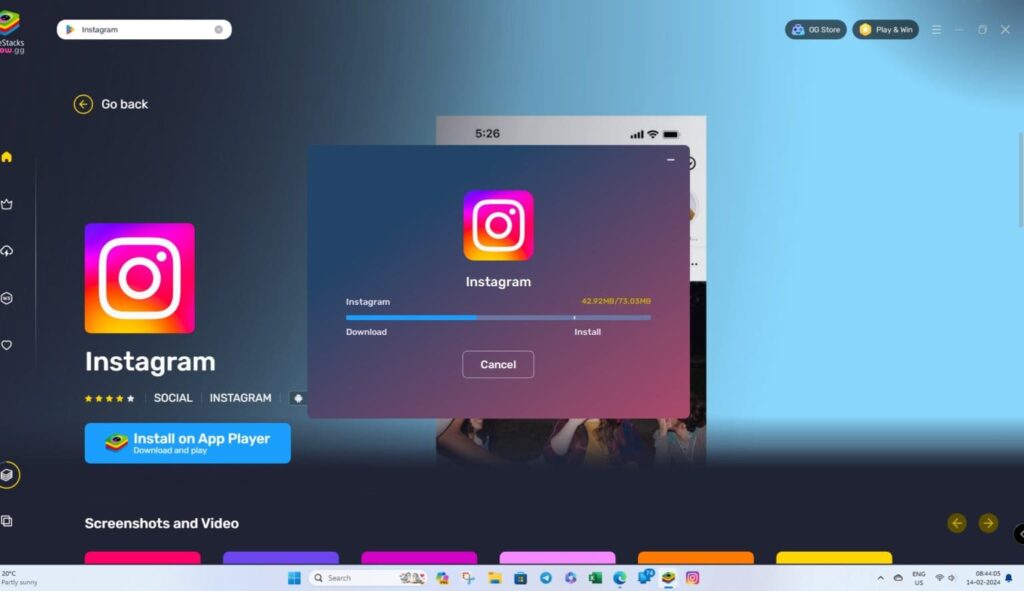
5. After installation, Instagram will launch automatically. Alternatively, you can click the App Player icon in the sidebar to view all installed apps.
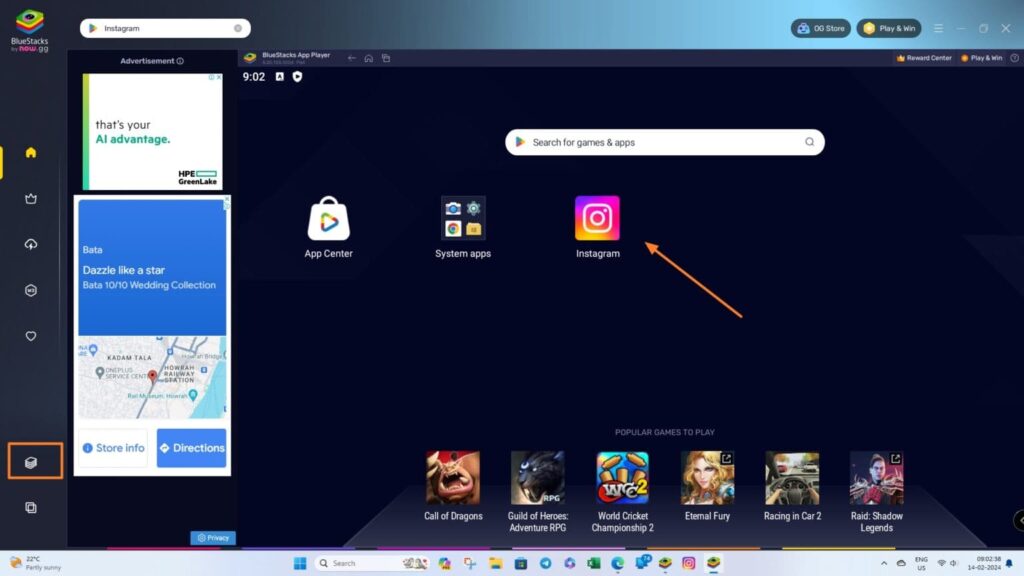
6. Double-click to open the Instagram app. Bluestack X will open it in a new window in mobile view.
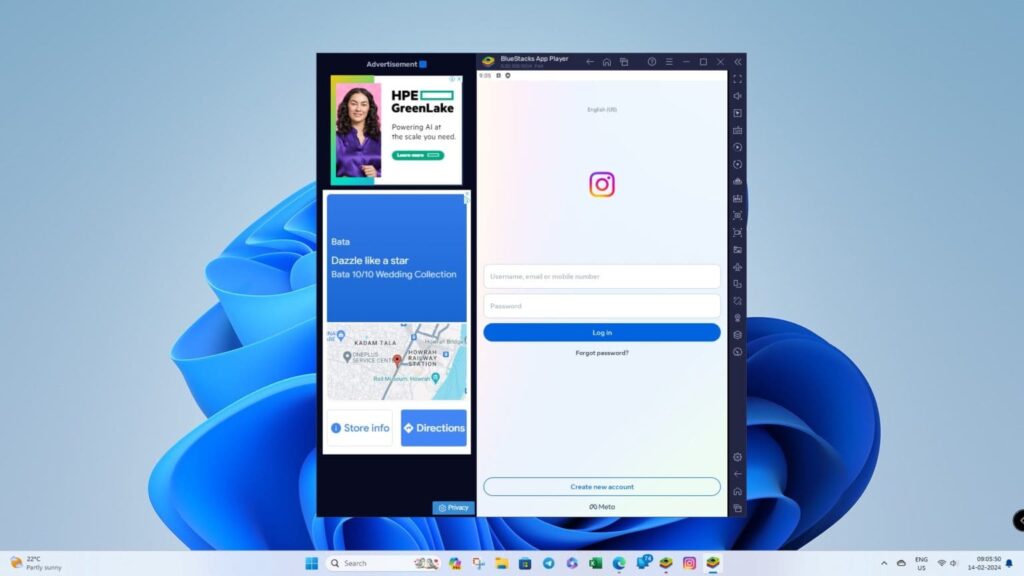
Now you can log in to your Instagram account and enjoy all the app's features on your PC without using your phone.
How to install the Instagram Web app on Windows or Mac
Because Instagram's website is a progressive web app, you can install it on your PC and access it easily, just like any other app.
Edge and Chrome display a button in the address bar when they detect a website that can be installed as an app. The following are the steps for Microsoft Edge; the process is the same for Chrome.
1. Open Instagram on the web.
2. Displayed next to the address bar "Install the app" Click the icon. If this doesn't appear, go to the search or explore section.
3. You will be prompted to install Instagram as an app.
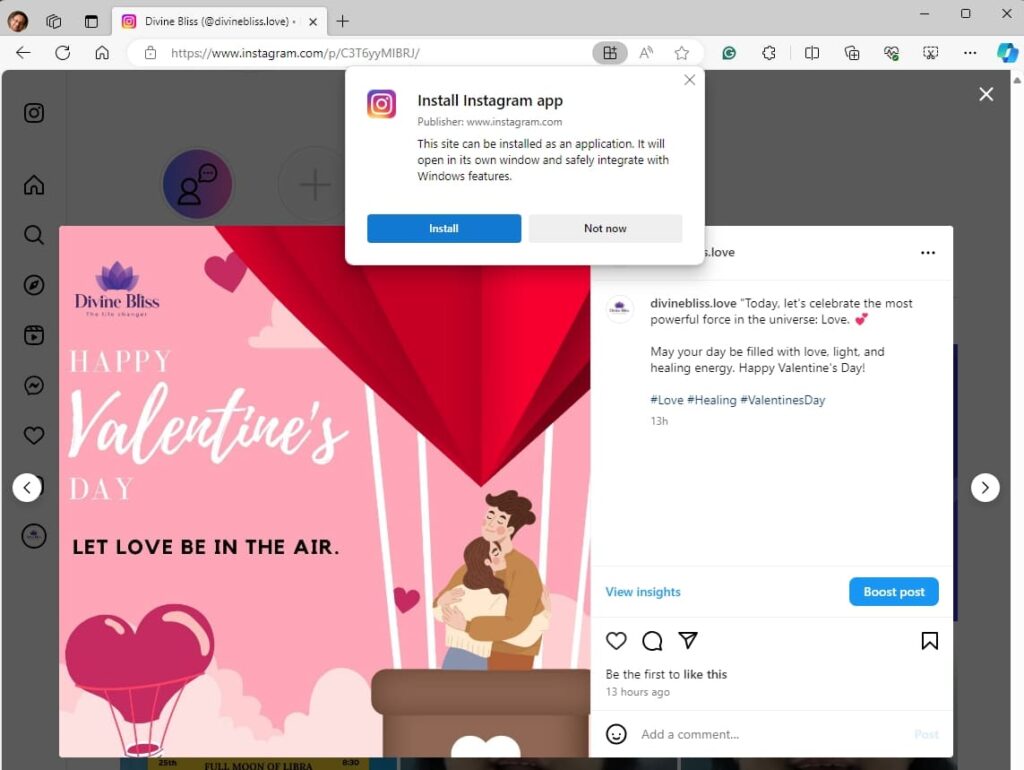
4. Once complete, Instagram will appear as an app in the Start Menu or Taskbar on your Windows PC.
The next time you launch the Instagram web app on your PC, you can create a new post or stream a live video.
Using Instagram on a PC
In the ever-evolving world of social media, accessing platforms like Instagram from a PC can enhance your online experience. This is equally useful for general users seeking convenience and for content creators who require advanced editing capabilities. The methods outlined in this guide offer flexibility and choices.
By accessing the Instagram app on your PC, you can send messages to your private Instagram account from the comfort of a larger screen.
FAQ
Q: Is it better to post to Instagram from a computer?
A: Computers offer powerful editing, bulk upload, and scheduling options, but lack mobile functionality and spontaneity. Mobile phones, on the other hand, are convenient for capturing real-time moments, but have limitations in editing capabilities and individual uploads.
Q: Is Instagram compatible with PCs?
A: You can post photos and videos to Instagram using your PC. However, you cannot share Instagram Stories, ads, IGTV posts, or Reels from your computer.